

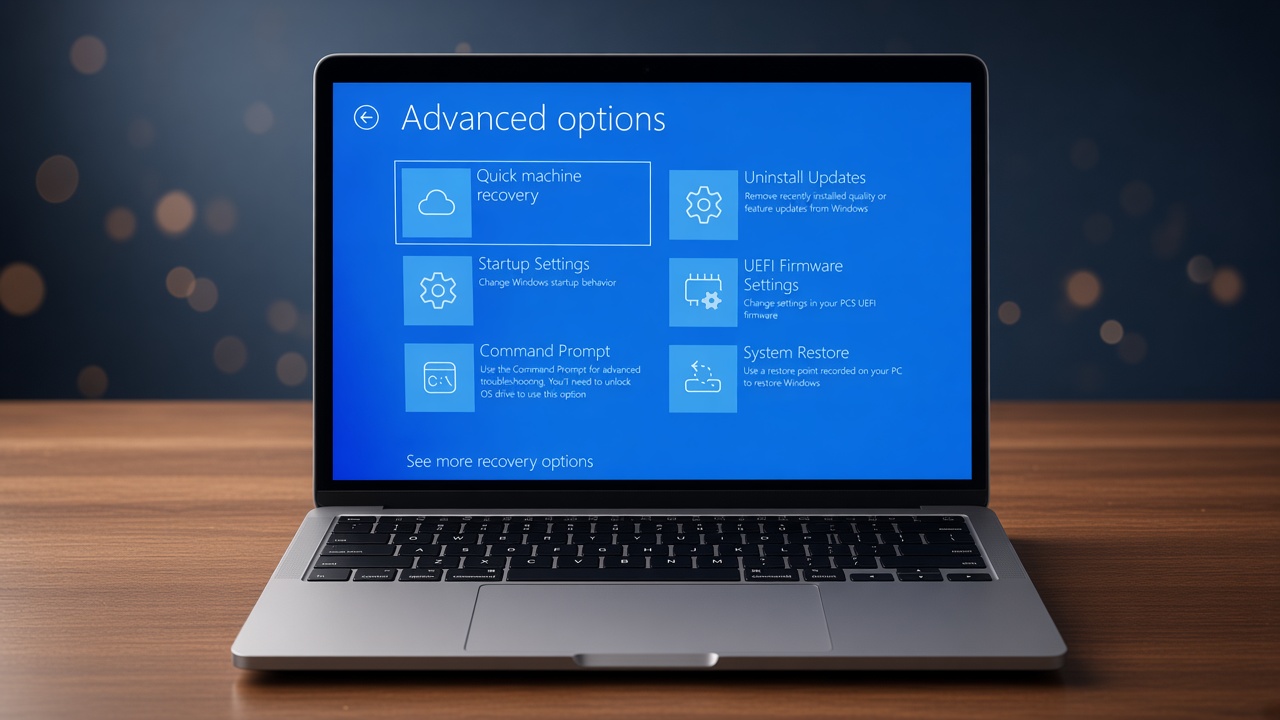
You press the power button, wait for the familiar Windows logo — and nothing happens. Or worse, your laptop boots partway, flashes a black screen, restarts itself, and gets stuck in the same loop again. A Windows 11 PC that won’t boot is one of the most stressful tech problems there is, especially if you have unsaved work or don’t have a recent backup.
The good news: in most cases, this isn’t a dead laptop. It’s usually a corrupted system file, a bad update, a driver conflict, or a boot configuration issue — all of which are fixable without sending your laptop to a repair shop. “The fixes below are arranged from the fastest and safest options to more advanced recovery steps.”.
Before You Start: Quick Checks
Before diving into deeper fixes, rule out the obvious:
- Check your power connection. If the laptop battery is fully drained, it may look like a boot failure when it’s actually a charging issue. Plug in the charger and wait 10-15 minutes before trying again.
- Remove all USB devices, external drives, and SD cards. Windows sometimes tries to boot from an external device by mistake, which can cause it to hang.
- Listen for beeps or watch for blinking lights. If your laptop beeps in a pattern or the power light blinks a specific number of times, that’s a hardware error code — check your manufacturer’s support site for what that pattern means before continuing, since the fixes below address software/boot issues, not hardware failure.
If none of that applies, move on to the fixes below.
Fix 1: Force a Hard Restart
This sounds too simple to work, but it resolves a surprising number of boot failures caused by a temporary glitch in the motherboard’s power state.
- Press and hold the power button for 10-15 seconds until the laptop fully shuts off (even if the screen looks frozen).
- Reconnect everything and power on normally.
This clears residual power in the capacitors and resets the hardware initialization sequence — it’s the equivalent of a hardware-level restart, not just a software one.
Fix 2: Boot Into Safe Mode
If a hard restart doesn’t work, try booting into Safe Mode, which loads Windows with only essential drivers. If your PC boots fine in Safe Mode, the problem is a driver or startup app, not Windows itself.
- Turn on the PC and, when the Windows or manufacturer’s logo appears, press and hold the power button until the PC shuts down. Repeat this once more. On the third startup, Windows should enter the Automatic Repair screen.
- On the “Choose an option” screen, go to Troubleshoot > Advanced options > Startup Settings > Restart.
- After restart, press 4 or F4 to boot into Safe Mode.
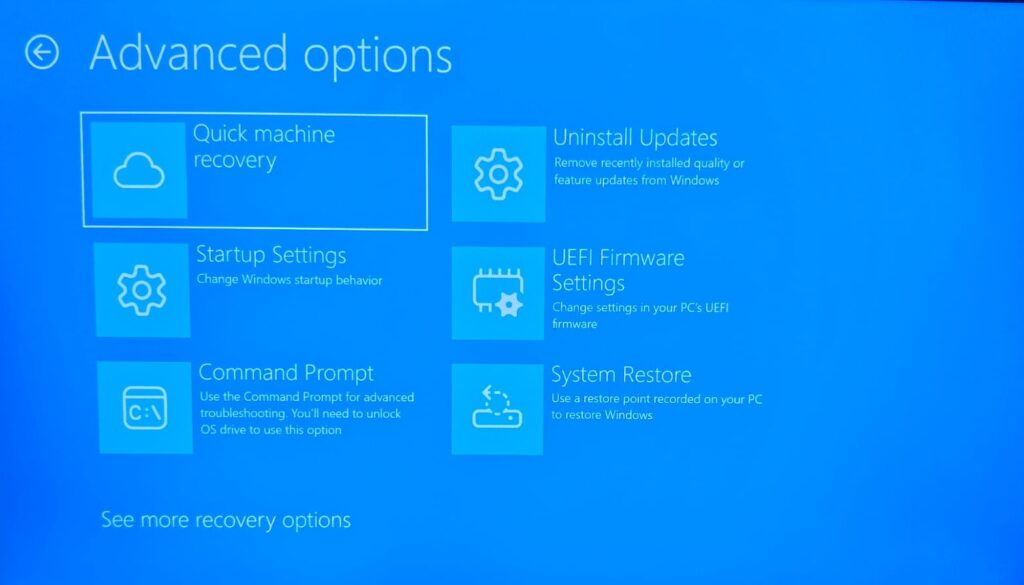
If Windows loads successfully in Safe Mode but not normally, the problem may be related to a recently installed driver, startup app, service, or other software that doesn’t load in Safe Mode. If the problem began after a recent update or driver installation, continue to Fix 6.
Fix 3: Run Startup Repair
Windows has a built-in repair tool designed specifically for boot failures.
- Get into WinRE using the same 3-forced-shutdown method from Fix 2.
- Go to Troubleshoot > Advanced options > Startup Repair.
- Let it scan and repair — this can take 10-20 minutes. Don’t interrupt it.
Startup Repair fixes common issues like a corrupted Boot Configuration Data (BCD) file, which is one of the most frequent causes of “Windows 11 won’t boot” reports.
Fix 4: Rebuild the Boot Configuration Data (BCD) Manually
⚠️ Warning: Command Prompt repairs are intended for more advanced troubleshooting. In Windows Recovery Environment, your Windows installation may use a different drive letter than C:. Make sure you identify the correct Windows drive before running repair commands.
- From WinRE, go to Troubleshoot > Advanced options > Command Prompt.
- Type the following commands, pressing Enter after each:
bootrec /fixmbr
bootrec /fixboot
bootrec /scanos
bootrec /rebuildbcd
- Restart normally once complete.
Note: If bootrec /fixboot returns an “Access is denied” error, your PC uses UEFI. You can safely skip that line and move directly to bootrec /rebuildbcd.
These commands can repair different parts of the Windows boot process, including boot code and the Boot Configuration Data (BCD). They can help when Windows has boot-configuration problems but the underlying Windows installation is still intact.
Fix 5: Run CHKDSK and SFC to Check for Corruption
Corrupted system files or a failing hard drive can both prevent Windows from loading.
- From the Command Prompt in WinRE, run:
chkdsk C: /f /r
This scans your drive for bad sectors and file system errors — it may take a while on larger drives.
- Once Complete, Run:
sfc /scannow
Note: SFC typically needs to run from within Windows, so if it doesn’t work from WinRE, try it once you’ve regained access via Safe Mode instead.
Fix 6: Uninstall the Last Windows Update or Driver
If your PC stopped booting shortly after a Windows update or a new driver install, that’s very likely your cause.
- Enter Windows Recovery Environment (WinRE).
- Go to Troubleshoot > Advanced options > Uninstall Updates.
- Choose the appropriate option to remove the most recent update and follow the on-screen instructions.
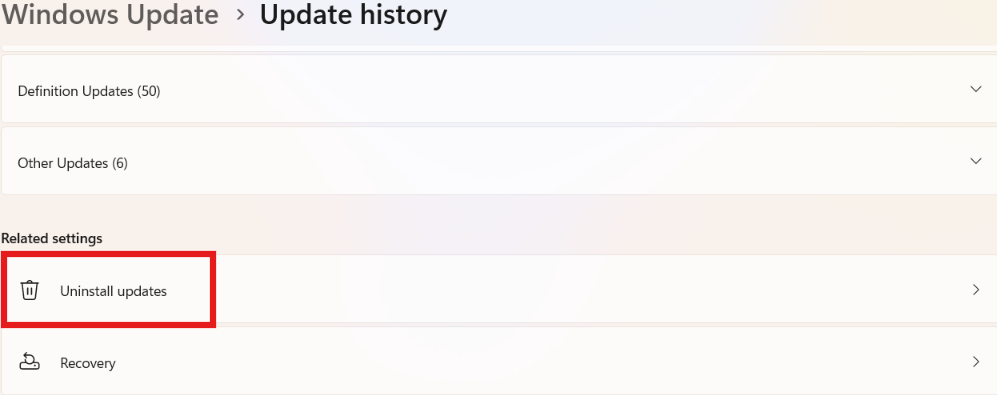
For a driver issue, open Device Manager, find the recently updated device (often graphics or network drivers), right-click, and select Roll Back Driver.
This is the single most common fix for boot failures that started suddenly after a routine update — we’ve seen this resolve the issue in Safe Mode testing more often than any other single step on this list.
Fix 7: Use System Restore
If System Protection was enabled and a suitable restore point is available, you can use System Restore to return Windows to an earlier state.
- From WinRE: Troubleshoot > Advanced options > System Restore.
- Choose a restore point dated before the boot issue began.
- Confirm and let Windows restart automatically.
This won’t delete your personal files, but it will remove apps and drivers installed after that restore point.
Fix 8: Disconnect Non-Essential Hardware
Sometimes the problem isn’t Windows at all — it’s a piece of connected hardware conflicting during boot.
- Unplug external monitors, docking stations, printers, and non-essential internal cards.
- If you’ve recently added new RAM or an SSD, try reseating it or temporarily removing it to see if the laptop boots on the original configuration.
Fix 9: Check the Hard Drive/SSD Connection
For desktops or laptops where you can access internals, a loose SATA or NVMe connection can cause a “no boot device found” style failure that looks identical to a Windows crash.
- Power off completely and unplug the device from the wall before opening the case.
- Reseat the drive cable and RAM sticks firmly.
Note: If you’re not comfortable opening your laptop, this is a good point to consult a technician rather than risk damaging components.
Fix 10: Reset This PC (Last Resort)
If nothing above works, Windows 11’s built-in reset feature can reinstall Windows while optionally keeping your personal files.
- From WinRE: Troubleshoot > Reset this PC.
- Choose Keep my files first — this reinstalls Windows but preserves your documents, photos, etc. (though not apps or settings).
Note: “If prompted, you may also be asked to choose between Cloud download and Local reinstall. Cloud download gets a fresh copy of Windows from Microsoft’s servers, while Local reinstall uses the Windows files already stored on the PC.”
- “If the PC still won’t boot after Keep my files, you may need to consider Remove everything or a clean Windows installation. Back up your important files first whenever possible.”
Important: Always back up files externally first if you have any boot access at all (even Safe Mode), since a failed reset can occasionally require a clean install.
Frequently Asked Questions
Q. Why does my Windows 11 laptop restart itself instead of booting normally?
This is usually caused by a corrupted BCD file, a failed update installation, or a driver conflict that crashes the system during startup. Fixes 3, 4, and 6 above address this directly.
Q. Is it safe to force restart my laptop repeatedly?
“Using forced shutdowns a couple of times to trigger Windows Recovery Environment is an established recovery method. However, don’t repeatedly interrupt Windows while it is installing an update or performing a reset, because interrupting those processes can cause additional problems.”
Q. Will I lose my files if Windows 11 won’t boot?
Not usually. Most of the fixes above (Startup Repair, System Restore, BCD rebuild, Reset This PC with “Keep my files”) do not touch your personal files. Only a full “Remove everything” reset erases data, and that should be your last option.
Q. How long does Startup Repair take?
“Startup Repair can take some time depending on the condition and speed of your drive. Don’t interrupt it simply because it hasn’t finished within a few minutes. If it repeatedly fails to repair the startup problem, return to WinRE and try another recovery option such as Uninstall Updates, System Restore, or Command Prompt.”
Q. What if none of these fixes work?
If you’ve tried all 10 fixes and the laptop still won’t boot, this points toward a hardware failure rather than a Windows software problem, and it’s worth having a technician run hardware diagnostics.
Your PC boots but gets stuck partway, see our guides on Windows 11 Stuck on Restart and Windows 11 Stuck on “Preparing Automatic Repair”. If it boots to a black screen after you enter your password, check Windows 11 Black Screen After Login.


