
Nothing is more frustrating than restarting your PC for a quick update only to find that Windows 11 gets stuck on the restart screen for minutes—or even hours. Whether it displays “Restarting” with a spinning circle, a black screen, or continuously reboots without reaching the desktop, the problem is usually fixable.
The good news is that you don’t have to reinstall Windows immediately. In most cases, the issue is caused by a failed Windows update, Corrupted system files, Outdated drivers, Startup conflicts, or Storage problems.
In this guide, you’ll learn 10 proven fixes that actually work in 2026, starting with the simplest solutions before moving to advanced troubleshooting.
Why Is Windows 11 Stuck on Restart?
Several issues can prevent Windows from completing the restart process.
The most common causes include:
- Interrupted Windows updates
- Corrupted system files
- Faulty or outdated device drivers
- Damaged boot configuration
- Startup applications causing conflicts
- SSD or HDD errors
- External USB devices interfering with boot
- Low available disk space
- Recent software installation
- Hardware problems
Fortunately, you can solve most of these without losing your personal files.
Fix 1: Wait at Least 30 Minutes
Before assuming something is wrong, give Windows enough time.
Large feature updates sometimes take 20–40 minutes, especially on older laptops or computers using traditional hard drives.
If the spinning circle is still moving, Windows may still be installing updates in the background.
Only continue with the next fixes if nothing changes after about 30 minutes.
Fix 2: Disconnect All External Devices
External hardware can sometimes prevent Windows 11 from completing the restart process.
Disconnect everything except your keyboard and mouse, including:
- USB flash drives
- External hard drives
- Printers
- Webcams
- USB hubs
- Memory card readers
- Gaming controllers
- HDMI adapters or docking stations
After removing these devices:
- Hold the Power button for about 10 seconds until the PC shuts down.
- Wait 30 seconds.
- Turn the computer back on.
If Windows starts normally, reconnect your devices one at a time to identify the one causing the problem.
Tip: Faulty USB devices and outdated peripheral drivers are common causes of restart issues after Windows updates.
Fix 3: Perform a Hard Shutdown
If Windows has completely frozen on the “Restarting” screen, a hard shutdown can clear the temporary system state.
Steps
- Press and hold the Power button for 10–15 seconds.
- Wait about 30 seconds.
- Turn the PC back on.
If Windows starts successfully, restart it once more from the Start menu to confirm the issue has been resolved.
Note: Avoid using a hard shutdown regularly, as interrupting Windows while it’s installing updates can occasionally lead to file corruption.
Fix 4: Boot into Safe Mode
If your computer continues getting stuck during restart, Safe Mode can help you troubleshoot by loading Windows with only essential drivers and services.
How to Enter Safe Mode
- Turn on your PC.
- As soon as the Windows logo appears, hold the Power button to force the device to shut down.
- Repeat this process three times.
- Windows should automatically open Automatic Repair.
- Select:
- Advanced options
- Troubleshoot
- Advanced options
- Startup Settings
- Restart
- Press 4 or F4 to enter Safe Mode.
If Windows boots successfully in Safe Mode, the issue is likely caused by:
- A faulty driver
- A recently installed application
- Startup software conflicts
- A Windows update problem
Fix 5: Run Startup Repair
Windows 11 includes a built-in repair tool that can automatically fix boot-related issues.
To Use Startup Repair:
- Enter the Windows Recovery Environment (WinRE).
- Select Troubleshoot.
- Choose Advanced options.
- Click Startup Repair.
- Select your Windows account and enter your password if prompted.
- Allow Windows to scan and repair startup issues automatically.
The repair process may take several minutes. Once it’s complete, restart your PC to see if the issue has been resolved.
Pro Tip: Startup Repair is particularly effective if the restart issue began after an unexpected shutdown, power outage, or failed Windows update.
Windows 11 Black Screen After Login? 12 Proven Fixes That Actually Work (2026)
The next section will cover the more advanced fixes:
- Fix 6: Run SFC and DISM Commands
- Fix 7: Uninstall Recent Windows Updates
- Fix 8: Update or Roll Back Device Drivers
- Fix 9: Check Your Disk for Errors
- Fix 10: Reset Windows 11 Without Losing Your Files
These advanced fixes often resolve persistent restart problems when the earlier solutions don’t.
Fix 6: Repair Corrupted System Files Using SFC and DISM
Corrupted or missing Windows system files can prevent the operating system from completing the restart process. Windows includes two built-in tools—System File Checker (SFC) and Deployment Image Servicing and Management (DISM)—to repair these files.
Step 1: Open Command Prompt
If you can access Windows:
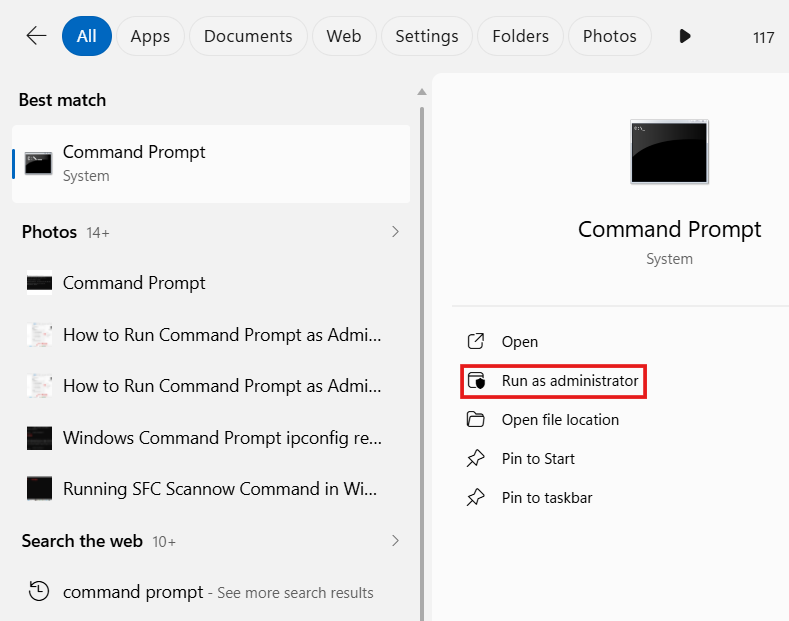
- Press Windows + S and search for Command Prompt.
- Right-click Command Prompt and choose Run as administrator.
If Windows won’t boot:
- Enter the Windows Recovery Environment (WinRE).
- Select Troubleshoot > Advanced options > Command Prompt.
Step 2: Run the SFC Scan
Type the following command and press Enter:
sfc /scannow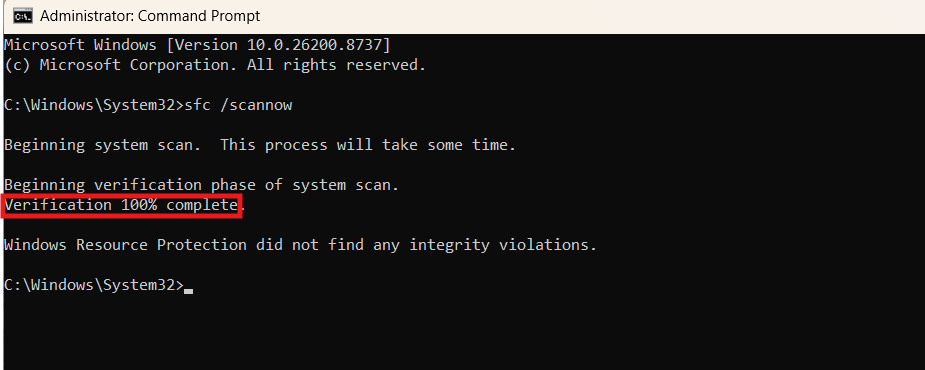
Wait for the scan to complete. This process may take 10–20 minutes.
Step 3: Run DISM
If SFC reports errors or cannot repair all files, run these commands one at a time:
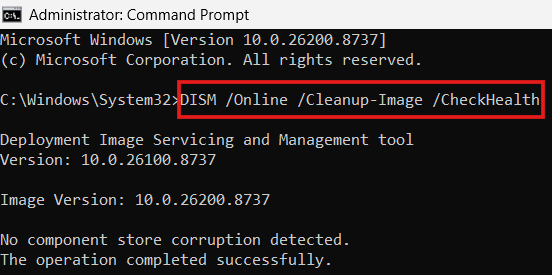
DISM /Online /Cleanup-Image /CheckHealth

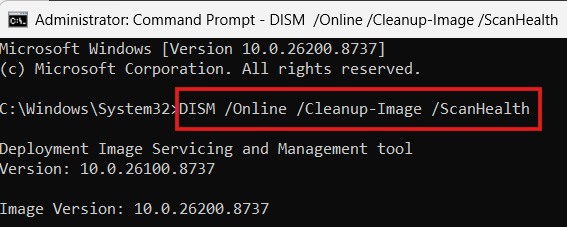
DISM /Online /Cleanup-Image /ScanHealth

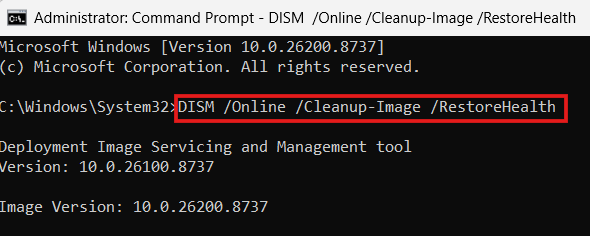
DISM /Online /Cleanup-Image /RestoreHealth
Illustrating the DISM /Online /Cleanup-Image /CheckHealth
Illustrating the DISM /Online /Cleanup-Image /ScanHealth
Illustrating the DISM /Online /Cleanup-Image /RestoreHealth
Once finished, restart your computer and check whether Windows boots normally.
Tip: Running both SFC and DISM together resolves many Windows update and restart problems caused by corrupted system files.
Fix 7: Uninstall the Latest Windows Update
Restart problems often begin immediately after installing a Windows update.
If that’s the case, removing the most recent update may restore normal operation.
Steps
- Boot into Windows Recovery Environment (WinRE).
- Go to Troubleshoot.
- Select Advanced options.
- Click Uninstall Updates.
- Choose one of the following:
- Uninstall latest quality update
- Uninstall latest feature update
- Follow the on-screen instructions and restart your PC.
If Windows starts successfully afterward, pause Windows Updates temporarily until Microsoft releases a more stable update.
Fix 8: Update or Roll Back Device Drivers
Faulty drivers—especially graphics, storage, or chipset drivers—can cause Windows to freeze during restart.
If You Can Access Windows
- Press Windows + X.
- Open Device Manager.
- Expand categories such as:
- Display adapters
- Storage controllers
- IDE ATA/ATAPI controllers
- System devices
- Right-click the suspected device.
- Choose Update driver.
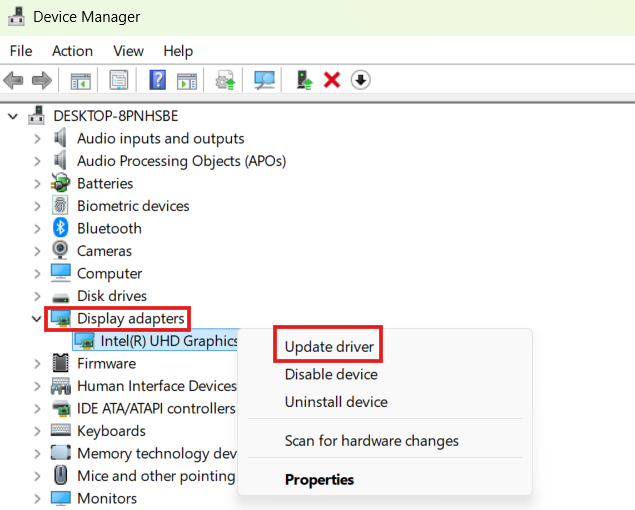
If the issue started after updating a driver:
- Open the device’s Properties.
- Go to the Driver tab.
- Select Roll Back Driver (if available).
Restart your computer after making any driver changes.
Note: Installing drivers directly from your laptop or motherboard manufacturer’s website is often more reliable than relying solely on Windows Update.
Fix 9: Check Your Drive for Disk Errors
Bad sectors or file system errors on your SSD or HDD can interrupt the restart process.
Windows includes the CHKDSK utility to scan and repair these issues.
Steps
Open Command Prompt as Administrator and run:
chkdsk C: /f /r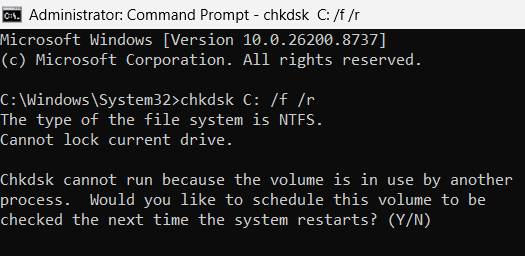
If prompted to schedule the scan for the next restart, type:
YPress Enter and restart your computer.
The scan may take some time, especially on larger drives, but it can fix errors that prevent Windows from restarting properly.
Fix 10: Reset Windows 11 Without Losing Your Files
If none of the previous solutions work, resetting Windows is often the most effective option.
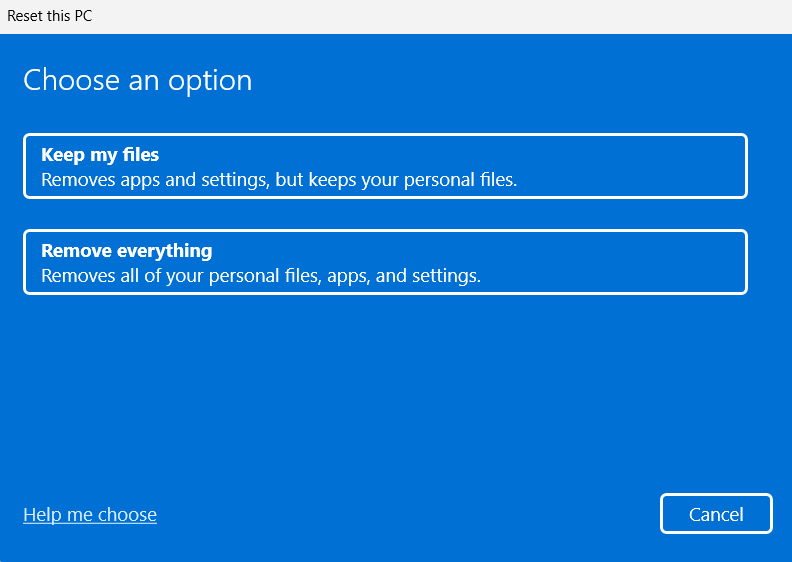
The Keep my files feature reinstalls Windows while preserving your personal documents, pictures, and other files.
Steps
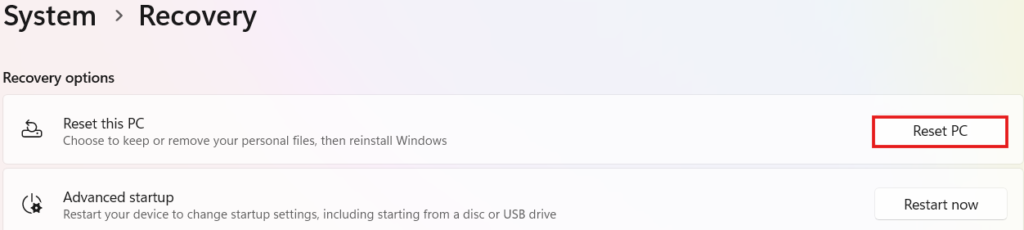
- Open Settings.
- Go to System > Recovery.
- Click Reset PC.
- Select Keep my files.
- Choose either:
- Cloud download
- Local reinstall
- Follow the on-screen instructions.
Although your personal files remain, you’ll need to reinstall apps and review your system settings after the reset.
Important: Back up important data whenever possible before performing a reset, even when choosing Keep my files.
When Should You Contact a Professional?
If your Windows 11 PC is still stuck on restart after trying all the fixes above, the issue may be hardware-related rather than software-related.
Consider seeking professional assistance if:
- Your computer repeatedly shows a blue screen (BSOD).
- You hear unusual clicking or grinding noises from the hard drive.
- The PC shuts down randomly during startup.
- Startup Repair and Reset PC both fail.
- Your SSD or HDD reports SMART errors.
- The motherboard or RAM appears to be faulty.
A qualified technician can perform hardware diagnostics and determine whether a component needs to be repaired or replaced.
For official Windows support, visit: Microsoft Windows Help
This is especially useful if the update is known to be problematic. Microsoft recently pulled and replaced several faulty updates.
For more troubleshooting guides, visit Techmart. Study our policies on the Contact Us and About Us pages on our website.
Frequently Asked Questions (FAQs)
Why is Windows 11 stuck on the restarting screen?
This usually happens because of a failed Windows update, corrupted system files, faulty drivers, startup conflicts, or storage errors. Running Startup Repair, SFC, and DISM often resolves the issue.
How long should Windows 11 take to restart?
A normal restart usually takes 30 seconds to 2 minutes. During major Windows updates, it can take 20–40 minutes, depending on your hardware.
Will forcing my PC to shut down damage Windows?
A forced shutdown is generally safe if Windows has been frozen for a long time. However, repeatedly interrupting updates or system processes may lead to file corruption, so use this method only when necessary.
Can a Windows update cause restart problems?
Yes. Occasionally, a Windows update may fail to install correctly or conflict with existing drivers, causing the system to become stuck on the restart screen.
Will resetting Windows 11 delete my files?
If you choose Keep my files, your personal files remain intact. However, installed applications and some system settings will be removed.
Final Thoughts
A Windows 11 computer stuck on the restart screen can be frustrating, but it doesn’t always mean your system is beyond repair. In most cases, the problem is caused by software issues such as corrupted system files, problematic updates, or driver conflicts.
Start with the simple solutions, like disconnecting external devices and performing a hard shutdown, before moving on to advanced fixes such as Startup Repair, SFC, DISM, or resetting Windows. By following the steps in this guide, you can often get your PC working again without losing your important files.
If one method doesn’t solve the problem, continue to the next. With patience and the right troubleshooting approach, most restart issues can be resolved successfully.