

Have you entered your password, pressed Enter, and then been greeted by nothing but a black screen? You’re not alone. The Windows 11 black screen after login issue is one of the most frustrating problems users experience. In some cases, you may still see your mouse cursor, while in others, the screen remains completely black.
This problem can occur after a Windows update, Graphics Driver failure, Corrupted system files, Startup Conflicts, or even faulty Hardware. The good news is that, in most cases, you can fix it without reinstalling Windows or losing your personal files.
In this guide, we’ll explain the most common reasons behind the issue and walk you through 12 proven solutions that have helped many Windows 11 users get their computers working again.
Whether you’re using a desktop PC or a laptop from Dell, HP, Lenovo, ASUS, Acer, or another manufacturer, these troubleshooting steps are easy to follow and suitable for beginners and experienced users alike.
What Causes a Black Screen After Login in Windows 11?
Before trying the fixes, it is necessary to understand what may be causing the problem. Some of the most common reasons include:
- Corrupted or outdated Graphics drivers
- A failed or incomplete Windows update
- Damaged System files
- Startup programs preventing Windows from loading correctly
- Incorrect Display settings
- Problems with Windows Explorer
- Fast Startup conflicts
- Malware or Software conflicts
- Loose Display cables or hardware issues
Knowing the possible cause can help you identify the right solution more quickly.
Fix 1: Restart Your Computer
Although it sounds simple, restarting your computer often resolves temporary system glitches.
Here’s how:
- Press Ctrl + Alt + Delete.
- Click the Power icon in the lower-right corner.
- Select Restart.
- Wait for Windows to boot normally.
If your desktop loads correctly after restarting, the issue was likely caused by a temporary software or driver problem.
Fix 2: Wake Up the Graphics Driver
Sometimes Windows is running normally, but the graphics driver becomes unresponsive.
To restart it instantly:
Press:
Windows + Ctrl + Shift + B
If successful:
- Your screen may briefly flicker.
- You’ll hear a short beep.
- The display should refresh.
This keyboard shortcut safely restarts the Graphics driver without rebooting your PC and is often effective after Graphics-related issues.
Fix 3: Restart Windows Explorer
If you can see your mouse cursor but not your desktop, taskbar, or icons, Windows Explorer may have stopped responding.
Follow these steps:
- Press Ctrl + Shift + Esc to open Task Manager.
- Click More details if Task Manager opens in compact mode.
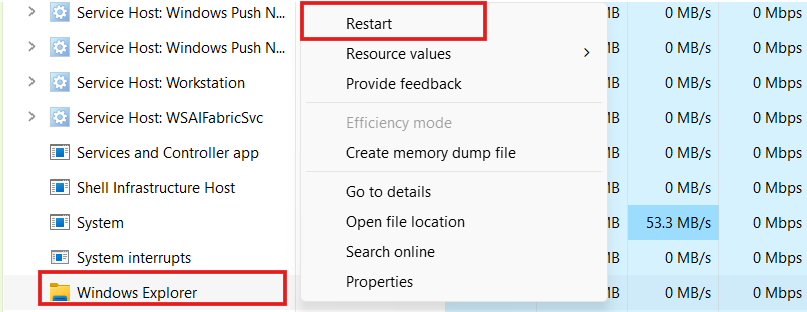
- Find Windows Explorer under the Processes tab.
- Right-click it and select Restart.
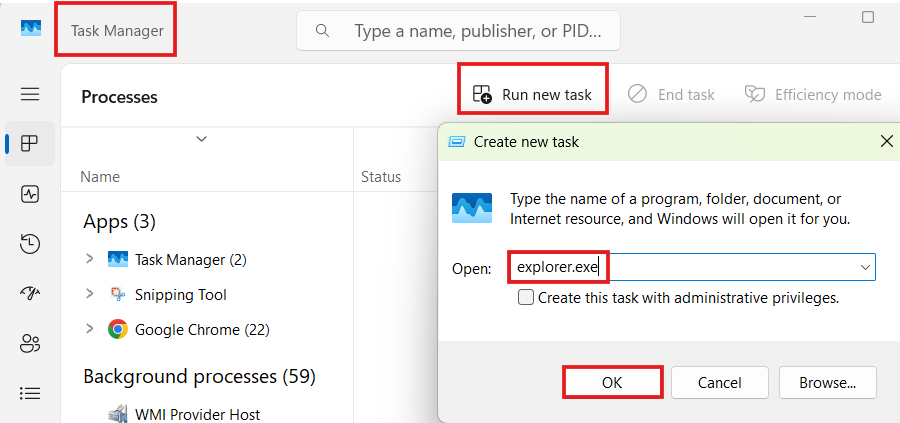
If Windows Explorer isn’t listed:
- In Task Manager, click File > Run new task.
- Type explorer.exe.
- Check Create this task with administrative privileges (if available).
- Click OK.
If your desktop appears, the issue was caused by Windows Explorer failing to load correctly.
Fix 4: Disconnect External Devices
External hardware can sometimes interfere with Windows during startup.
Disconnect all unnecessary devices, including:
- USB Flash drives
- External Hard drives
- Printers
- USB Hubs
- Docking stations
- SD cards
- Secondary monitors
After disconnecting them:
- Restart your computer.
- Log in again.
- Check whether Windows loads normally.
If the issue disappears, reconnect your devices one at a time to identify the problematic device.
Tip: Faulty USB devices or outdated peripheral drivers are common causes of startup issues.
DNS Server Not Responding on Windows 11? 12 Fixes That Actually Work
Fix 5: Boot into Safe Mode
If the black screen persists, Safe Mode starts Windows with only essential drivers and services, making it easier to diagnose the problem.
To Enter Safe Mode:
- Hold the Power button to force shutdown.
- Turn the PC back on.
- As soon as Windows starts loading, hold the Power button again to interrupt startup.
- Repeat this process three times.
- Windows should open the Automatic Repair screen.
- Select Advanced options.
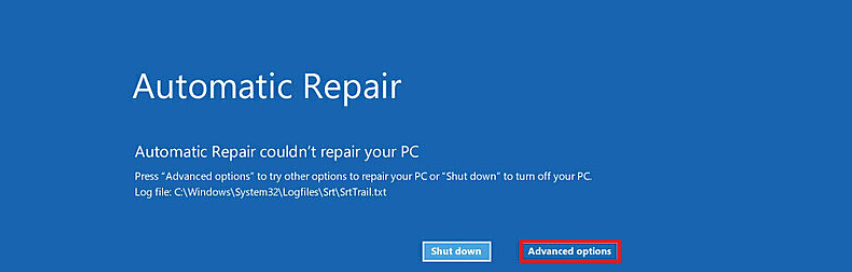
- Go to Troubleshoot > Advanced options > Startup Settings.
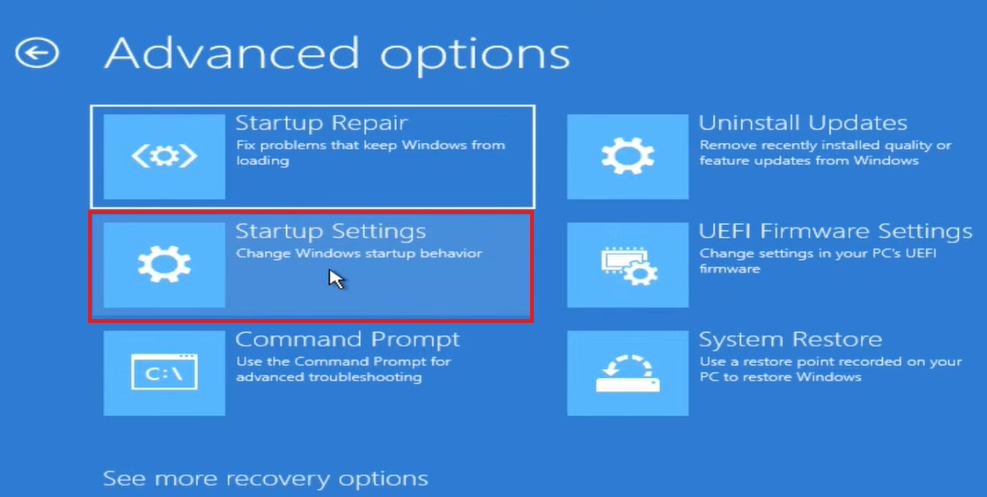
- Click Restart.
- Press 4 or F4 to start Safe Mode.
If Windows works correctly in Safe Mode, a third-party app, driver, or startup service is likely causing the black screen.
Fix 6: Update or Reinstall the Graphics Driver
Graphics driver problems are among the most common causes of a black screen after login.
Update the Driver:
- Press Windows + X.
- Select Device Manager.
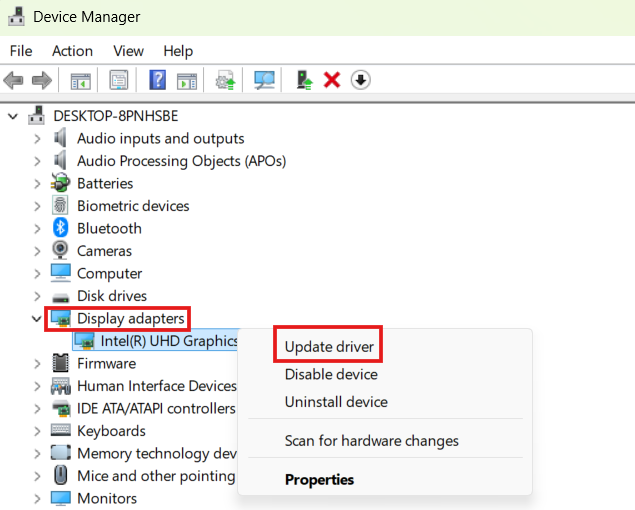
- Expand Display adapters.
- Right-click your graphics card.
- Choose Update driver.
- Select Search automatically for drivers.
If the problem started after a recent update, reinstalling the driver may help.
Reinstall the Driver:
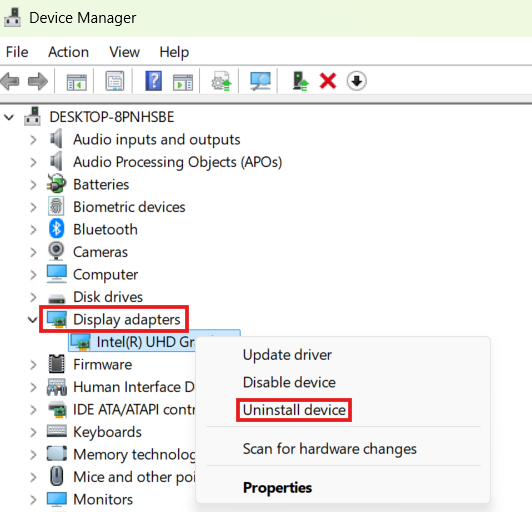
- Open Device Manager.
- Right-click your graphics card.
- Select Uninstall device.
- Check Attempt to remove the driver for this device if available.
- Click Uninstall.
- Restart your computer.
Windows will automatically install a basic display driver during startup. You can then install the latest graphics driver from your laptop or graphics card manufacturer’s website for the best performance.
Tip: If you’re using both integrated and dedicated graphics, make sure both drivers are updated.
Fix 7: Repair Corrupted System Files
Damaged Windows system files can prevent your desktop from loading correctly after you sign in. Fortunately, Windows includes built-in tools that can scan for and repair these files.
Run the System File Checker (SFC)
- Press Windows + X and select Windows Terminal (Admin) or Command Prompt (Admin).
- Type the following command:
sfc /scannow- Press Enter.
- Wait for the scan to finish. This may take 10–20 minutes.
- Restart your computer.
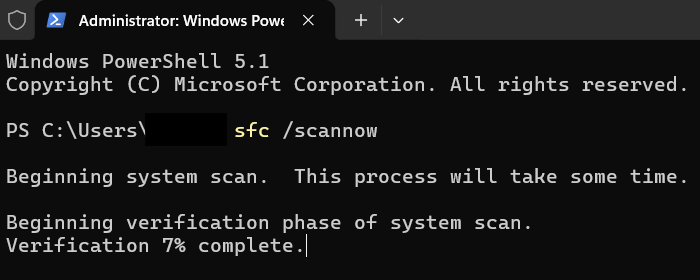
Note: Wait for the Verification process to complete; the image is for illustration purposes only.
If Windows finds corrupted files, it will attempt to repair them automatically.
If the issue continues, run DISM
Open Windows Terminal as an administrator again and enter:
DISM /Online /Cleanup-Image /RestoreHealthAllow the process to complete before restarting your PC.
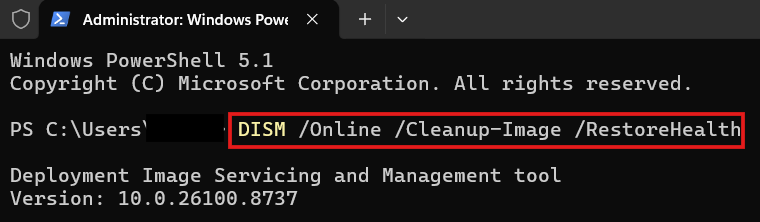
Tip: Run the DISM command first if SFC reports that it cannot repair some files.
Fix 8: Disable Fast Startup
Fast Startup is designed to reduce boot time, but it can occasionally cause startup conflicts after Windows updates or driver changes.
To Disable Fast Startup:
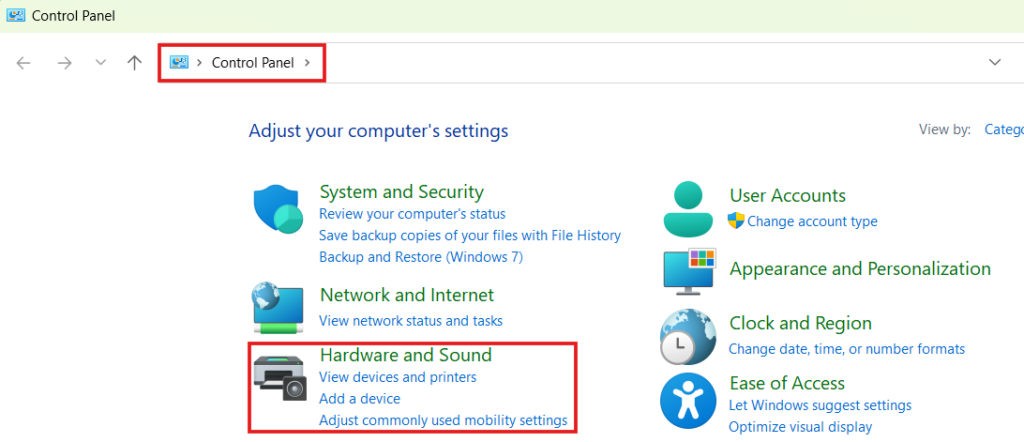
- Open the Control Panel.
- Click Hardware and Sound.
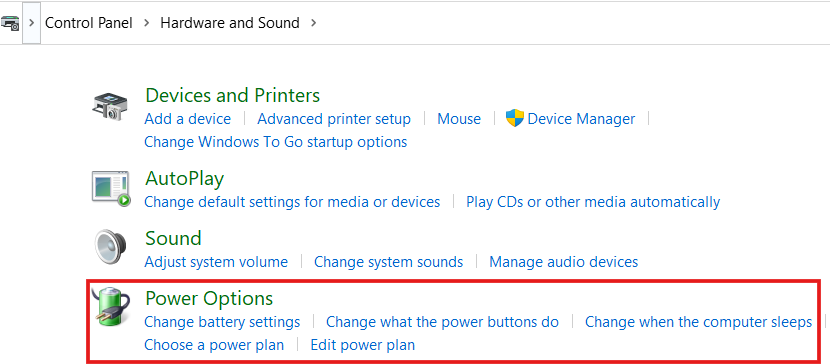
- Select Power Options.
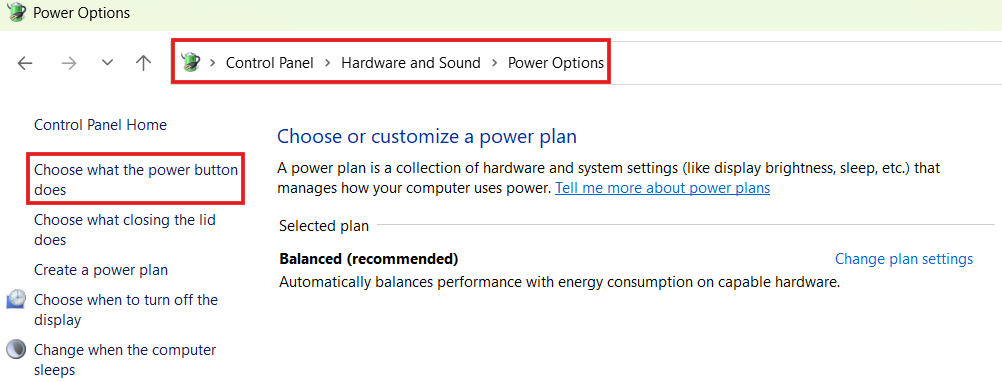
- Click Choose what the power buttons do.
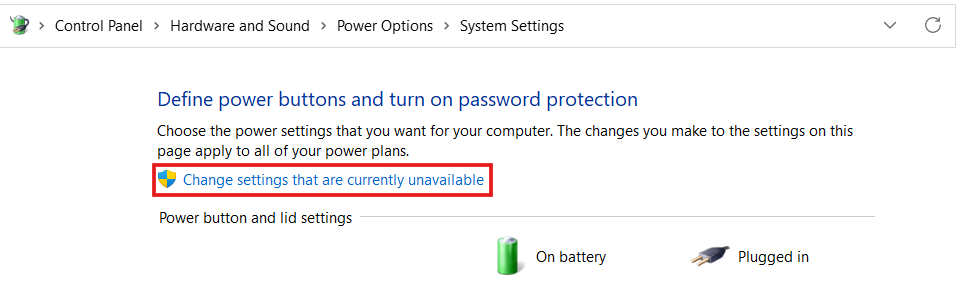
- Select Change settings that are currently unavailable.
- Under Shutdown settings, uncheck Turn on fast startup (recommended).
- Click Save changes.
- Restart your computer.
If the black screen no longer appears, Fast Startup was likely contributing to the issue.
Fix 9: Uninstall a Recent Windows Update
If the problem began immediately after installing a Windows update, removing that update may restore normal operation.
Here’s how:
- Open Settings.
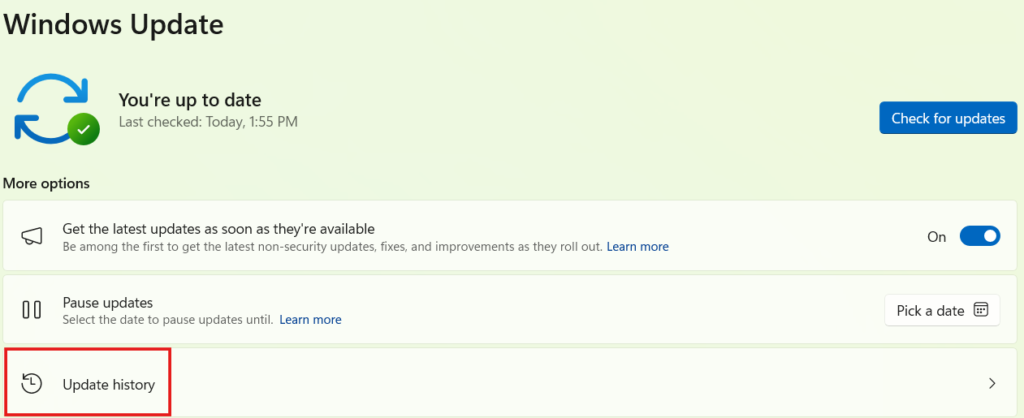
- Go to Windows Update.
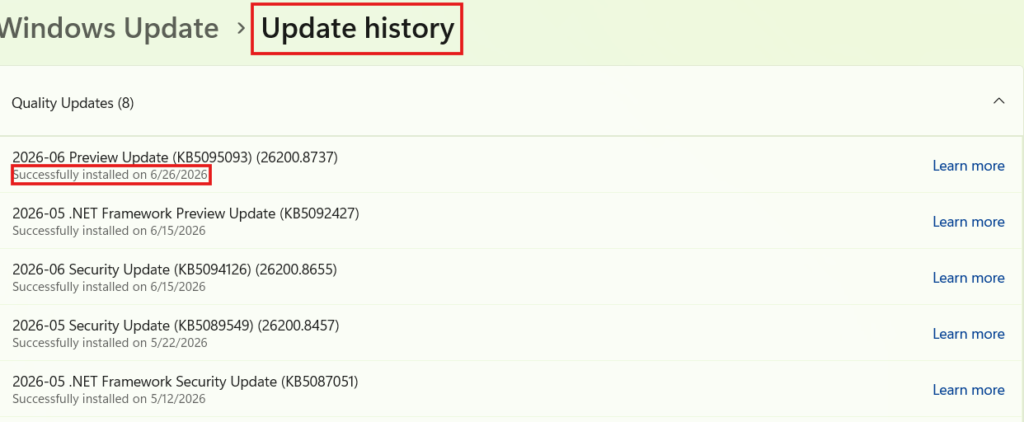
- Select Update history.
- Click Uninstall updates.
- Locate the most recent update.
- Click Uninstall.
- Restart your computer.
After confirming the issue is resolved, you can pause updates temporarily until Microsoft releases a more stable version.
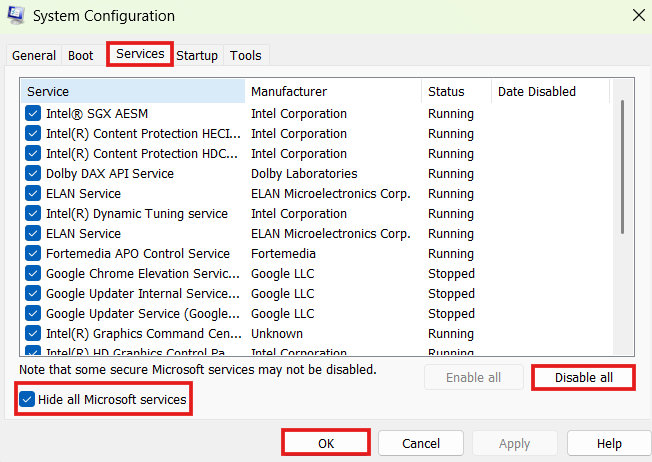
Fix 10: Perform a Clean Boot
A Clean Boot starts Windows with only essential Microsoft services, helping you determine whether a third-party application is causing the black screen.
Follow these steps:
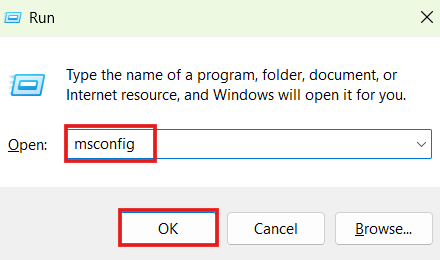
- Press Windows + R.
- Type msconfig and press Enter.
- Open the Services tab.
- Check Hide all Microsoft services.
- Click Disable all.
- Go to the Startup tab.
- Click Open Task Manager.
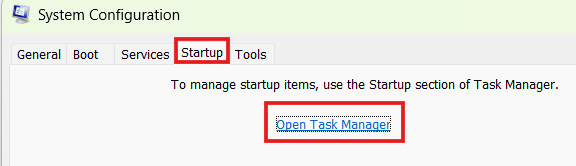
- Disable all startup applications.
- Restart your computer.
If Windows starts normally, enable the disabled services and Startup Apps one at a time until you identify the application causing the problem.
Note: Antivirus software, RGB control utilities, screen recording tools, and hardware management applications are common sources of startup conflicts.
Fix 11: Use System Restore
If the black screen issue started recently after installing new software, drivers, or Windows updates, System Restore can return your PC to a previous working state without affecting your personal files.
To perform a System Restore:
- Boot into the Windows Recovery Environment (Automatic Repair).
- Select Troubleshoot > Advanced options > System Restore.
- Choose your Windows account and enter your password if prompted.
- Select a restore point created before the black screen issue began.
- Click Next and then Finish.
- Wait for Windows to restore your system and restart.
If the restore is successful, your computer should boot normally again.
Note: Programs and Drivers installed after the selected restore point may need to be reinstalled.
Fix 12: Reset Windows 11 Without Losing Your Files
If none of the previous solutions work, resetting Windows can repair serious system issues while keeping your personal documents, photos, and other files.
Here’s how:
- Enter the Windows Recovery Environment.
- Select Troubleshoot.
- Click Reset this PC.
- Choose Keep my files.
- Follow the on-screen instructions.
- Wait for Windows to complete the reset.
Although your personal files will remain, installed applications and customized settings will be removed, so you’ll need to reinstall your software afterward.
Important: Back up your important files whenever possible before performing a reset.
Tips to Prevent the Windows 11 Black Screen Issue
You can reduce the chances of this problem happening again by following these best practices:
- Keep Windows 11 updated with stable releases.
- Install the latest graphics drivers from your PC or GPU manufacturer.
- Avoid forcing your computer to shut down during Windows updates.
- Create a System Restore point before making major system changes.
- Regularly scan your PC for malware.
- Keep enough free storage space on your system drive.
- Uninstall software you no longer use, especially programs that start automatically with Windows.
Conclusion
A black screen after logging into Windows 11 can be alarming, but it doesn’t always mean your computer has suffered a serious hardware failure. In many cases, the issue is caused by graphics driver problems, corrupted system files, faulty startup applications, or a problematic Windows update.
Start with the simpler solutions, such as restarting Windows Explorer, disconnecting external devices, and refreshing the graphics driver. If the issue persists, try Safe Mode, repair system files, disable Fast Startup, or use System Restore.
By following the 12 proven fixes in this guide, most users can resolve the Windows 11 black screen after login issue without reinstalling Windows or losing their personal files.
For official Windows support, visit: Microsoft Windows Help
This is especially useful if the update is known to be problematic. Microsoft recently pulled and replaced several faulty updates.
For more troubleshooting guides, visit Techmart. Study our policies on the Contact Us and About Us pages on our website.
Frequently Asked Questions (FAQ)
Why is my Windows 11 screen black after I log in?
This usually happens because of graphics driver issues, corrupted system files, startup software conflicts, or a failed Windows update. Hardware problems, such as a faulty monitor or loose display cable, can also cause a black screen.
What if I only see a black screen with my mouse cursor?
If you can move the mouse but your desktop doesn’t appear, Windows Explorer may have failed to start. Restarting Windows Explorer through Task Manager often fixes the issue.
Can outdated graphics drivers cause a black screen?
Yes. Outdated, corrupted, or incompatible graphics drivers are one of the most common reasons Windows 11 displays a black screen after login. Updating or reinstalling the driver often resolves the problem.
Will resetting Windows 11 delete my files?
If you choose Keep my files during the reset process, Windows will preserve your personal files. However, installed applications and custom settings will be removed.
How do I access Safe Mode if my screen stays black?
Interrupt the Windows startup process three times by holding the power button during boot. Windows should then load the Automatic Repair screen, where you can navigate to Troubleshoot > Advanced options > Startup Settings and boot into Safe Mode.