

By David James
Published: September 20, 2026 · Last Updated: September 20, 2026
If USB Audio is not working in Windows 11 after a recent update, you may suddenly find that your USB headphones, headset, speakers, DAC, or microphone has stopped working. In some cases, Windows may detect the device but produce no sound. You may also see an error in Device Manager or find that the volume controls are not responding normally.
This can happen because of a driver problem, incorrect sound output settings, Windows audio services, or an issue introduced by a recent update. Fortunately, you usually don’t need to reset Windows or replace your USB audio device.
In this guide, we’ll walk through 9 ways to fix USB audio not working in Windows 11, starting with the quickest checks and moving on to driver and Windows Update fixes. Try the solutions in order and stop when your USB audio starts working again.
Fix 1: Restart Your PC and Reconnect the USB Audio Device
A temporary Windows audio or USB problem can sometimes disappear after the system reloads its services and detects the device again.
- Unplug your USB headphones, headset, speakers, or other USB audio device from your computer.
- Open Start, select the Power button, and choose Restart. Wait for Windows to load completely before reconnecting the audio device.
- Plug the USB audio device directly into your computer. If possible, try a different USB port.
- Play a video or audio file and check whether the sound works. If your USB audio device still isn’t producing sound, don’t worry. Continue to the next fix.
If Windows isn’t detecting the device at all, see our guide on USB Device Not Recognized in Windows 11 for additional USB detection fixes.
Fix 2: Check the Selected Sound Output
Sometimes USB audio is not working in Windows 11 simply because Windows is sending sound to the wrong device. Your USB headset or speakers may be connected and detected, but your laptop’s built-in speakers or another audio device could still be selected as the output.
Here’s how to check it:
1. Open Windows sound settings
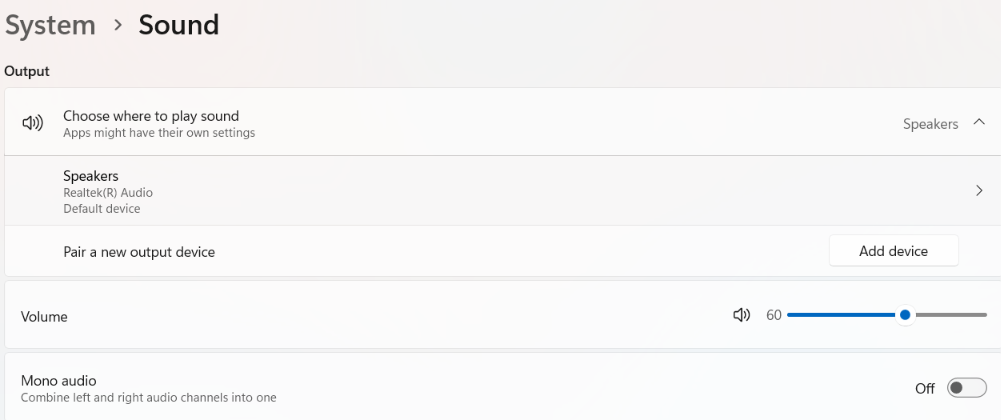
Press Windows + I to open Settings → Go to System > Sound.
2. Check the Output section
Under Output, look for your USB audio device. Depending on the hardware, it could appear as a USB headset, USB speakers, DAC, or another device name.
3. Check the volume
Make sure the volume isn’t muted and increase it using the volume slider. If your USB headset or speakers have their own physical volume control, check that as well.
4. Test the device
After selecting the USB device, play a video or another audio file. If you can hear sound now, the problem was simply that Windows was using a different output device.
If your USB audio device isn't listed under System > Sound, Windows may not be detecting it correctly. In that case, continue to the next fixes, where we'll check Windows' audio services and device drivers.Fix 3: Run the Windows Audio Troubleshooter
1. Open the Troubleshooter
Press Windows + I to open Settings.
Go to:
System > Troubleshoot > Other troubleshooters
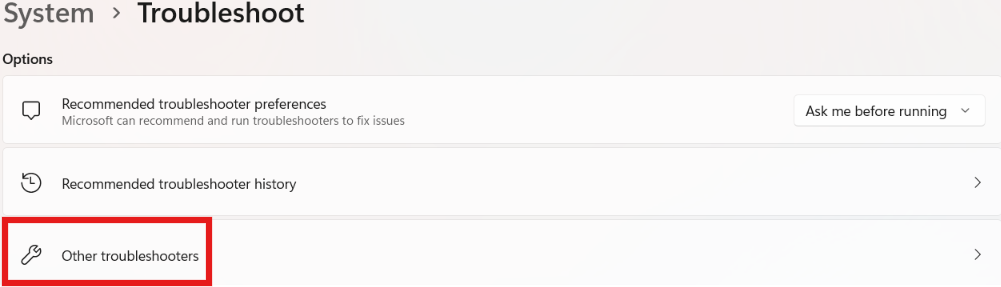
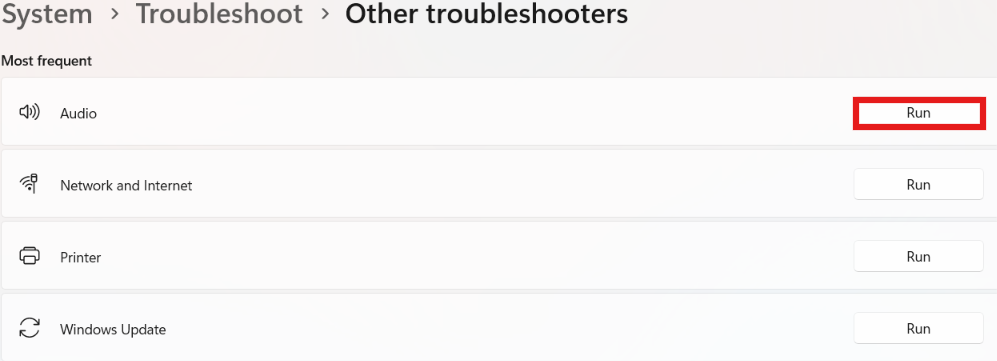
Find Audio or Playing Audio, depending on your version of Windows 11, and select Run.
2. Follow the recommendations
- Windows will check your audio configuration and may ask you to choose which device is having a problem.
- Select your USB headset, speakers, or other USB audio device if it appears in the list.
Follow any recommendations Windows provides.
Still no sound? Move on to the next fix and restart the Windows audio services that handle sound in the background.Fix 4: Restart Windows Audio Services
Windows relies on background services to manage sound. If one of these services becomes stuck after an update or system change, your USB headset, speakers, or DAC may stop producing audio.
1. Open the Services app
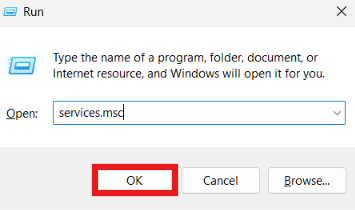
Press Windows + R to open the Run dialog.
Type:
services.msc
Then press Enter.
2. Find Windows Audio
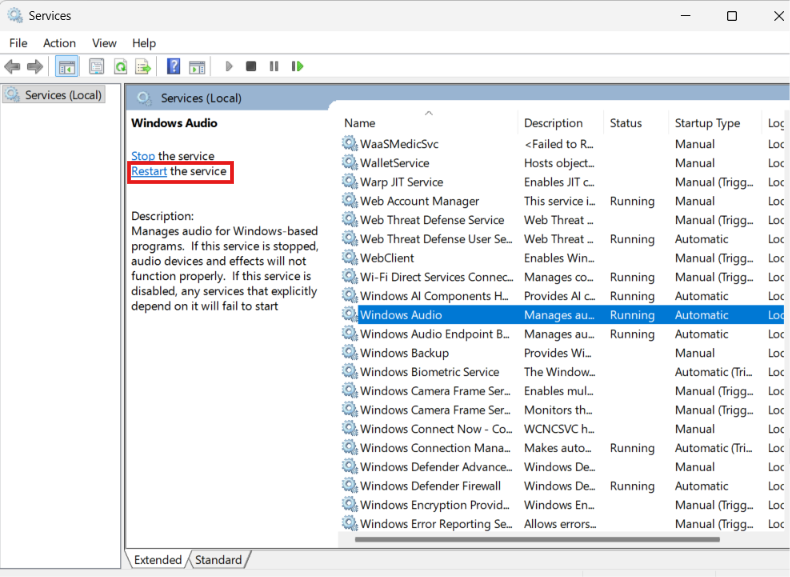
In the Services window, scroll down and find Windows Audio.
Right-click it and select Restart.
3. Restart Windows Audio Endpoint Builder
Find Windows Audio Endpoint Builder in the same list.
Right-click it and select Restart.
If the Restart option isn’t available, you can leave the service alone and continue.
Fix 5: Update or Reinstall the Audio Driver
1. Open Device Manager
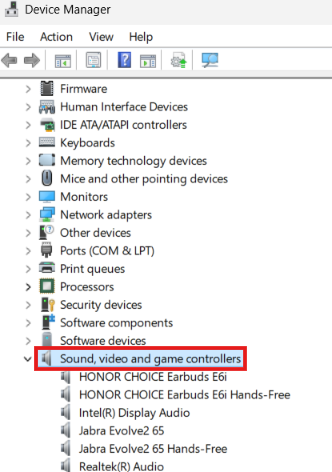
Press Windows + X and select Device Manager.
Expand Sound, video and game controllers.
2. Try updating the driver
Right-click your USB audio device and select Update driver. Choose Search automatically for drivers and allow Windows to check for an available driver.
3. Uninstall and reinstall the driver (If updating fails)
- Right-click your USB audio device again and select Uninstall device.
- If prompted, check the box for Attempt to remove the driver for this device and click Uninstall.
- Unplug your USB audio device from your PC.
- Restart your computer.
- After Windows loads, plug the USB audio device back in. Windows will automatically detect the device and reinstall a fresh copy of the default driver.
Similar driver and Windows-device issues can also affect other hardware. If you’re dealing with a missing Wi-Fi option, see our guide on Wi-Fi Option Missing in Windows 11.
Fix 6: Check Device Manager for Errors
1. Open Device Manager
Press Windows + X and select Device Manager.
Expand:
Sound, video and game controllers
Also check:
Audio inputs and outputs
Look for your USB headset, speakers, DAC, or another audio device.
2. Look for a warning icon
If you see a yellow exclamation mark next to the device, double-click it to open its properties.
Check the Device status section.
Windows may display an error message and a code explaining the problem.
3. Pay attention to Code 10
One possible message is:
“This device cannot start. (Code 10)”
This can indicate that Windows is having trouble starting the device or communicating with its driver.
If you see Code 10, first try updating or reinstalling the driver using the steps in Fix #5. You can also disconnect the device, restart Windows, and reconnect it directly to another USB port.
4. Check for hidden devices
If you can’t find the USB audio device, select View > Show hidden devices in Device Manager.
A previously connected device may appear with a faded icon.
Tip: If your USB audio device started showing an error immediately after a Windows update, note the exact error code before making changes. That information can help you identify whether the issue is update-related.
Fix 7: Turn Off Audio Enhancements
1. Open your sound settings
Press Windows + I to open Settings.
Go to:
System > Sound
Under Output, select your USB headset, speakers, DAC, or other USB audio device.
2. Find the audio enhancement settings
Look for Audio enhancements in the device’s settings.
Depending on your Windows 11 version and audio hardware, the available options may be slightly different.
If audio enhancements are enabled, select Off.
3. Test your USB audio
Play a video or another audio file and check whether the sound has returned.
If the problem remains, you can leave audio enhancements turned off while continuing with the other troubleshooting steps.
If you can't find the option, don't worry; the option isn't available for every audio device or driver. Fix 8: Roll Back a Recent Windows Update
If your USB audio was working normally before a Windows update and stopped working immediately afterward, the update may be related to the problem.
Before removing an update, make sure you’ve tried the earlier fixes in this guide. Microsoft may also release a newer update that resolves a compatibility problem, so removing an update should generally be treated as a temporary troubleshooting step.
1. Check your Windows Update history
Press Windows + I to open Settings.
Go to:
Windows Update > Update history
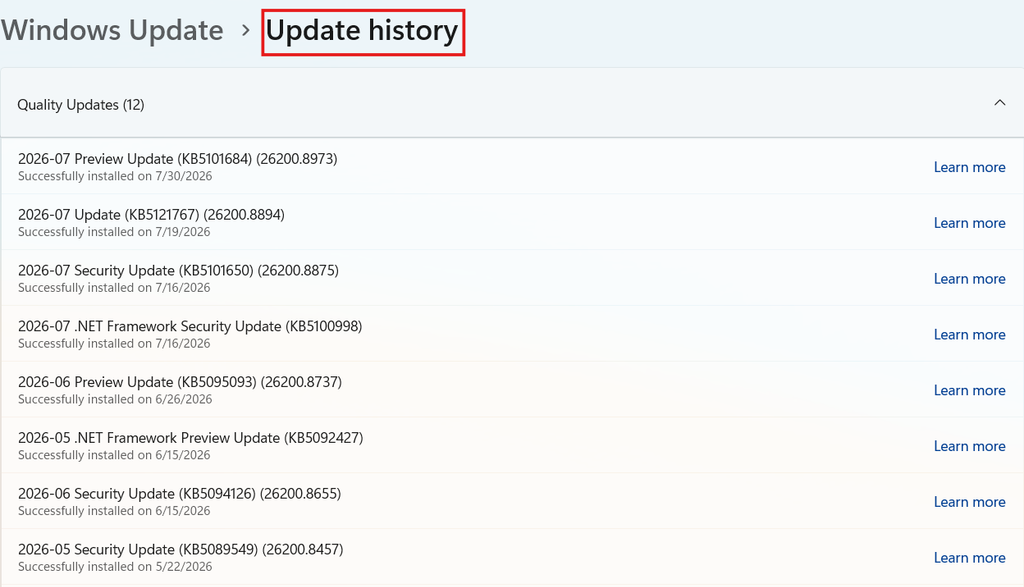
Look through the recently installed updates and note whether the USB audio problem started around the same time.
2. Open the uninstall options
In Update history, look for Uninstall updates.
Windows will show the updates you can currently remove.
Find the recent update that you believe was installed before the audio problem started.3. Uninstall the update
Select Uninstall next to the relevant update and follow the instructions on screen.
Windows may restart your computer during the process.
Important: Don’t remove an update simply because it is recent. An update can contain important security fixes, and the timing alone doesn’t prove that it caused your USB audio problem.
Fix 9: Check for the Latest Windows 11 Update
If your USB audio stopped working after a Windows update, check Windows Update first to see whether Microsoft has released a newer fix for your version of Windows. Microsoft sometimes releases a follow-up update when a known compatibility issue is discovered.
This is particularly relevant to the September 2026 USB audio problem, which affects some USB Audio Class 1.0 devices. Microsoft has released an out-of-band update that addresses certain multichannel audio failures, while other symptoms remain under investigation.
1. Open Windows Update
Press Windows + I to open Settings.
Go to:
Windows Update
Select Check for updates.
2. Install available updates
If Windows finds a newer update, review the available updates and install them.
If your PC needs to restart, save your work first and allow Windows to complete the installation.
3. Test your USB audio device
After updating Windows, restart your PC if required and reconnect the USB audio device.
Play some audio and check whether the problem has been resolved.
Is the September 2026 Windows Update Causing USB Audio Problems?
If your USB audio suddenly stopped working after a Windows 11 update in September 2026, you may be
affected by a known compatibility issue involving some USB Audio Class 1.0 devices.
Microsoft documented symptoms including no audio output, Code 10 in Device Manager, unresponsive volume controls, and sound settings that become unresponsive or unavailable. Some devices were also affected when using multichannel audio features such as 8-channel or 3D audio.
Microsoft released an out-of-band update on September 14, 2026, which resolved the 8-channel and 3D-audio portion of the problem. However, Microsoft says it is still working on the other reported symptoms.
If your USB audio problem started after the September update, first install the latest Windows updates available for your PC. If the problem continues, work through the troubleshooting steps in this guide and check Microsoft’s current Windows release-health documentation for further updates.
How to tell if you’re affected
Your problem may be related to the September update if:
- Your USB audio device worked normally before the update.
- The problem appeared shortly after installing the September 2026 update.
- Windows detects the device but produces no sound.
- Device Manager shows the device with Code 10.
- Your USB audio device uses the USB Audio Class 1.0 standard.
- Restarting Windows, reconnecting the device, and checking the basic sound settings haven’t helped.
These signs don’t prove that Windows Update is responsible, but the timing can provide a useful clue.
Check the manufacturer’s support page
Look up your exact model on the manufacturer’s official website.
Check for:
- Compatible Windows 11 drivers
- Firmware updates
- Known Windows compatibility issues
- Troubleshooting instructions for your specific model
Avoid downloading drivers or firmware from unofficial websites.
Don’t replace the device too quickly
If the device worked before a Windows update, don’t assume that it has suddenly failed. Check Windows Update, Device Manager, and the manufacturer’s support information first.
If the device fails on multiple computers and shows the same symptoms, however, hardware failure becomes a more reasonable possibility.
Frequently Asked Questions
Why is my USB audio not working after a Windows 11 update?
A Windows update can sometimes cause compatibility or driver problems with certain USB audio devices. Check your selected sound output, restart Windows Audio services, update the device driver, and install any newer Windows updates available for your PC.
Why does Windows detect my USB headset but there is no sound?
Windows may detect the headset without selecting it as the active audio output. Go to Settings > System > Sound and make sure your USB headset is selected under Output. If it is already selected, check its volume and continue with the troubleshooting steps in this guide.
How do I fix Code 10 on a USB audio device?
Open Device Manager, find the affected audio device, and check its properties. Try updating or reinstalling its driver, then restart Windows and reconnect the device. If Code 10 appeared immediately after a Windows update, check Microsoft’s current documentation for known compatibility issues.
Can a Windows update break USB audio?
Yes. Windows updates can occasionally introduce compatibility problems with specific hardware or drivers. Microsoft has documented a September 2026 issue affecting some USB Audio Class 1.0 devices, with symptoms including no sound and Code 10 on affected systems.
Why does my USB headset work on another computer but not mine?
If the headset works normally on another computer, the headset itself is less likely to be the cause. The problem could instead be related to your Windows audio settings, drivers, USB ports, or a Windows update on the original computer.
Should I uninstall the latest Windows update if USB audio stops working?
Not immediately. First, try the simpler fixes in this guide and check whether Microsoft has released a newer update addressing the problem. If the issue clearly began after a particular update and other troubleshooting hasn’t helped, uninstalling that update can be considered a temporary troubleshooting step.


