

Last updated: September 23, 2026
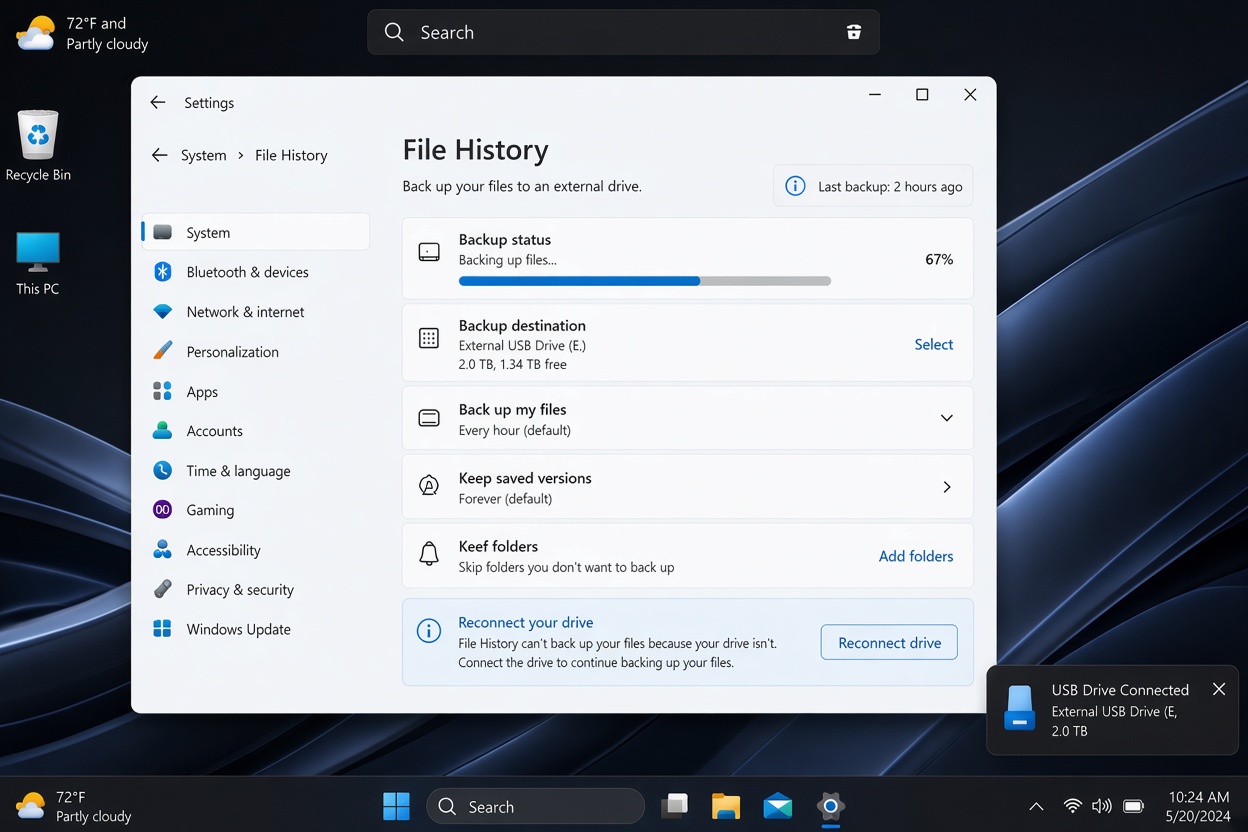
If File History is not working in Windows 11 after an update, you’re not necessarily dealing with a faulty external drive. Some users have reported that File History stopped creating or updating backups after the September 2026 Windows updates. In some cases, Windows shows “Reconnect your drive” even though the backup drive is connected and accessible.
Microsoft has acknowledged a File History issue affecting some Windows 11 systems after the September 2026 security update. The problem can prevent new File History backups from being created, stop the Last Backup time from updating, and make previously backed-up files appear unavailable.
The good news is that your existing backup files may still be on the drive. Before deleting anything or resetting File History, work through the checks below to find out whether the problem is caused by the recent update or by your backup setup.
Why Is File History Not Working After the Windows 11 Update?
File History can stop working for several reasons, including a disconnected drive, configuration problems, or issues with Windows itself. However, the timing matters if the problem appeared immediately after a recent update.
Microsoft has documented a known File History problem associated with the September 2026 Windows 11 security update (KB5124008). On affected systems, File History may fail to create or update backups even when the external drive is connected and working normally.
Common signs of the problem
You may be affected if you notice one or more of these symptoms:
- Windows repeatedly asks you to “Reconnect your drive.”
- File History stops creating new backups.
- The Last Backup timestamp no longer changes.
- Previously backed-up files show “No previous version available.”
- File History crashes when you try to run a backup.
- Your external drive opens normally in File Explorer, but File History still cannot use it.
If File History worked normally before the September update and stopped shortly afterward, check your Windows update history before making major changes to the backup drive. This can help determine whether you’re experiencing the known Windows issue rather than a hardware or drive problem.
Important: Don't format the backup drive, delete the File History folder, or remove your existing backup files just because File History has stopped updating. Your older backups may still be recoverable.1. Make Sure Windows Can Access the File History Drive
Before changing any File History settings, check whether Windows can access the drive you use for backups.
Open File Explorer and select This PC from the left sidebar. Find the external drive you normally use with File History.
Open the drive and try accessing a few folders or files. If the drive opens normally, Windows can at least communicate with it.
If the drive doesn’t appear, try these basic checks:
- Disconnect the USB drive and connect it to another USB port.
- Avoid using a USB hub or docking station temporarily.
- If possible, try a different USB cable.
- Restart your PC with the drive connected.
- Check whether the drive appears under This PC after Windows starts.
The drive works normally in File Explorer, but File History still says “Reconnect your drive.” Don’t format or erase the drive. Continue with the next fix.
2. Select the File History Drive Again
Sometimes Windows can access an external drive normally but File History doesn’t correctly recognize it as the backup destination.
You can select the drive again without immediately deleting your existing backup.
Here’s how:
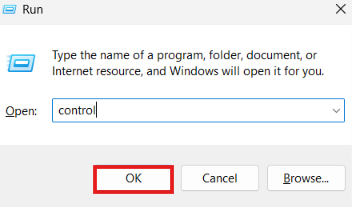
- Press Windows + R to open the Run dialog.
- Type
controland press Enter.
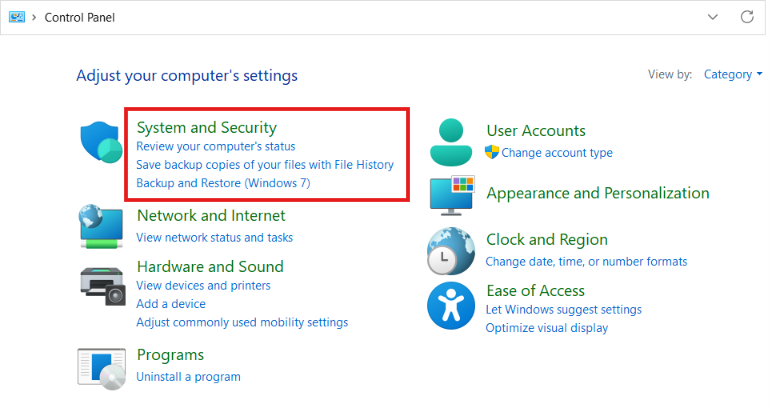
- Select System and Security.
- Open File History.
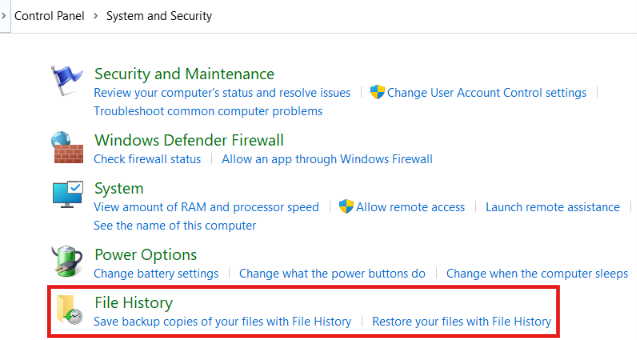
- Choose the drive you normally use for File History.
- Click OK.
If Windows asks whether you want to use the existing File History drive, read the message carefully before confirming anything. Don’t choose an option that formats or replaces the drive if you need the existing backups.
Once the drive is selected, return to the File History window and check whether the backup status changes.
If the Last Backup time still doesn’t update, move to the next step.
3. Run File History Manually
File History normally runs automatically according to its configured schedule, but you can also start a backup manually.
This is useful because it tells you whether File History can create a backup at all.
Try this:
- Open Control Panel.
- Go to System and Security → File History.
- Make sure your backup drive is selected.
- Click Run now.
Wait a few minutes and check the status.
If the backup starts and the Last Backup time changes, File History may still be working despite the earlier warning.
If nothing happens, or Windows immediately returns an error, don’t repeatedly click Run now. Continue to the next fix so we can identify what’s preventing File History from running.
Still seeing “Reconnect your drive”?
If your drive is visible and accessible in File Explorer but File History continues to report that it can’t find the drive, the problem may be inside Windows rather than with the physical connection.
That’s when checking the File History service becomes useful.
4. Check the File History Service in Windows 11
File History depends on Windows services to manage and process backups. If the related service isn’t running correctly, File History may fail even when your external drive is connected.
Here’s how to check it:
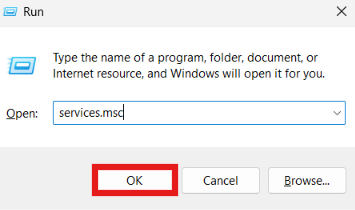
- Press Windows + R to open the Run dialog.
- Type
services.mscand press Enter.
- In the Services window, look for File History Service.
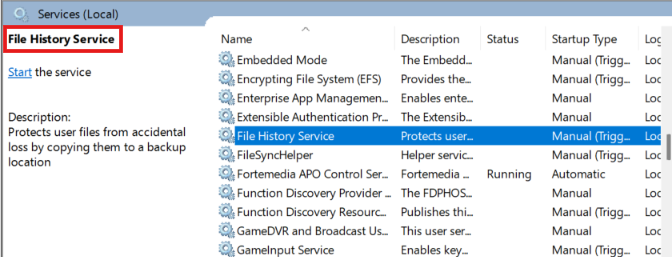
- Check its current status.
If the service is stopped, right-click it and select Start.
If it’s already running, right-click it and choose Restart.
After restarting the service, open File History from Control Panel and try Run now again.
If the service starts normally but File History still doesn’t create a backup, continue to the next fix.
Note: Don't change the startup type or other service settings unless you have a specific reason to do so. Simply starting or restarting the service is enough for this troubleshooting step.5. Check File History Errors in Event Viewer
If the basic fixes haven’t worked, Windows’ Event Viewer can give you a better idea of what’s happening behind the scenes.
This is particularly useful for the September 2026 File History problem because Microsoft has documented cases where File History-related processes can encounter errors.
Here’s how to check the logs:
- Press Windows + X and select Event Viewer.
- Expand Applications and Services Logs.
- Open Microsoft.
- Select Windows.
- Look for FileHistory-Engine.
- Check for recent Error or Warning entries.
Pay attention to errors that appeared around the time File History stopped working.
You may see references to FileHistory.exe, KERNELBASE.dll, or other File History components. Don’t worry if the technical details look confusing. The important part is whether the errors started around the same time as the backup problem.
If you find a File History error that appeared immediately after the September Windows update, save or note the error details before making further changes. They can help confirm that you’re dealing with a Windows-side problem rather than a failing backup drive.
6. Check Your File History Settings
Incorrect or changed File History settings can also prevent Windows from backing up the files you expect.
Open:
Control Panel → System and Security → File History
Then select Advanced settings from the left side.
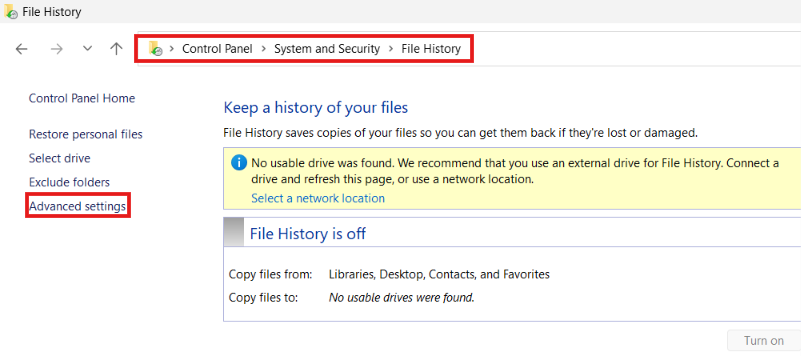
Check the following:
- Save copies of files: Make sure File History is configured to run rather than being disabled.
- Keep saved versions: Check that old versions aren’t being removed sooner than expected.
- Event logs: If available, review the recent File History activity for errors.
You can also select Exclude folders to see whether the folders you’re expecting to back up have accidentally been excluded.
Test the backup again
After checking the settings, return to the main File History window and select Run now.
Give Windows some time to process the backup. If the Last Backup timestamp changes, the problem may have been related to the File History configuration.
If it still refuses to update, don’t delete the existing File History data yet. The next step is more important: check whether the September 2026 Windows update is actually causing the problem.
7. Check Whether KB5124008 Caused the Problem
If File History was working normally before the September 2026 Windows update and stopped afterward, check your update history before making major changes.
The September 8 security update, KB5124008, is the update Microsoft currently lists in connection with the known File History problem. On affected systems, File History may stop creating or updating backups even when the backup drive is connected and working properly.
Check your Windows update history
- Press Windows + I to open Settings.
- Select Windows Update.
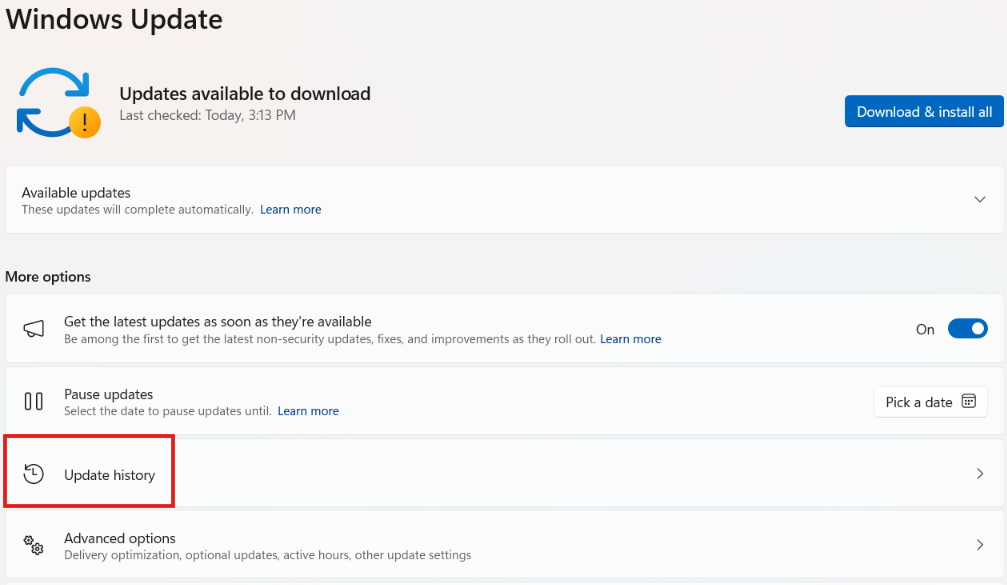
- Click Update history.
- Look under Quality Updates.
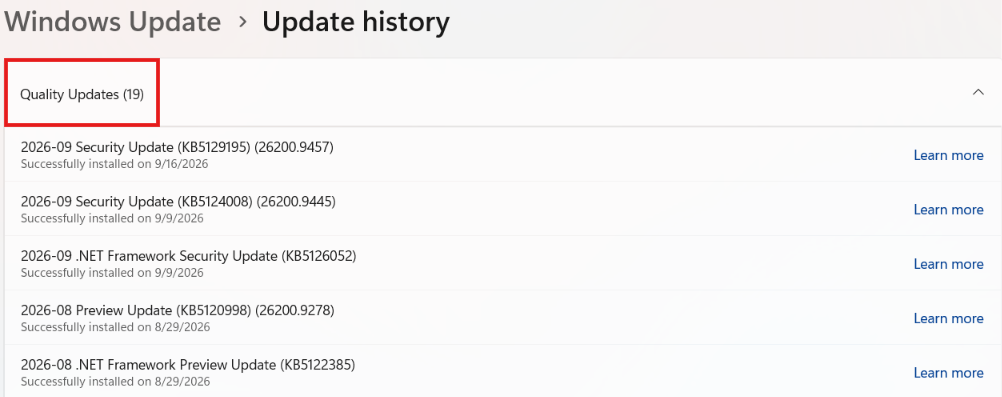
- Check whether KB5124008 appears in the list.
If File History stopped working shortly after this update was installed, the timing is an important clue.
You may also see KB5129195, Microsoft’s September 15 out-of-band update. At the time of writing, Microsoft has not listed that update as a resolution for the File History problem.
What if KB5124008 is installed?
Don’t immediately uninstall it.
KB5124008 is a security update, and removing a security update can leave your PC without protections included in that update. Microsoft currently says it is working on a resolution in a future Windows update.
Instead, continue with the next step and make sure your important files have another backup.
8. Protect Your Files Before Trying Risky Changes
If File History has stopped updating, don’t assume that your files are still being backed up.
Open your backup drive in File Explorer and check whether your existing File History data is still present. Avoid deleting, formatting, or renaming the existing backup folders while you’re troubleshooting.
This is especially important because the File History problem can make Windows display “No previous version available” even though the backup history was previously available. Microsoft lists this among the known symptoms.
Create a temporary second backup
For important documents, photos, school files, or other irreplaceable data, make a separate copy to another location while File History is unreliable.
For example, you can manually copy your most important folders to:
- Another external drive
- A trusted cloud-storage service
- Another computer on your network
The goal isn’t to replace File History permanently. It’s simply to make sure you don’t have one backup system that may currently be failing.
Important: If you already have older File History backups, don't delete them just because the latest backup isn't updating. Preserve the existing data until you know it is no longer needed.9. Install the Latest Windows Updates and Wait for Microsoft’s Fix
If you’ve confirmed that your drive works, File History is configured correctly, and the problem appeared after the September 2026 update, the issue may be caused by the Windows update itself rather than something you did.
If a recent Windows update caused another problem on your PC, you can also see our guide on Windows 11 USB Audio Not Working After Update.
Microsoft currently lists the File History problem as a known issue and says it is working on a resolution in a future Windows update.
For that reason, keep Windows Update enabled and regularly check for newer updates.
Check for updates
- Press Windows + I.
- Go to Windows Update.
- Select Check for updates.
- Install available updates from Microsoft.
- Restart your PC if Windows asks you to.
After updating, open Control Panel → System and Security → File History and check whether the Last Backup timestamp begins updating again.
If the problem remains, don’t repeatedly reset File History or erase the existing backup. Microsoft has not yet published a permanent resolution for this specific issue, so preserving your existing data and maintaining a separate backup is the safer approach for now.
Microsoft’s official KB5124008 release information
Should You Uninstall KB5124008?
If File History stopped working immediately after installing KB5124008, you may be wondering whether uninstalling the update is the answer.
For some users, removing KB5124008 has restored File History. Microsoft Q&A users have reported that the problem disappeared after uninstalling the September 2026 security update. However, these are user reports, not a general Microsoft recommendation to remove the update.
Because KB5124008 is a security update, uninstalling it should not be your first choice. Removing it can leave your PC without security fixes included in that update.
If you decide that temporarily removing the update is necessary, open Update history and select Uninstall updates if KB5124008 is available.
Before doing this, make sure your important files have another backup. Do not remove a security update simply to test File History if you have no other way to protect your data.
Microsoft has acknowledged the File History problem and says it is working on a resolution in a future Windows update. For most users, keeping Windows updated and using another backup method temporarily is the safer approach while waiting for that fix.
Important: Do not delete the File History folder or format your backup drive just because File History shows “Reconnect your drive.” The problem can be caused by Windows itself rather than the drive.Is Microsoft Going to Fix File History?
Yes. Microsoft has acknowledged the File History problem affecting some Windows 11 users after the September 2026 update.
According to Microsoft’s current Windows 11 known-issues information, users who installed KB5124008 may be unable to create or update File History backups. The issue can cause Windows to show “Reconnect your drive” even when the backup drive is connected and working correctly. Microsoft says it is working on a resolution that will be included in a future Windows update.
The issue was added to Microsoft’s known-issues information on September 19, 2026, so it is a relatively recent problem. If your File History stopped working around the same time as the September update, the Windows update may be the reason rather than a problem with your external drive.
Frequently Asked Questions
Why is File History not working after a Windows 11 update?
Microsoft has confirmed that some Windows 11 systems can stop creating or updating File History backups after installing KB5124008, the September 2026 security update. The issue can happen even when the backup drive is connected and working normally.
Why does Windows 11 say “Reconnect your drive” when my drive is connected?
The message can be caused by the September 2026 File History bug. Microsoft says affected PCs may incorrectly show “Reconnect your drive” even when a compatible backup drive is connected and functioning properly.
Before assuming the drive has failed, check the USB connection, confirm that Windows can access the drive, and check whether KB5124008 was recently installed.
What Windows 11 update broke File History?
Microsoft identifies KB5124008, released on September 8, 2026, as the update associated with the File History issue on Windows 11 24H2 and 25H2. Microsoft added the problem to the update’s known-issues list on September 19, 2026.
Is File History broken in Windows 11 25H2?
File History can be affected on Windows 11 25H2 after installing KB5124008. Microsoft says some customers may be unable to create or update backups and may see an incorrect “Reconnect your drive” message.
Will Microsoft fix File History?
Microsoft says it is working on a resolution and plans to provide it through a future Windows update. At the time of writing, Microsoft’s support page does not list a final resolution for this issue.
Should I uninstall KB5124008?
Uninstalling a security update should not be treated as a routine File History fix. Some users have reported that removing KB5124008 restored File History, but Microsoft has not recommended uninstalling the update as the general solution.
If you need to protect important files, use another backup method while waiting for Microsoft’s fix rather than leaving your PC without the security update.
Will my old File History backups be deleted?
The File History bug does not mean that your existing backup files are automatically deleted. If File History has stopped updating, your older backups may still be present on the backup drive.
Avoid formatting the drive or manually deleting the FileHistory folder while troubleshooting. Once File History is working again, check whether your previous file versions are available.

