

Imagine plugging in your USB flash drive, keyboard, mouse, external hard drive, or phone, only to see the frustrating message: “USB Device Not Recognized.”
Instead of connecting instantly, Windows 11 displays an error, and your device becomes unusable. This issue is surprisingly very common and can occur after Windows Updates, a Driver problem, Corrupted system files, faulty USB ports, or even power management settings.
The good news is that, in most cases, you don’t need to replace your laptop or USB device. With a few simple troubleshooting steps, you can identify the cause and restore normal functionality.
In this guide, we’ll walk you through 11 proven fixes that actually work. Whether you’re using a Desktop PC or a Laptop, these solutions are beginner-friendly and can help you get your USB devices working again.
Table of Contents
- Why Does Windows 11 Say “USB Device Not Recognized”?
- Fix 1: Restart Your Computer
- Fix 2: Try Another USB Port
- Fix 3: Test the USB Device on Another Computer
- Fix 4: Disconnect Other USB Devices
- Fix 5: Run the Windows Hardware Troubleshooter
- Fix 6: Update USB Drivers
- Fix 7: Reinstall USB Controllers
- Fix 8: Disable USB Selective Suspend
- Fix 9: Turn Off USB Power Management
- Fix 10: Install the Latest Windows Updates
- Fix 11: Repair Corrupted System Files
- Frequently Asked Questions
- Final Thoughts
Why Does Windows 11 Say “USB Device Not Recognized”?
Before fixing the problem, it’s really important to understand why it happens.
Common reasons include:
- Corrupted USB Drivers
- Faulty USB Ports
- Damaged USB Devices
- Windows Update issues
- Outdated Chipset Drivers
- Power-Saving settings disabling USB ports
- Corrupted Windows System files
- Hardware Compatibility problems
Fortunately, most of these issues can be resolved pretty easily with these 11 simple fixes without the need for professional repair.
Fix 1: Restart Your Computer
Difficulty: ⭐ Very Easy
Time Required: 2–3 Minutes
Sometimes, the simplest solution is the most effective. Temporary software glitches or background processes can prevent Windows 11 from correctly recognizing USB devices. Restarting your computer clears temporary memory, reloads system drivers, and often resolves minor USB detection issues.
How to Restart Your PC:
- Save any open work.
- Click the Start button.
- Select the Power icon.
- Click Restart.
5. After Windows boots up, reconnect your USB device.
Pro Tip: Avoid using Shut Down if Fast Startup is enabled. A full Restart reloads Windows drivers more completely and is more effective for troubleshooting than Shutting Down.
If It Doesn’t Work
If Windows still displays “USB Device Not Recognized,” move on to the next fix.
Fix 2: Try Another USB Port
Difficulty: ⭐ Very Easy
Time Required: 2 Minutes
Not every USB problem is caused by Windows. Sometimes the USB port itself is faulty, dirty, or unable to provide enough power to the connected device.
Testing another USB port helps determine whether the issue lies with the computer or the device.
What to Do
- Disconnect the USB device.
- Plug it into another USB port.
- If you’re using a desktop PC, try both the front and rear USB ports.
- If available, test both USB-A and USB-C ports.
Inspect the USB port for:
- Dust or lint buildup
- Bent metal pins
- Loose connections
- Visible damage
If needed, carefully clean the port using compressed air. Avoid inserting metal objects that could damage the connector.
Result
- Works in another port? The original USB port may be faulty.
- Still not detected? Continue to the next fix.
Fix 3: Test the USB Device on Another Computer
Difficulty: ⭐ Easy
Time Required: 5 Minutes
Before making changes to Windows, verify whether the USB device itself is functioning properly.
Testing the device on another computer helps identify whether the issue is with the USB device or your Windows 11 system.
Steps:
- Safely remove the USB device.
- Connect it to another Windows computer, Laptop, or any other compatible device.
- Wait a few moments for it to be detected.
What the Results Mean
| Result | Likely Cause |
|---|---|
| Works on another computer | Problem is with your Windows 11 PC. |
| Doesn’t work anywhere | The USB device may be damaged or defective. |
| Works intermittently | Possible cable or hardware issue. |
Pro Tip: Many USB cables, especially older ones, are designed only for charging and cannot transfer data. If you’re connecting a smartphone or external storage device, try a different high-quality data cable before assuming the device is faulty.
Fix 4: Disconnect Other USB Devices
Difficulty: ⭐ Easy
Time Required: 3 Minutes
Connecting too many USB devices at the same time can overload your computer’s USB controller or create driver conflicts.
This is especially common on laptops that have limited USB bandwidth or power.
Try This:
Disconnect all non-essential, not required USB devices, including:
- External Hard Drives
- USB Hubs
- Printers
- Game Controllers
- Card Readers
- USB Wi-Fi Adapters
- Bluetooth Adapters
- USB Microphones
Unplug only the device that’s causing the issue.
Restart your computer and test the device again.
Why This Works
Windows assigns resources to each connected USB device. Removing unnecessary devices frees up power and bandwidth, allowing Windows to detect the problematic device.
If You’re Using a USB Hub
If your USB device is connected through a Hub:
- Disconnect it from the Hub.
- Plug it directly into the Computer.
Some low-cost USB Hubs don’t provide sufficient power, especially for external hard drives, webcams, and other high-power devices.
Quick Progress Check
If you’ve completed the first four fixes and your USB device is still not recognized, don’t worry. The next steps focus on Windows settings, drivers, and system components, where the root cause is often found.
In the next section, we’ll cover:
- Fix 5: Run the Windows Hardware and Devices Troubleshooter
- Fix 6: Update USB Drivers
- Fix 7: Reinstall USB Controllers
Fix 5: Run the Windows Hardware and Devices Troubleshooter
Difficulty: ⭐⭐ Easy
Time Required: 5 Minutes
Windows 11 includes built-in troubleshooting tools that can automatically detect and fix hardware-related issues. While the traditional Hardware and Devices Troubleshooter isn’t visible in the Settings app, you can still access it using a simple command.
How to Run the Troubleshooter
- Press Windows + R to open the Run dialog box.
- Type the following command and press Enter:
msdt.exe -id DeviceDiagnostic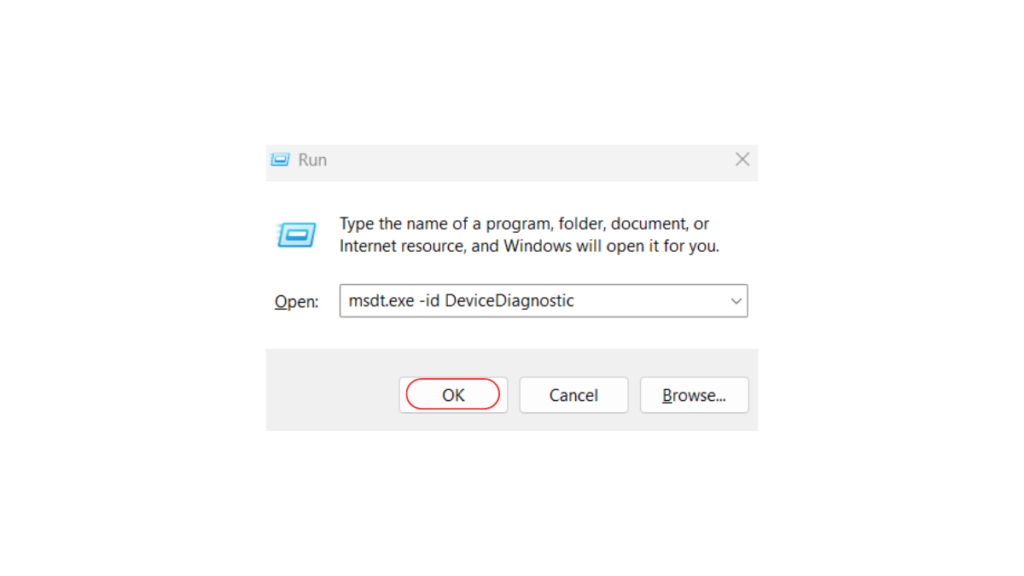
- The Hardware and Devices Troubleshooter will open.
- Click Next.
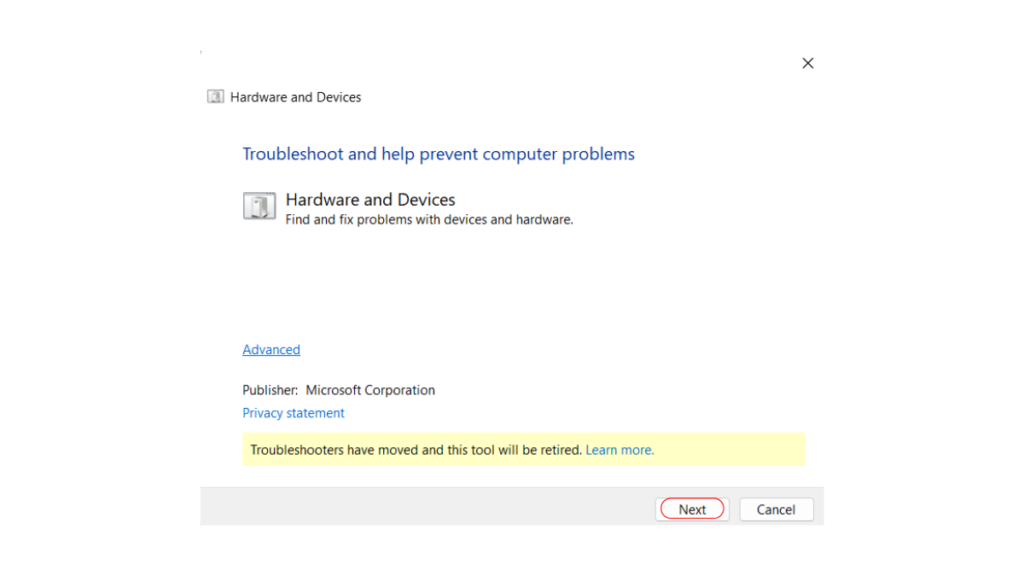
- 5. Allow Windows to scan for hardware problems
- 6. If any issues are found, follow the recommended fixes.
- 7. Restart your computer if prompted.
Why This Helps
The troubleshooter can automatically detect:
- Driver Configuration issues
- Hardware Conflicts
- Missing or Incorrect settings
- Common USB communication problems
Bluetooth Missing in Windows 11? 10 Fixes That Actually Work
Quick Summary
| Good For | Driver issues, hardware conflicts, configuration errors |
|---|---|
| Success Rate | Moderate |
| Risk | None |
Pro Tip: Even if the troubleshooter doesn’t find a problem, continue with the next fixes. Many USB issues require manual driver updates.
Fix 6: Update USB Drivers
Difficulty: ⭐⭐ Easy
Time Required: 5–10 Minutes
Outdated or corrupted USB drivers are one of the most common reasons Windows 11 fails to recognize USB devices.
Updating these drivers can restore communication between your computer and connected hardware.
Update USB Drivers Using Device Manager
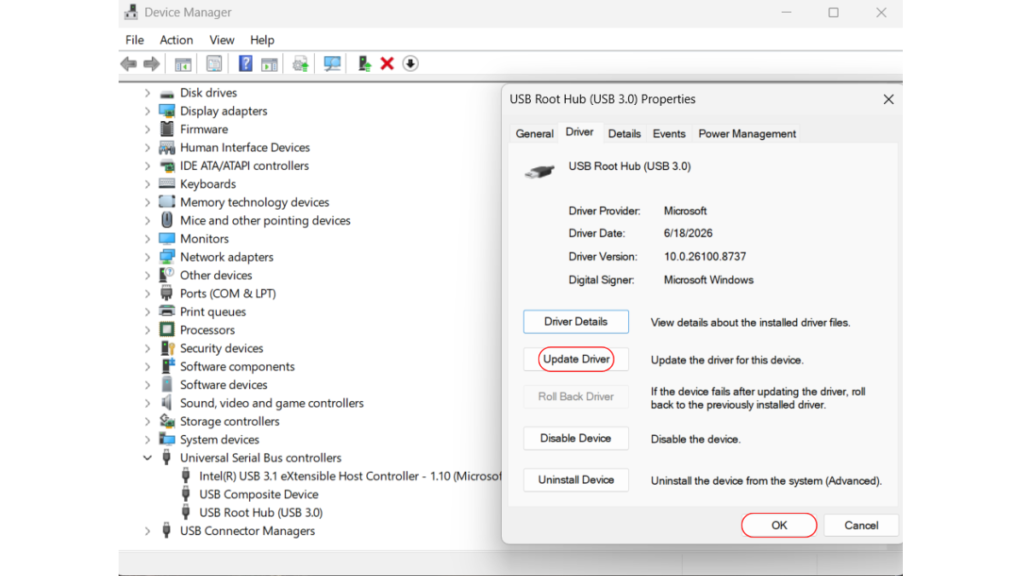
- Right-click the Start button.
- Select Device Manager.
- Expand Universal Serial Bus controllers.
- Look for:
- Unknown USB Device
- USB Root Hub
- Generic USB Hub
- USB Composite Device
- Right-click the device.
- Select Update driver.
- Click Search automatically for drivers.
- Follow the on-screen instructions.
Also Check These Categories
Sometimes the affected device appears under:
- Disk Drives
- Portable Devices
- Human Interface Devices
- Other Devices
If you see a yellow warning icon, update that driver as well.
What if Windows Can’t Find a Driver
If Windows reports that the best driver is already installed:
- Visit your laptop or motherboard manufacturer’s website.
- Download the latest chipset and USB drivers.
- Install them and restart your PC.
Pro Tip: Installing the latest chipset drivers from your PC manufacturer often resolves USB problems that Windows Update cannot.
Fix 7: Reinstall USB Controllers
Difficulty: ⭐⭐⭐ Moderate
Time Required: 10 Minutes
If updating the drivers doesn’t solve the issue, reinstalling the USB controllers can force Windows to rebuild its USB configuration.
Don’t worry—Windows automatically reinstalls these drivers after a restart.
How to Reinstall USB Controllers
- Open Device Manager.
- Expand Universal Serial Bus controllers.
- Right-click each of the following (one at a time):
- USB Root Hub
- Generic USB Hub
- USB Host Controller
- Click Uninstall device.
- Confirm the removal.
- Repeat for all USB controllers listed.
- Restart your computer.
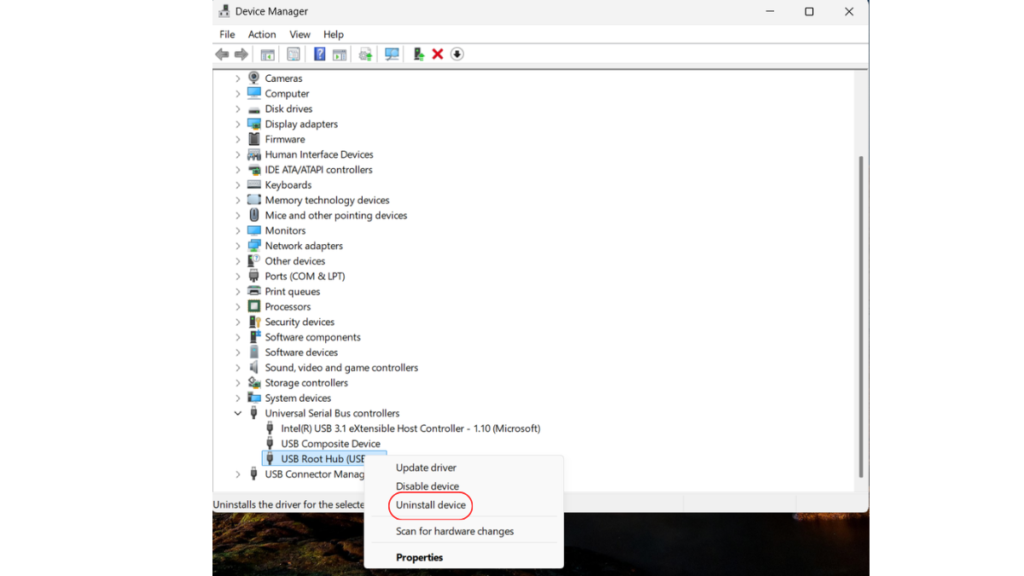
Windows will automatically reinstall fresh copies of these drivers during startup.
Why This Works
Over time, USB controller drivers can become corrupted due to:
- Failed Windows updates
- Driver conflicts
- Unexpected shutdowns
- Software installations
Reinstalling them removes corrupted configurations and restores default settings.
Important
Do not panic if your USB mouse or keyboard stops working temporarily during the uninstall process. Once you restart the computer, Windows should reinstall the drivers automatically, restoring functionality.
Fix 8: Disable USB Selective Suspend
Difficulty: ⭐⭐⭐ Moderate
Time Required: 5 Minutes
Windows 11 includes a power-saving feature called USB Selective Suspend. While it’s designed to conserve battery life, it can sometimes unexpectedly turn off USB ports, causing connected devices to disconnect or become unrecognized.
Disabling this feature can improve USB stability, especially if you’re using external hard drives, webcams, or other power-hungry devices.
Steps to Disable USB Selective Suspend
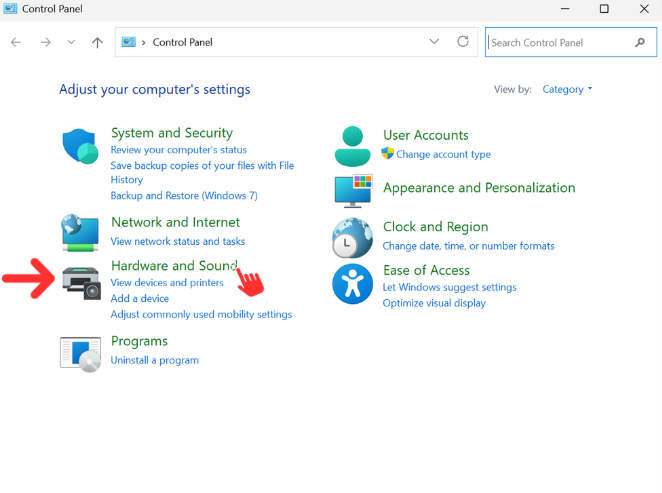
- Press Windows + S and search for Control Panel.
- Open Control Panel.
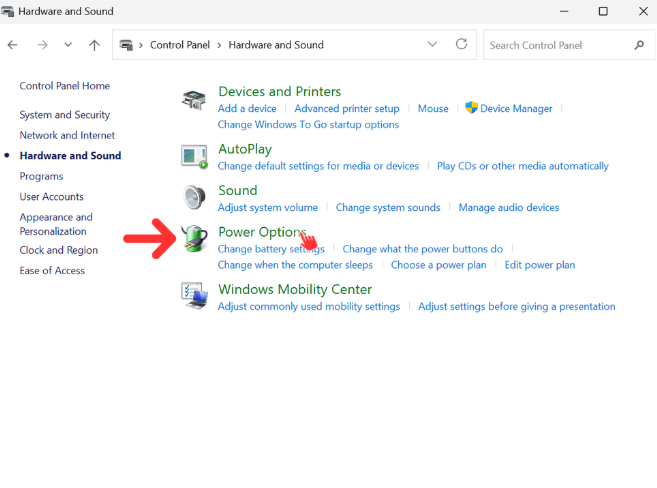
- Click Hardware and Sound > Power Options.
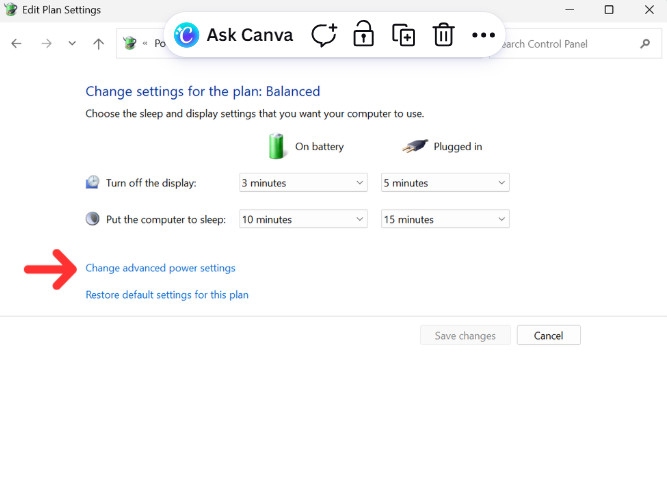
- Select your current power plan and click Change plan settings.
- Click Change advanced power settings.
- Expand USB settings.
- Expand USB selective suspend setting.
- Set it to Disabled for both:
- On battery (laptops)
- Plugged in
- Click Apply, then OK.
- Restart your computer.
Why This Works
Disabling USB Selective Suspend prevents Windows from automatically powering down inactive USB ports, which can resolve intermittent connection issues and detection failures.
Progress Check
By now, you’ve addressed the most common hardware, driver, and power management causes of USB recognition problems.
If your device is still not working, don’t give up. The final three fixes target deeper Windows settings and system files that often resolve stubborn USB issues.
Up Next
- Fix 9: Disable USB Power Management
- Fix 10: Install the Latest Windows Updates
- Fix 11: Repair Corrupted System Files (SFC & DISM)
- Frequently Asked Questions
- Final Thoughts
- Featured Image Prompt
- Internal Linking Suggestions
- Meta Tags & Social Media Captions
Fix 9: Turn Off USB Power Management
Difficulty: ⭐⭐⭐ Moderate
Time Required: 5 Minutes
Windows 11 may automatically turn off USB devices to save power, especially on laptops. While this feature helps extend battery life, it can sometimes cause USB devices to disconnect or fail to reconnect properly.
Disabling USB power management ensures your USB ports remain active whenever they’re in use.
Steps to Disable USB Power Management
- Press Windows + X and select Device Manager.
- Expand Universal Serial Bus controllers.
- Double-click USB Root Hub.
- Go to the Power Management tab.
- Uncheck:
Allow the computer to turn off this device to save power
- Click OK.
- Repeat this process for every USB Root Hub listed.
- Restart your computer.
Why This Works
Some laptops become overly aggressive with power-saving settings, especially after Windows updates. Preventing Windows from disabling USB hubs often resolves random disconnections and recognition issues.
Quick Summary
| Good For | Random disconnects and intermittent USB issues |
|---|---|
| Success Rate | High on laptops |
| Risk | None |
Fix 10: Install the Latest Windows Update
Difficulty: ⭐⭐ Easy
Time Required: 10–30 Minutes
Microsoft regularly releases updates that include bug fixes, driver improvements, and hardware compatibility enhancements. If your USB issue began after skipping updates or installing an incomplete update, installing the latest patches may resolve it.
How to Check for Updates
- Open Settings.
- Click Windows Update.
- Select Check for updates.
- Download and install all available updates.
- Restart your computer.
Don’t Forget Optional Driver Updates
After installing Windows updates:
- Open Settings → Windows Update → Advanced options → Optional updates.
- Install any available driver updates, particularly those related to USB, chipset, or hardware.
TechMart Tip: Many motherboard manufacturers release updated chipset drivers before they’re distributed through Windows Update. If you’re using a custom-built PC or an older laptop, visit the manufacturer’s support page for the latest drivers.
Fix 11: Repair Corrupted System Files
Difficulty: ⭐⭐⭐ Moderate
Time Required: 15–30 Minutes
If Windows system files become corrupted, hardware components—including USB devices—may not function correctly.
Fortunately, Windows includes two built-in tools that can scan and repair damaged system files:
- System File Checker (SFC)
- Deployment Image Servicing and Management (DISM)
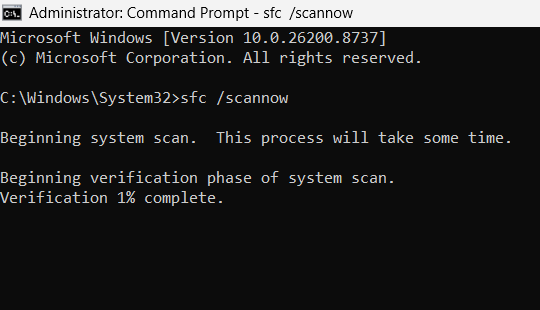
Step 1: Run System File Checker (SFC)
- Search for Command Prompt.
- Right-click it and choose Run as administrator.
- Type:
sfc /scannow- Press Enter.
- Wait for the scan to complete.
- Restart your computer.
Step 2: Run DISM
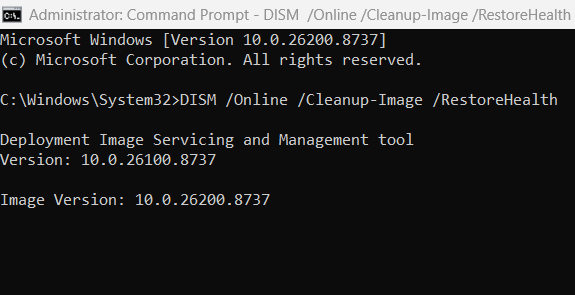
If SFC doesn’t resolve the issue, run:
DISM /Online /Cleanup-Image /RestoreHealthWait for the process to finish before restarting your PC.
Why This Helps
These tools repair corrupted Windows files that may interfere with hardware detection and driver functionality.
Quick Summary
| Tool | Purpose |
|---|---|
| SFC | Repairs corrupted system files |
| DISM | Repairs the Windows system image |
When Could It Be a Hardware Problem?
If none of the fixes above solve the issue, the problem may be hardware-related.
Possible causes include:
- A damaged USB flash drive
- A faulty USB cable
- A failed USB port
- Motherboard USB controller failure
- Physical damage caused by liquid spills or impact
Try testing the device on another computer. If it doesn’t work there either, the USB device itself is likely defective.
Frequently Asked Questions (FAQ)
Why does Windows 11 keep saying “USB Device Not Recognized”?
This usually happens because of outdated drivers, corrupted system files, faulty USB ports, power management settings, or a damaged USB device.
Can Windows updates cause USB problems?
Yes. Occasionally, a Windows update may introduce driver compatibility issues. Installing the latest updates—or updating your chipset and USB drivers—often resolves the problem.
How do I know if my USB port is damaged?
Test the same device in another USB port. If it works elsewhere but not in the original port, the port may be damaged or have a hardware fault.
Should I uninstall USB drivers?
Yes. Reinstalling USB controllers through Device Manager is a safe troubleshooting step because Windows automatically reinstalls the necessary drivers after a restart.
Why does my USB device work on another computer?
If the device works on another PC, the issue is most likely with your Windows installation, USB drivers, or power settings rather than the device itself.
Final Thoughts
Seeing the “USB Device Not Recognized” error in Windows 11 can be frustrating, especially when you rely on USB devices for work, study, or entertainment. Fortunately, most cases can be resolved without replacing your hardware.
Start with the simple fixes—such as restarting your PC, trying another USB port, or testing the device on another computer. If the issue persists, move on to updating drivers, adjusting power management settings, and repairing Windows system files.
By following the steps in this guide, you’ll be able to identify the root cause and restore normal USB functionality in most situations.
If you’re still experiencing problems after trying all 11 fixes, it may be time to contact your device manufacturer or have your computer inspected for hardware issues.
For official Windows support, visit: Microsoft Windows Help
This is especially useful if the update is known to be problematic. Microsoft recently pulled and replaced several faulty updates.
For more troubleshooting guides, visit Techmart. Study our policies on the Contact Us and About Us pages on our website.