

Bluetooth missing in Windows 11? If the Bluetooth option, toggle, or icon has disappeared from Settings or Quick Settings, you may be dealing with a missing driver, disabled Bluetooth service, Windows update problem, or an adapter that Windows is no longer detecting.
The good news is that you usually don’t need to reset Windows or replace your laptop. In this guide, we’ll show you 10 ways to fix Bluetooth when it disappears from Windows 11, starting with the simplest solutions and moving to driver, Device Manager, and hardware checks.
If Bluetooth is completely missing from Windows 11 Settings or Device Manager, don’t skip to the advanced fixes. Start with Fix 1 and work through the steps in order.
Table of Contents
- Why Is Bluetooth Missing in Windows 11?
- Fix 1: Restart Your Computer
- Fix 2: Turn Bluetooth On from Settings
- Fix 3: Run the Bluetooth Troubleshooter
- Fix 4: Restart Bluetooth Services
- Fix 5: Update or Reinstall Bluetooth Drivers
- Fix 6: Show Hidden Devices in Device Manager
- Fix 7: Install the Latest Windows Updates
- Fix 8: Disable Fast Startup
- Fix 9: Update Your BIOS and Chipset Drivers
- Fix 10: Perform a System Restore
- How to Prevent Bluetooth Issues
- Frequently Asked Questions
- Final Thoughts
Why Did Bluetooth Disappear From Windows 11?
The most common reasons include:
Bluetooth driver problem
Windows may stop detecting the adapter when its driver becomes corrupted, incompatible, or is removed during an update.
Windows Update problem
A Windows update can sometimes change drivers or system components related to Bluetooth.
Bluetooth service stopped
Windows relies on background services for Bluetooth functionality. If a required service isn’t running, Bluetooth may stop appearing.
Adapter isn’t being detected
If Bluetooth doesn’t appear even in Device Manager, Windows may not currently be detecting the hardware.
Knowing the cause makes troubleshooting much easier.
Fix 1: Restart Your Computer
It might sound too simple, but a restart is often enough to restore Bluetooth.
Sometimes Windows fails to load the Bluetooth driver correctly during startup. Restarting reloads essential services and hardware drivers.
Steps :
- Click Start.
- Select the Power icon.
- Click Restart.
- Wait for Windows to boot completely.
- Check whether the Bluetooth icon has returned.
Pro Tip:
Choose Restart, not Shut Down. Windows 11’s Fast Startup feature can prevent a full hardware refresh when shutting down.
Fix 2: Check If the Bluetooth Toggle Is Missing or Turned Off
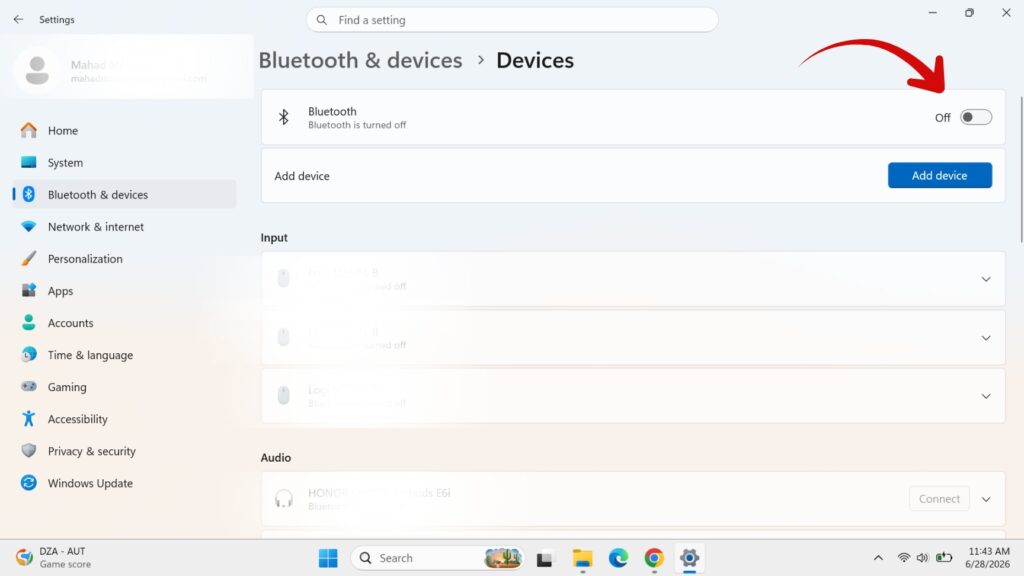
Occasionally, Bluetooth hasn’t disappeared—it has only been disabled.
Check from Quick Settings
- Press Windows + A.
- Look for the Bluetooth button.
- If available, click it to enable Bluetooth.
Check from Settings
- Press Windows + I.
- Open Bluetooth & devices.
- Turn Bluetooth On.
If the Bluetooth section itself is missing, continue to the next solution.
Fix 3: Run the Bluetooth Troubleshooter
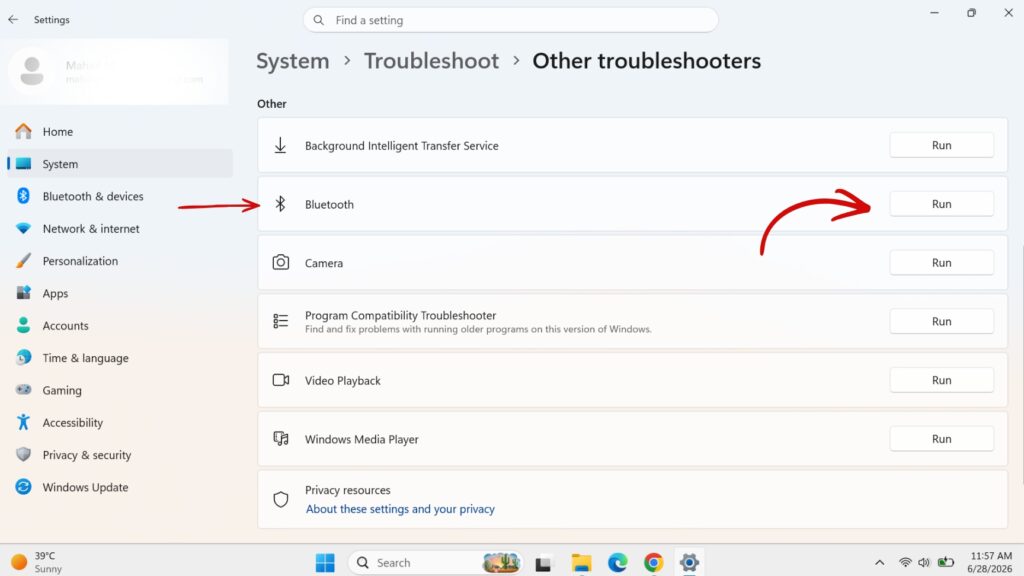
Windows includes a built-in troubleshooter that can automatically detect and fix common Bluetooth issues.
Steps :
- Open Settings.
- Navigate to System → Troubleshoot → Other troubleshooters.
- Find Bluetooth.
- Click Run.
- Follow the on-screen instructions.
The troubleshooter checks for:
- Disabled services
- Driver issues
- Configuration errors
- Missing settings
If Windows fixes anything, restart your computer afterward.
Fix 4: Restart Bluetooth Support Services
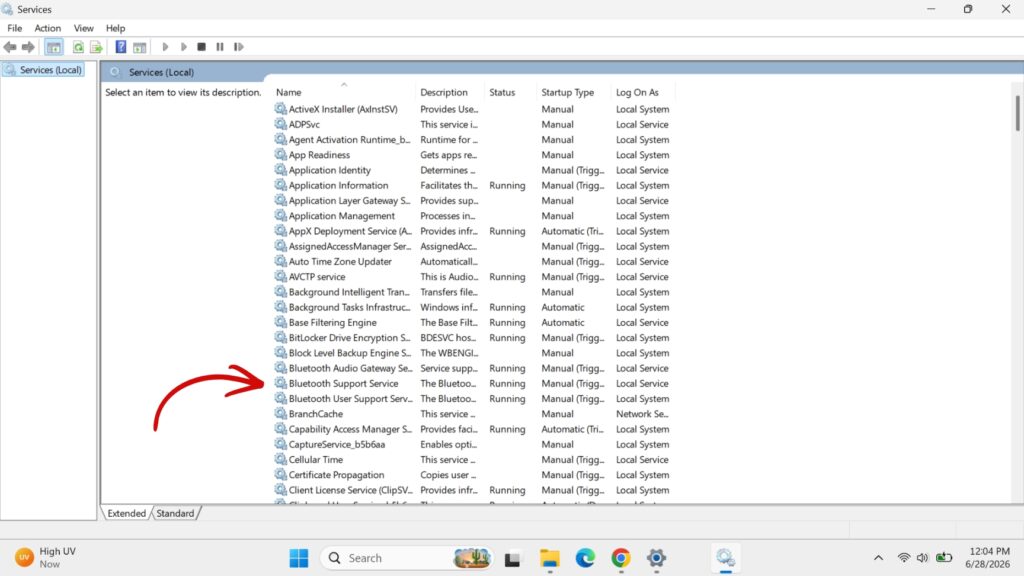
Bluetooth depends on background services. If one stops running, Bluetooth may disappear completely.
Steps :
- Press Windows + R.
- Type services.msc and press Enter.
- Locate Bluetooth Support Service.
- Double-click it.
- Set Startup type to Automatic.
- Click Start if the service isn’t running.
- Select Apply and OK.
If you see other Bluetooth-related services, ensure they are also running.
Note:
Do not disable these services unless you’re troubleshooting for a specific reason.
Fix 5: Is the Bluetooth adapter visible? Update/reinstall it
A corrupted or outdated driver is one of the leading causes of missing Bluetooth in Windows 11.
Update the Driver
1. Right-click the Start button and select Device Manager.2. Expand “Bluetooth.”
Look for your Bluetooth adapter. It may have a name such as Intel Wireless Bluetooth, Realtek Bluetooth Adapter, MediaTek Bluetooth, or another manufacturer name.
3. Right-click the Bluetooth adapter and select “Update driver.”
Choose “Search automatically for drivers” and allow Windows to check for an available driver.
4. Restart your PC after the driver update.
If Windows says that the best driver is already installed but Bluetooth is still missing, try reinstalling the driver. Right-click the Bluetooth adapter, select “Uninstall device,” restart your computer, and let Windows attempt to reinstall the driver.
What If Bluetooth Is Missing From Device Manager?
If you don’t see a Bluetooth section in Device Manager, Windows may not be detecting the Bluetooth adapter correctly. First, click View → Show hidden devices in Device Manager and check whether a Bluetooth adapter appears.
Also look under Network adapters and Other devices for an unknown device or an adapter with a warning icon.
If the Bluetooth adapter still doesn’t appear, your laptop manufacturer’s support website may have a Bluetooth driver specifically for your model. Download the appropriate Windows 11 Bluetooth driver and install it, then restart your PC.
Fix 6: Is the adapter missing? Show Hidden Devices and Investigate Detection
Sometimes Windows may hide a Bluetooth adapter in Device Manager. You can check for hidden devices before assuming that the Bluetooth hardware has completely disappeared.
- Right-click the Start button and select Device Manager.
- Click “View” at the top.
- Select “Show hidden devices.”
- Look for the Bluetooth section again.
If a Bluetooth adapter appears but is greyed out, right-click it and check whether you have an option to Enable device or Update driver.
If the adapter has a yellow warning icon, Windows may be having a driver or hardware-detection problem.
Still can’t find Bluetooth? If the Bluetooth adapter doesn’t appear even after showing hidden devices, move on to the next fixes in this guide. The problem may be related to the Bluetooth service, Windows Update, chipset drivers, or the hardware itself.
Fix 7: Check Windows Update and Bluetooth Driver Updates
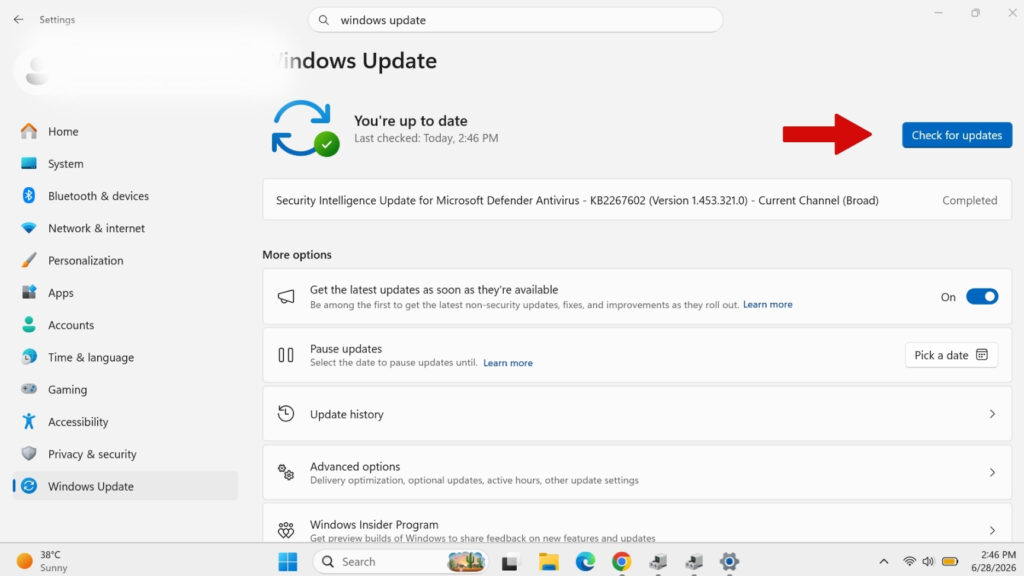
Windows updates don’t just introduce new features—they also include bug fixes and updated drivers for many hardware components.
If your Bluetooth disappeared after skipping updates for several months, installing the latest updates may restore it.
Steps :
- Press Windows + I to open Settings.
- Click Windows Update.
- Select Check for updates.
- Install all available updates.
- Restart your computer.
Don’t forget to install any Optional Updates as well.
If Bluetooth disappeared shortly after a Windows 11 update, the update may have changed or replaced the Bluetooth driver. First, restart your PC and check Device Manager to see whether the Bluetooth adapter is still listed.
If the adapter appears but Bluetooth still doesn’t work, try updating or reinstalling its driver. You can also check Settings → Windows Update → Advanced options → Optional updates to see whether Windows has a newer driver available.
If the problem started immediately after a specific update and the Bluetooth adapter worked normally before the update, you may also consider rolling back the Bluetooth driver if the Roll Back Driver option is available in Device Manager.
Good to Know: Optional updates often include newer drivers provided directly by laptop manufacturers.
Fix 8: Disable Fast Startup
Fast Startup helps Windows boot faster by saving part of the system state when shutting down. While useful, it can occasionally prevent hardware such as Bluetooth adapters from initializing correctly.
Disabling Fast Startup forces Windows to perform a complete hardware initialization every time the PC starts.
Steps :
- Open the Control Panel.
- Click Hardware and Sound.
- Select Power Options.
- Click Choose what the power buttons do.
- Select Change settings that are currently unavailable.
- Uncheck Turn on fast startup (recommended).
- Click Save changes.
- Restart your computer.
Note: Disabling Fast Startup may increase boot time slightly, but it can solve recurring hardware detection problems.
Fix 9: Update BIOS and Chipset Drivers
If none of the previous fixes have worked, the issue may be related to communication between Windows and your computer’s motherboard.
Updating the BIOS and chipset drivers can improve hardware compatibility and fix Bluetooth detection issues.
Step 1: Identify Your Laptop Model
Press Windows + R, type:
msinfo32
Press Enter.
Note the following information:
- System Manufacturer
- System Model
- BIOS Version
Step 2: Download Updates
Visit your laptop manufacturer’s support page and search for your exact model.
Download the latest:
- BIOS update
- Chipset driver
- Bluetooth driver
Install them one at a time, restarting your PC whenever prompted.
Warning: Never interrupt a BIOS update. Ensure your laptop is plugged into a power source during the update process. An interrupted BIOS update can make your system unusable.
Fix 10: Use System Restore
If Bluetooth disappeared after a Windows update, driver installation, or software change, System Restore may bring everything back without affecting your personal files.
Steps :
- Press Windows + S.
- Search for Create a restore point.
- Open System Properties.
- Click System Restore.
- Choose a restore point created before the Bluetooth issue started.
- Follow the on-screen instructions.
- Restart your computer.
System Restore removes recently installed drivers, updates, and system changes while keeping your personal documents safe.
What If Bluetooth Is Still Missing?
If Bluetooth is missing from Settings but appears in Device Manager: the problem is more likely related to drivers, services, or Windows configuration.
If Bluetooth appears in Device Manager with a warning icon: Windows is detecting the adapter, but there may be a driver or hardware problem.
If Bluetooth is completely absent from Device Manager: Windows may not be detecting the Bluetooth hardware at all. Check hidden devices, chipset drivers, BIOS settings, and your manufacturer’s support page.
How to Prevent Bluetooth Problems in Windows 11
Although Bluetooth issues can’t always be avoided, these best practices can reduce the chances of them happening again.
- Keep Windows updated.
- Install drivers from your laptop manufacturer whenever possible.
- Avoid forcing the shutdown of your computer.
- Create a System Restore point before major updates.
- Update BIOS only when necessary.
- Don’t use third-party driver updater tools from unknown sources.
- Restart your PC regularly instead of leaving it running for weeks.
Following these steps can help keep your Bluetooth adapter working reliably.
Final Thoughts
A missing Bluetooth option in Windows 11 can be frustrating, especially if you rely on wireless headphones, keyboards, mice, or other Bluetooth devices every day.
Fortunately, in most cases, the problem is caused by a software issue rather than a hardware failure. By following the fixes in this guide—from checking Bluetooth settings to updating drivers and using System Restore—you can often restore Bluetooth without reinstalling Windows.
Start with the simplest solutions first, then work your way through the more advanced fixes. Taking a systematic approach saves time and avoids unnecessary changes to your system.
If this guide helped you fix the problem, consider bookmarking TechMart for more practical Windows troubleshooting guides and technology tips.
If none of these fixes restore Bluetooth, the next step is to determine whether Windows can detect your Bluetooth hardware. If the adapter is completely absent from Device Manager, check your laptop manufacturer’s support page for the correct Bluetooth and chipset drivers or run the manufacturer’s hardware diagnostics.
Frequently Asked Questions (FAQ)
Why is my Bluetooth toggle completely missing in Windows 11?
If the Bluetooth toggle is completely missing from Windows 11 Settings or Quick Settings, Windows may not be detecting the Bluetooth adapter. This can happen because of a missing or corrupted driver, a stopped Bluetooth service, a Windows update, or a hardware-detection problem. Check Device Manager first. If Bluetooth is missing there too, enable “Show hidden devices” and check for an unknown device or warning icon.
Why is there no Bluetooth option in Settings?
This typically happens when Windows cannot detect the Bluetooth adapter or when the required Bluetooth driver is missing or corrupted.
Can I reinstall Bluetooth manually?
Yes. Download the latest Bluetooth driver from your laptop or motherboard manufacturer’s support website and install it manually.
Why is Bluetooth missing from Device Manager in Windows 11?
If Bluetooth is missing from Device Manager, Windows may not be detecting the Bluetooth adapter. Open Device Manager, select View → Show hidden devices, and check under Bluetooth, Network adapters, and Other devices. If the adapter still doesn’t appear, install the Bluetooth and chipset drivers from your laptop manufacturer’s support page and check whether Bluetooth is enabled in BIOS.
Will resetting Windows fix Bluetooth problems?
A Windows reset may resolve software-related Bluetooth issues, but it should only be considered after trying the troubleshooting steps in this guide.
How do I know if my Bluetooth hardware is faulty?
If Bluetooth doesn’t appear in Device Manager, even after reinstalling drivers and checking the BIOS, the hardware may be defective. Running your manufacturer’s hardware diagnostics can help confirm this.