

Windows updates are supposed to improve your computer, fix security vulnerabilities, and introduce new features. But sometimes, the opposite happens. After installing an update, you might suddenly find that Windows 11 refuses to update, gets stuck during installation, crashes unexpectedly, or causes problems with Wi-Fi, Bluetooth, audio, File Explorer, or your laptop’s performance.
Quick answer: Restart your PC, check your internet connection and available storage, run the Windows Update troubleshooter, repair Corrupted System files, reset Windows Update components, or uninstall a recently installed Update if the problems started immediately afterward.
In some cases, Windows Update may fail with an error code and repeatedly attempt to install the same update. In other cases, the update installs successfully but leaves your PC behaving strangely. If you’re experiencing Windows 11 update problems, don’t panic. You usually don’t need to reset or reinstall Windows immediately.
This guide walks you through 11 practical fixes, starting with the simplest solutions and gradually moving toward more advanced troubleshooting. Whether your update is stuck, failing to install, or has caused problems after installation, you’ll find a solution worth trying here.
What Kind of Windows 11 Update Problem Are You Having?
Before trying random fixes, it’s helpful to identify what’s actually going wrong. Different Windows Update problems can require different solutions.
You may be dealing with one of these situations:
- Windows 11 Update is stuck at 0%, 35%, 99%, or another percentage.
- Windows Update repeatedly fails to install.
- Windows Update downloads but won’t install.
- Windows 11 keeps trying to install the same update.
- Your PC became slow after a Windows update.
- Wi-Fi or Bluetooth stopped working after an update.
- Audio or other hardware stopped working.
- Apps or File Explorer started crashing.
- Windows shows a blue screen after an update.
- Your PC won’t boot normally after installing an update.
The good news is that most of these problems can be investigated without resetting your entire PC.
Start with the fixes below and move down the list until you find one that solves the problem.
Before You Start: Protect Your Important Files
If your computer is still working normally enough to access your files, take a few minutes to back up anything important before making major changes.
Copy important documents, photos, videos, and other personal files to an external drive or a trusted cloud storage service. This is especially important if your PC is experiencing repeated crashes, boot problems, or severe instability after an update.
You shouldn’t have to lose your personal files just because Windows Update isn’t working properly. However, having a backup gives you an extra layer of protection if you eventually need to use Windows Recovery, System Restore, or another advanced repair option.
Once your important files are safe, you can start troubleshooting.
Fix 1: Restart Your Windows 11 PC
This might sound too simple, but don’t skip it.
A Windows update can sometimes leave behind pending processes that don’t complete correctly until the computer is restarted. A restart can also clear temporary software glitches and reload Windows services required for the update process.
To restart Windows 11:
- Click the Start button.
- Select the Power icon.
- Click Restart.
- Wait for Windows to boot completely.
- Open Settings.
- Go to Windows Update.
- Check whether the update is still showing an error.
If Windows is currently installing an update, don’t force the computer to shut down unless it has been genuinely frozen for an unusually long time. Interrupting an update while files are being installed can cause additional problems.
If restarting doesn’t help, move on to the next fix.
Fix 2: Check Your Internet Connection
Windows Update needs a stable internet connection to download update files correctly.
If your connection repeatedly disconnects or becomes unstable, an update may fail to download completely or become stuck during the process.
Try opening several websites in your browser to confirm that your connection is working properly.
If you’re using Wi-Fi, you can also try:
- Restarting your router.
- Moving closer to the router.
- Disconnecting and reconnecting to your Wi-Fi network.
- Temporarily switching to another network if available.
- Using an Ethernet connection if possible.
Once your connection is stable, return to Settings > Windows Update and try checking for updates again.
If the same error continues, the problem may be with Windows Update itself rather than your internet connection.
Fix 3: Make Sure You Have Enough Free Storage
Windows updates need enough free space to download, unpack, and install their files.
If your system drive is almost full, Windows may not be able to complete the update successfully.
To check your storage:
- Open Settings.
- Click System.
- Select Storage.
- Review the available space on your main Windows drive.
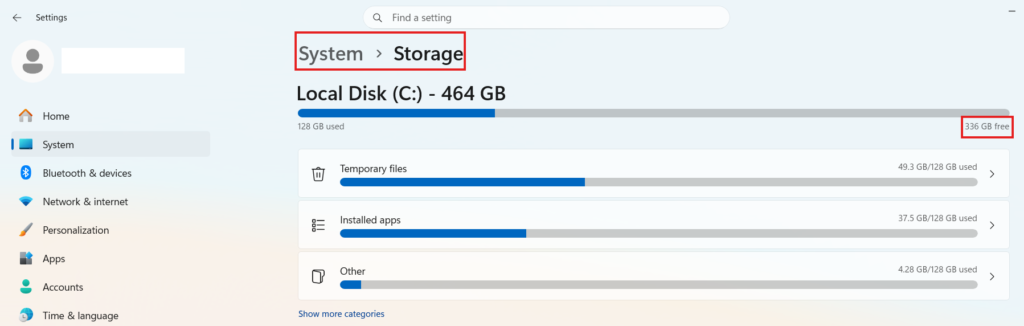
If you’re running low on storage, remove unnecessary temporary files and uninstall apps you no longer use.
You can also open Temporary files in Windows Storage settings and review what can safely be removed.
Be careful when deleting files, especially if you’re unsure what they are. Don’t randomly remove folders from the Windows directory just to free up space.
After freeing up storage, restart your computer and try Windows Update again.
Fix 4: Run the Windows Update Troubleshooter
Windows 11 includes a built-in troubleshooter that can automatically detect and fix common Windows Update issues. It checks for problems with Windows Update services, damaged settings, and configuration errors that may prevent updates from installing correctly.
Here’s how to run it:
- Press Windows + I to open Settings.
- Go to System > Troubleshoot.
- Click Other troubleshooters.
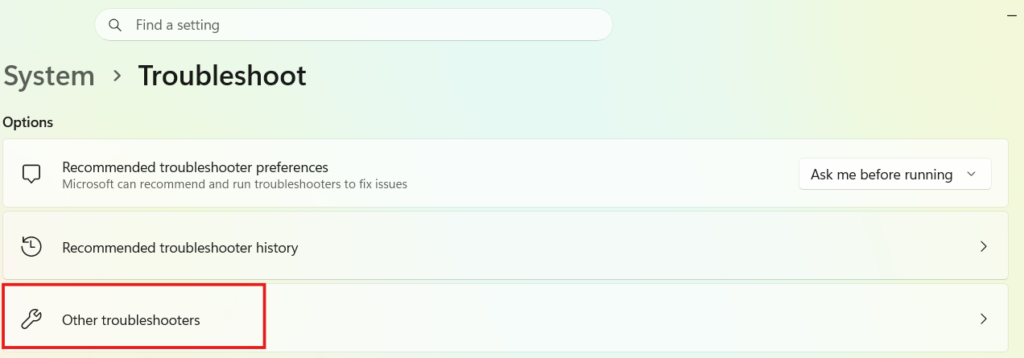
- Find Windows Update.
- Click Run next to it.
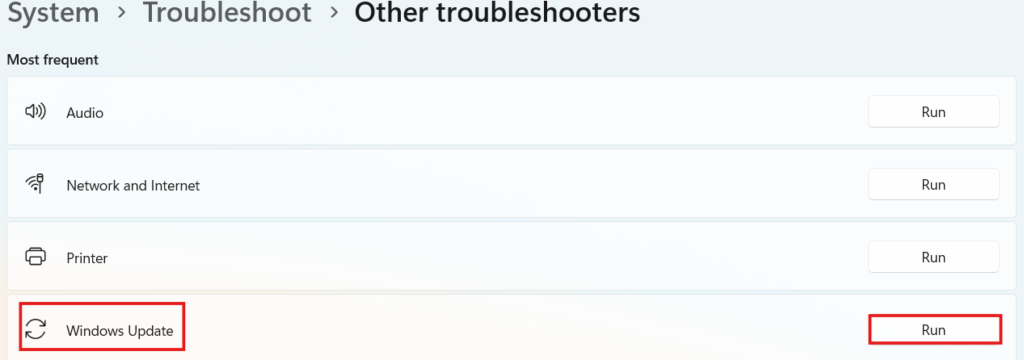
- Wait while Windows scans for problems.
- If the troubleshooter recommends a fix, apply it and restart your PC.
After restarting, go to Settings > Windows Update and click Check for updates.
Tip: Even if the troubleshooter reports that no problems were found, continue with the next fixes. Some update issues require manual troubleshooting.
Fix 5: Restart Windows Update Services
Windows Update relies on several background services. If one of these services stops running or becomes stuck, updates may fail to download or install.
Restarting these services often resolves temporary update failures.
Using the Services app
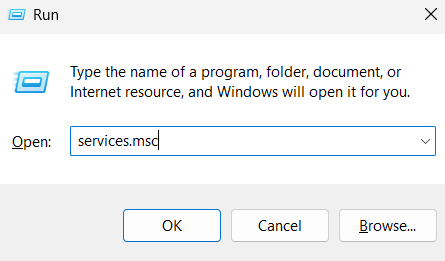
- Press Windows + R.
- Type services.msc and press Enter.
- Locate Windows Update.
- Right-click it and choose Restart.
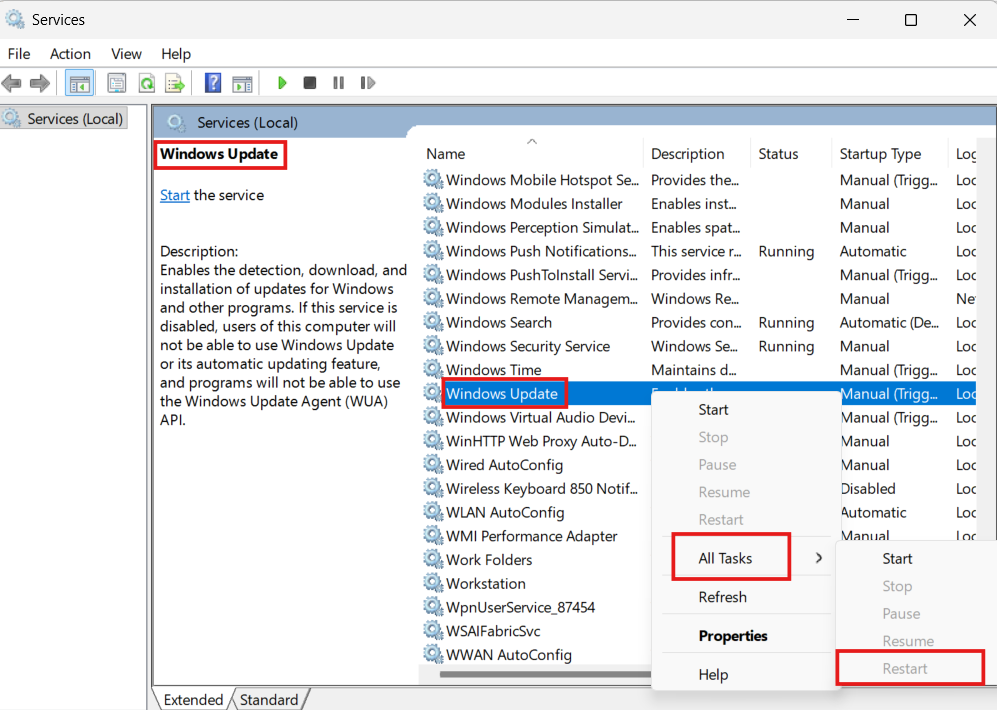
If Restart isn’t available, choose Start if the service is stopped.
Also verify these services are running:
- Background Intelligent Transfer Service (BITS)
- Cryptographic Services
- Windows Installer
If any of them are stopped, right-click and select Start.
Restart your computer afterward and try installing the update again.
Windows 11 Stuck on “Preparing Automatic Repair”? 10 Proven Fixes That Actually Work
Fix 6: Clear the Windows Update Cache
Sometimes Windows downloads corrupted or incomplete update files. When this happens, Windows may repeatedly fail to install the same update.
Deleting the update cache forces Windows to download fresh copies of the update files.
Step 1: Stop the Windows Update service
- Press Windows + R.
- Type services.msc.
- Find Windows Update.
- Right-click it and select Stop.
Step 2: Delete cached update files
- Open File Explorer.
- Type the following Text :
C:\Windows\SoftwareDistribution- Navigate to the Downloads folder.
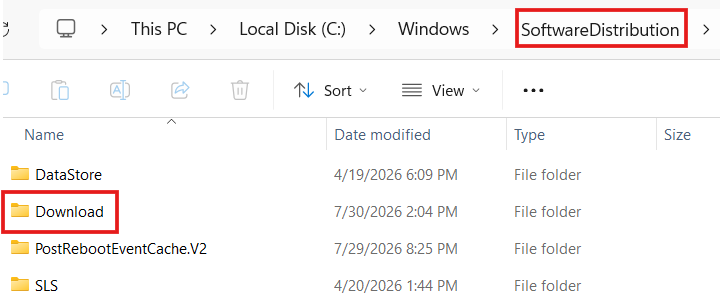
- Delete the contents of the Downloads folder.
Don’t worry—Windows will recreate these files automatically.
Step 3: Restart the service
Return to Services, right-click Windows Update, and select Start.
Now restart your computer and check for updates again.
Note: Only delete the contents of the SoftwareDistribution folder. Avoid deleting other folders inside the Windows directory.
Fix 7: Repair Corrupted Windows System Files
Corrupted system files are one of the most common causes of Windows Update failures. Fortunately, Windows includes two powerful tools—SFC and DISM—that can repair damaged system files.
Run the System File Checker (SFC)
- Open Command Prompt as Administrator.
- Enter the following command:
sfc /scannow- Press Enter.
- Wait for the scan to complete.
The scan may take 10–20 minutes depending on your computer.
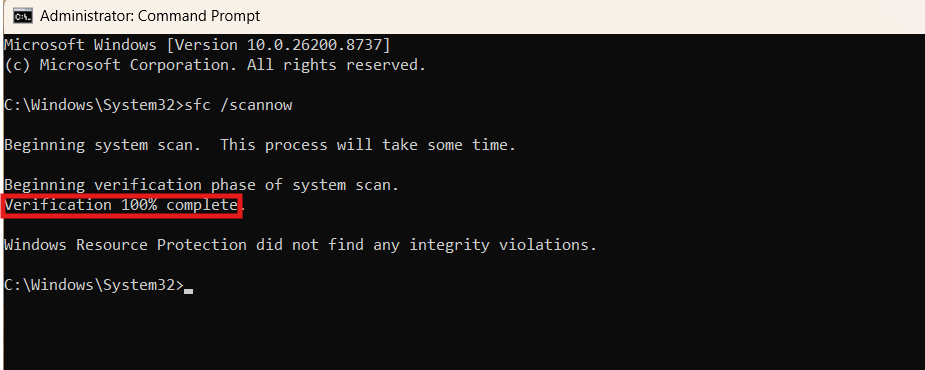
If SFC reports that it repaired corrupted files, restart your PC before checking for updates again.
If SFC doesn’t fix the issue, run DISM
Open Command Prompt (Administrator) again and run:
DISM /Online /Cleanup-Image /RestoreHealthThis process may take several minutes and requires an internet connection.
Once it finishes:
- Restart your computer.
- Run sfc /scannow once more.
- Try Windows Update again.
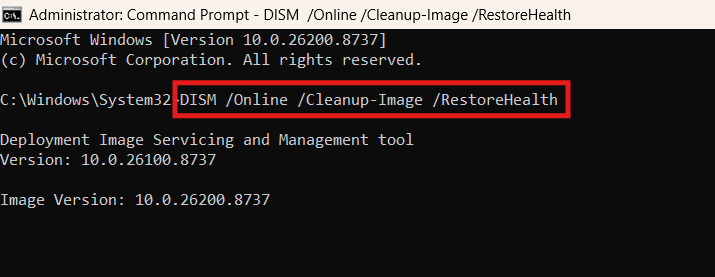
These tools repair many system file issues without affecting your personal files or installed applications.
Fix 8: Update or Roll Back Device Drivers
Occasionally, Windows Update problems are caused by incompatible or outdated drivers. In other cases, a newly installed driver may conflict with the latest Windows update.
If your issues started immediately after installing an update—such as no sound, broken Wi-Fi, Bluetooth failures, or display problems—a driver may be responsible.
To Update a Driver
- Right-click the Start button.
- Select Device Manager.
- Expand the category containing the affected device.
- Right-click the device.
- Choose Update driver.
- Select Search automatically for drivers.
To roll back a recently updated driver
- Open Device Manager.
- Right-click the affected device.
- Select Properties.
- Open the Driver tab.
- Click Roll Back Driver (if available).
Restart your computer after updating or rolling back the driver.
Tip: Download drivers directly from your laptop or hardware manufacturer’s website whenever possible. Manufacturer-provided drivers are often more reliable than generic alternatives.
Fix 9: Uninstall a Recent Windows 11 Update
If your computer was working normally before a Windows update and started experiencing problems immediately afterward, uninstalling the latest update may help.
This is particularly useful if you’re dealing with sudden crashes, performance problems, broken drivers, or hardware that stopped working after an update.
To Uninstall a recent update:
- Open Settings by pressing Windows + I.
- Select Windows Update.
- Click Update history.
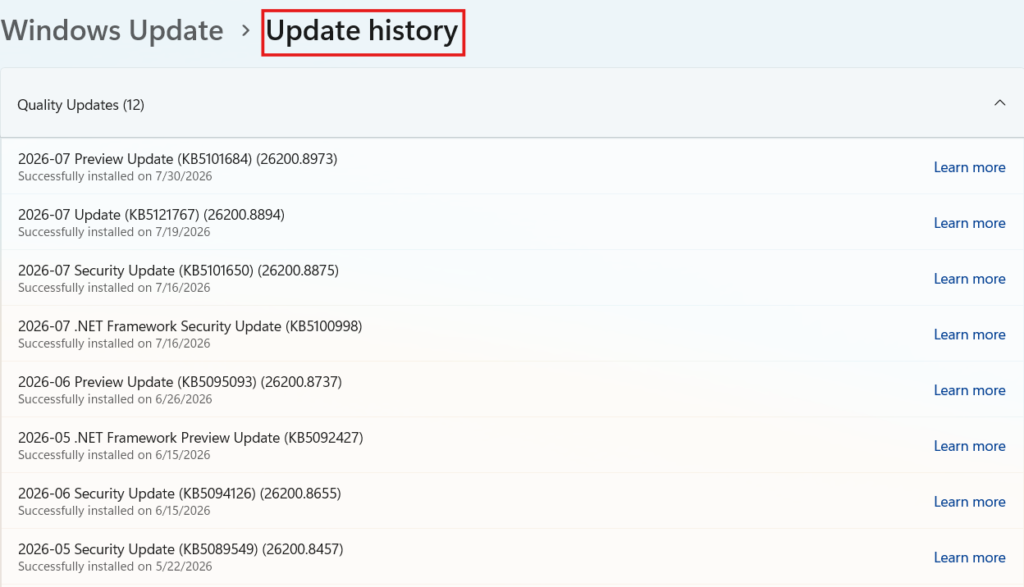
- Scroll down and select Uninstall updates.

- Find the most recently installed update.
- Click Uninstall.
- Follow the instructions on the screen.
- Restart your PC.
Windows doesn’t allow every type of update to be removed. Some security updates or major system components may have restrictions.
If the Uninstall option isn’t available, don’t force the process. Instead, try the next troubleshooting method.
Important: Removing a security update should generally be considered a temporary troubleshooting step. If uninstalling the update fixes your problem, Check for a newer version later rather than leaving your system without important security protections indefinitely.
Fix 10: Use System Restore or Windows Recovery
If the Windows 11 update caused serious problems and the previous fixes haven’t worked, you may be able to restore your PC to an earlier working state.
System Restore can roll back certain system changes without removing your personal files. However, it only works if a suitable restore point exists.
To check for a System Restore point:
- Press Windows + R.
- Type:
rstrui.exe- Press Enter.
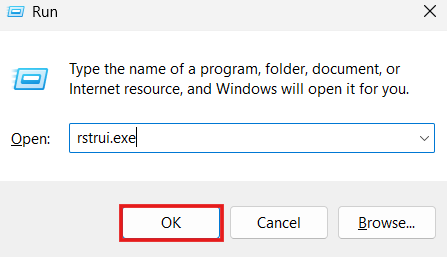
- Follow the System Restore wizard.
- Select an available restore point created before the problem started.
- Confirm the restoration.
Windows will restart during the process.
If your PC cannot boot normally, you may need to access the Windows Recovery Environment instead.
You can usually reach recovery options by holding Shift while selecting Restart from the Windows power menu.
From there, you may find options such as:
- Startup Repair
- System Restore
- Uninstall Updates
- Startup Settings
- Command Prompt
The available options may vary depending on your Windows installation and your PC’s condition.
Use System Restore carefully. While your personal files are generally not targeted by the rollback, applications, drivers, and system settings installed after the selected restore point may be affected.
Fix 11: Reset Windows Update Components
If you’ve tried everything above and Windows Update still refuses to work, resetting the Windows Update components can be the next step.
This is a more advanced solution and is mainly useful when Windows Update repeatedly fails, gets stuck, or displays persistent errors.
One approach is to stop the relevant update services, rename the folders that store update data, and then restart the services. Windows will recreate the necessary folders automatically.
Open Command Prompt as Administrator and run the following commands one at a time:
net stop wuauserv
net stop bits
net stop cryptsvc
net stop msiserver
Then rename the update-related folders:
ren C:\Windows\SoftwareDistribution SoftwareDistribution.old
ren C:\Windows\System32\catroot2 catroot2.old
Now restart the services:
net start wuauserv
net start bits
net start cryptsvc
net start msiserver
Restart your PC and try Windows Update again.
Warning: This is an advanced troubleshooting step. Type each command exactly as shown. If a service is already stopped, Windows may display a message indicating that it wasn’t running—that isn’t necessarily a problem.
What If Windows 11 Update Still Doesn’t Work?
If you’ve gone through all 11 fixes and Windows Update continues to fail, don’t immediately assume that your PC needs to be replaced or completely reset.
At this point, you should identify the exact error code Windows is showing.
For example, an error such as 0x80070002 may require a different solution than an update that simply remains stuck at 99%.
Search for the exact error code together with your Windows version. You can also check Microsoft’s official Windows Update troubleshooting resources for solutions specific to your situation.
It’s also worth checking whether Microsoft has acknowledged a known issue with the particular update you’re trying to install. Sometimes the problem isn’t your PC at all—a specific update may have a compatibility issue that Microsoft needs to address.
If the problem started immediately after a particular update, temporarily uninstalling that update may help confirm whether it is the cause.
When Should You Reset Windows 11?
Resetting Windows should generally be considered a last resort, not the first solution to a Windows Update problem.
You might consider resetting Windows if:
- Windows is severely corrupted.
- System files cannot be repaired.
- Your PC has persistent problems unrelated to a single update.
- Windows Recovery tools cannot resolve the issue.
- You have tried less destructive troubleshooting methods without success.
Before resetting your PC, back up your important files.
Windows 11 provides options that can allow you to keep personal files, but you should still maintain an independent backup. A reset can remove applications and settings, and choosing the wrong option can result in data loss.
If the problem is caused by a specific Windows update, resetting the entire operating system may be unnecessary. Try identifying and addressing the actual cause first.
Frequently Asked QuestionsQ: Why is my Windows 11 update stuck?
ANS: A Windows 11 update can become stuck because of insufficient storage, corrupted update files, unstable internet connectivity, background services, driver conflicts, or damaged system files. Restarting your PC, running the Windows Update troubleshooter, and clearing the update cache can often help.
Q: Why does Windows 11 keep failing to update?
ANS: Repeated update failures can be caused by corrupted Windows Update components, insufficient storage, damaged system files, incompatible drivers, or a problem with the particular update. Running SFC and DISM and resetting Windows Update components are possible solutions.
Q: Can I uninstall a Windows 11 update?
ANS: Some Windows 11 updates can be uninstalled through Settings > Windows Update > Update history > Uninstall updates. However, not every update can be removed, and uninstalling security updates should generally only be a temporary troubleshooting measure.
Q: Will resetting Windows 11 fix Windows Update?
ANS: A Windows 11 reset may fix serious system corruption, but it shouldn’t be your first solution. Try simpler troubleshooting steps first, such as repairing system files, resetting Windows Update components, or removing a problematic recent update.
Q: Why did my PC become slow after a Windows 11 update?
ANS: Temporary background processes, driver compatibility issues, system file corruption, or changes introduced by the update can sometimes affect performance. Give Windows some time to complete background tasks, then check for driver updates and investigate recently installed software or updates.
Q: Should I force shut down my PC if Windows Update is stuck?
ANS: Avoid forcing your PC to shut down while Windows is actively installing an update unless you have strong reason to believe it has completely frozen. Interrupting an update at the wrong moment can potentially cause additional problems.
Final Thoughts
Windows 11 update problems can be frustrating, especially when an update that was supposed to improve your PC ends up causing new issues.
The good news is that you usually don’t need to jump straight to a complete Windows reset. Start with simple solutions such as restarting your computer, checking your internet connection, and freeing up storage. If those don’t work, move on to the Windows Update troubleshooter, then restart update services, clear the update cache, and repair corrupted system files with SFC and DISM.
If your problems began immediately after a specific update, consider temporarily uninstalling it. For more serious issues, System Restore and Windows Recovery may provide additional options.
The most important thing is to identify the type of problem you’re experiencing before choosing a solution. A failed update, a stuck download, and a PC that became unstable after an update aren’t necessarily caused by the same thing.
For more troubleshooting guides, visit Techmart. Study our policies on the Contact Us and About Us pages on our website.


