
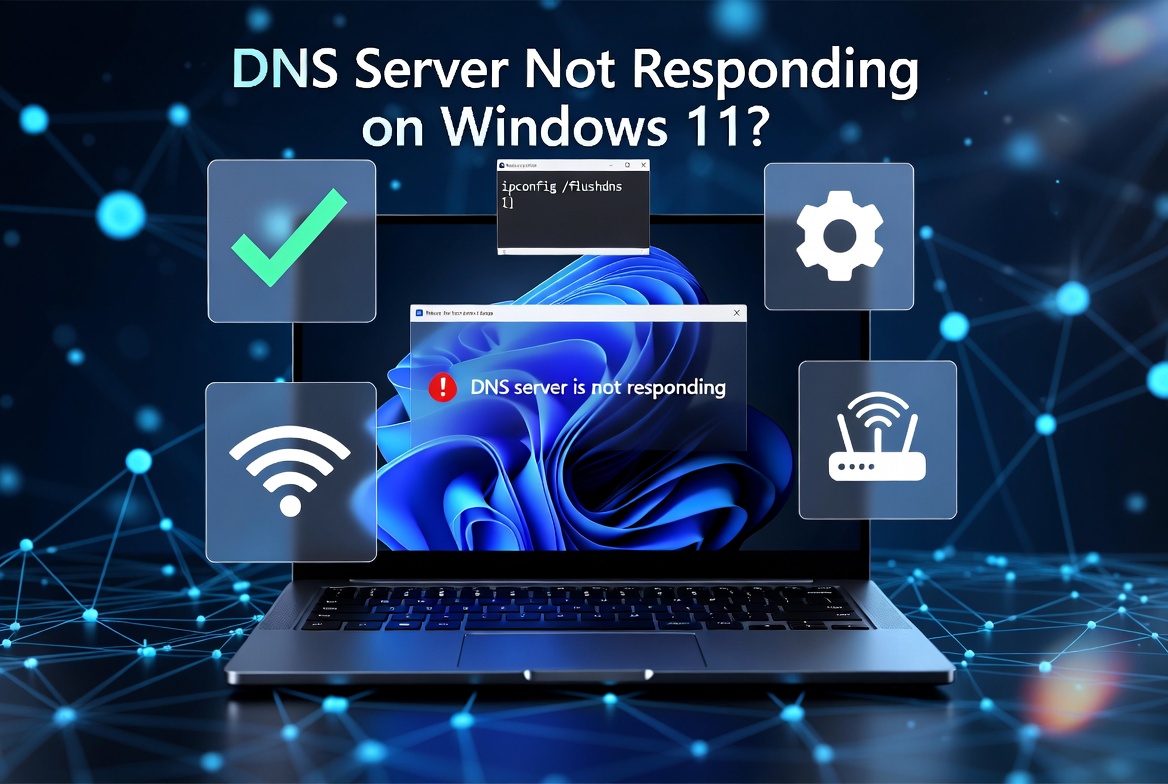
Seeing the “DNS Server Not Responding” error on your Windows 11 PC can be frustrating, especially when your internet appears to be connected but websites refuse to load. Whether you’re trying to browse the web, attend an online meeting, stream videos, or play games, this error can bring everything to a halt.
The good news is that this issue is usually fixable. In most cases, the problem is caused by incorrect DNS settings, outdated network drivers, router issues, or temporary Windows networking glitches—not by a damaged computer.
In this guide, you’ll learn what the DNS Server Not Responding error means, why it happens, and the 12 most Effective Solutions to fix it on Windows 11. Each method is explained step by step, making it easy for beginners and advanced users alike.
What Does “DNS Server Not Responding” Mean?
DNS stands for Domain Name System. Think of it as the internet’s phonebook.
When you type a website address such as:
www.techmart.pkYour Computer first asks a DNS server:
“Which IP address belongs to this website?”
The DNS server translates the website name into a numerical IP address, allowing your browser to connect to the correct web server.
If the DNS server doesn’t respond, Windows cannot find the website, even if your Internet connection is otherwise working.
That’s why you may notice symptoms like:
- Websites won’t open.
- Browsers display “DNS Server Not Responding.”
- Some apps can’t connect to the internet.
- You have Wi-Fi or Ethernet connectivity, but no internet access.
- Online games fail to connect.
Why Does This Error Occur?
Several factors can trigger the DNS Server Not Responding error on Windows 11.
The most common causes include:
- Incorrect DNS server settings
- Temporary router or modem issues
- ISP DNS server outage
- Corrupted DNS cache
- Outdated or damaged network adapter drivers
- VPN or proxy interference
- Firewall or antivirus blocking DNS requests
- Faulty TCP/IP configuration
- Windows network service problems
- Network adapter configuration errors
Fortunately, almost all of these issues can be resolved using the methods below.
Before You Try Advanced Fixes
Before changing Windows settings, perform these quick checks:
✅ Restart your computer.
A simple restart often clears temporary networking glitches.
✅ Restart your router or modem.
Turn it off, wait for about 30 seconds, and turn it back on.
✅ Test another device.
Connect your phone or another laptop to the same Wi-Fi.
- If other devices also cannot browse the internet, the issue is likely with your router or Internet Service Provider (ISP).
- If only your Windows 11 computer is affected, continue with the fixes below.
Fix 1: Run the Windows Network Troubleshooter
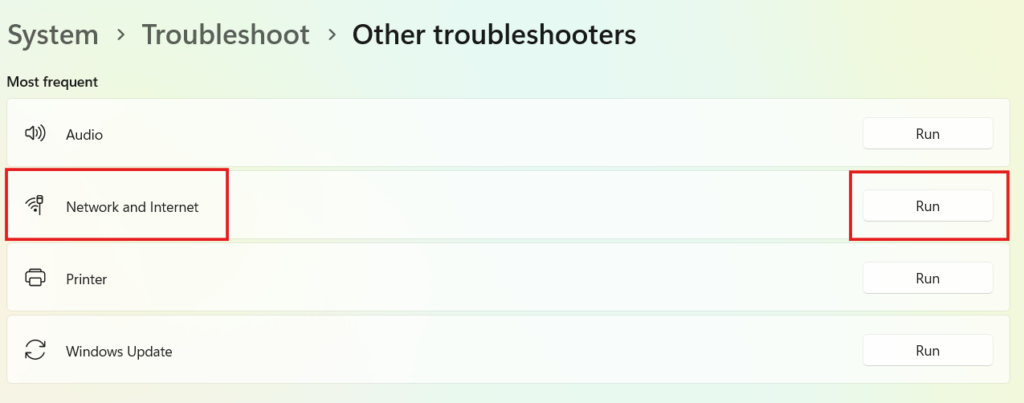
Windows 11 includes a built-in troubleshooter that automatically detects and repairs many common networking problems.
Steps
- Press Windows + I to open Settings.
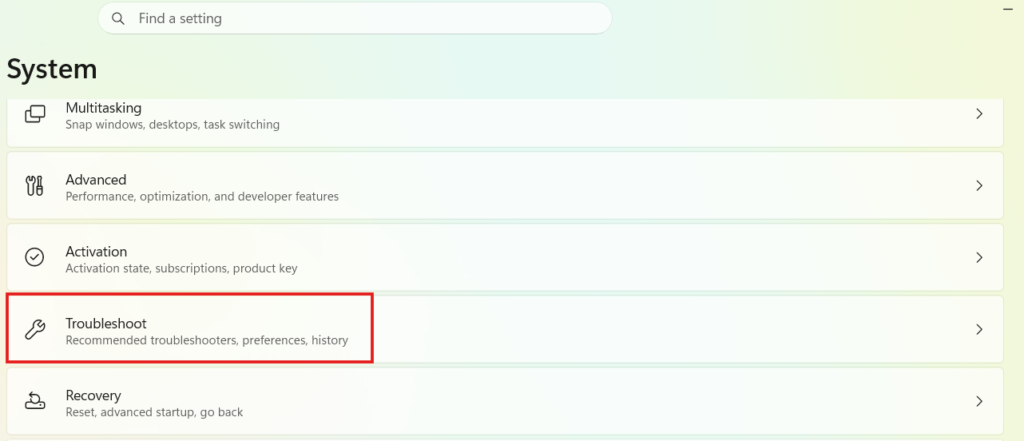
- Go to System → Troubleshoot.
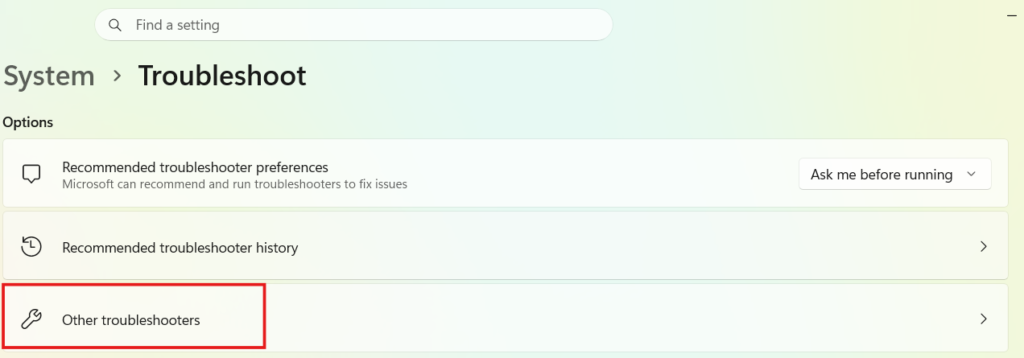
- Click Other troubleshooters.
- Find Network and Internet.
- Click Run.
- Follow the on-screen instructions.
- Restart your PC if prompted.
If Windows detects a DNS configuration problem, it may fix it automatically.
Fix 2: Flush the DNS Cache
Windows stores recently visited website addresses in a local DNS cache. If this cache becomes corrupted or outdated, it can prevent websites from loading correctly.
Flushing the DNS cache forces Windows to request fresh DNS information from the server.
Steps
- Click Start.
- Search for Command Prompt.
- Select Run as administrator.
- Type the following command:
ipconfig /flushdns- Press Enter.
You should see the message:
Successfully flushed the DNS Resolver Cache.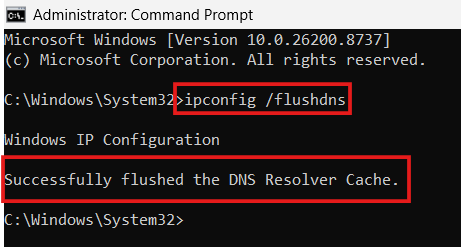
Close Command Prompt and check whether websites load normally.
Fix 3: Restart the DNS Client Service
The DNS Client service caches DNS records and manages name resolution on your Windows 11 computer. If this service stops or encounters an issue, websites may fail to load, resulting in the “DNS Server Not Responding” error.
Restarting the service can often restore normal functionality.
Steps
- Press Windows + R to open the Run dialog.
- Type:
services.msc- Press Enter.
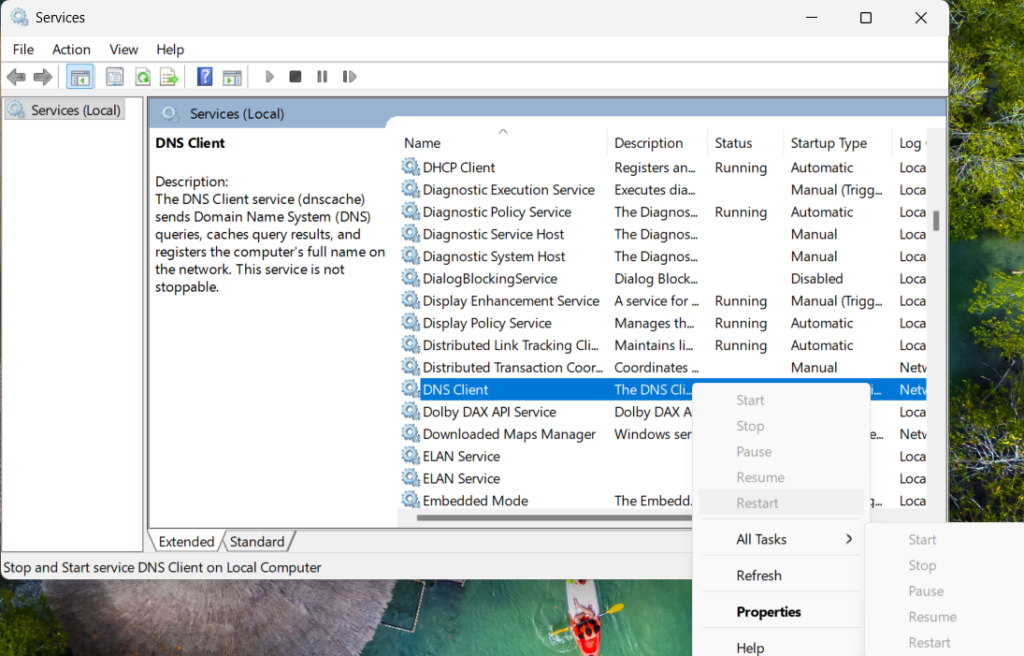
- In the Services window, scroll down and locate DNS Client.
- If the service is running, right-click it and choose Restart (if available).
- If it isn’t running, right-click and select Start.
- Close the Services window and test your internet connection.
Note: On some versions of Windows 11, the DNS Client service is protected by the system and cannot be manually restarted. If you don’t see the Restart option, simply move on to the next solution.
Fix 4: Change Your DNS Server
Sometimes the problem isn’t your computer—it’s your Internet Service Provider’s (ISP) DNS server. If the ISP’s DNS server is slow, overloaded, or temporarily unavailable, switching to a reliable public DNS service can solve the issue.
Two popular options are:
| Provider | Preferred DNS | Alternate DNS |
|---|---|---|
| Google Public DNS | 8.8.8.8 | 8.8.4.4 |
| Cloudflare DNS | 1.1.1.1 | 1.0.0.1 |
Cloudflare is known for its speed and privacy, while Google Public DNS is widely trusted and reliable.
Steps
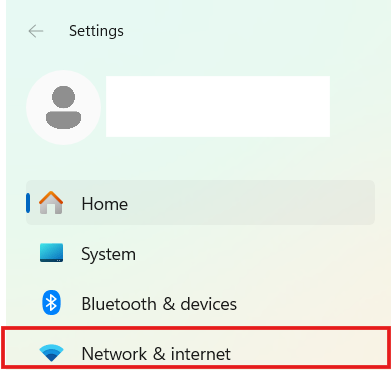
- Press Windows + I to open Settings.
- Go to Network & Internet.
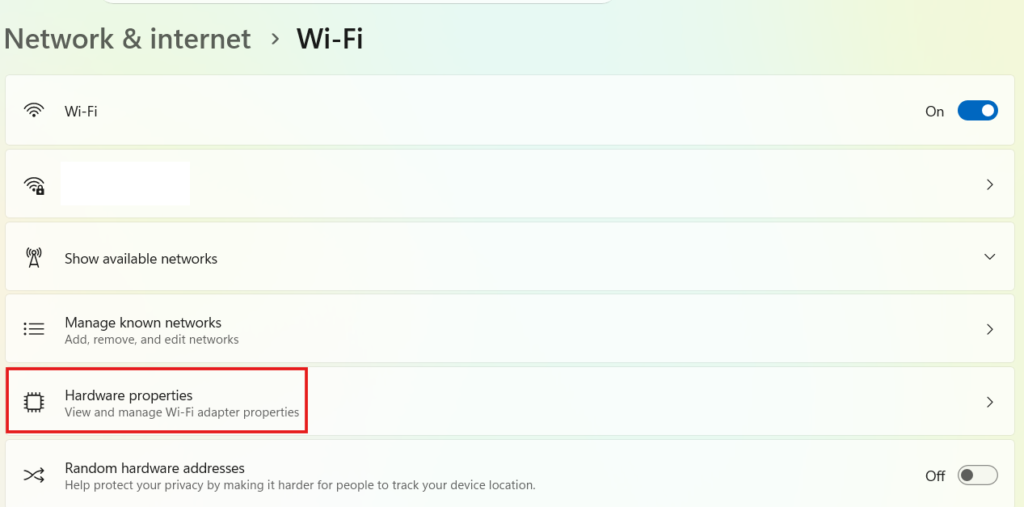
- Select your active connection (Wi-Fi or Ethernet).
- Click Hardware properties.
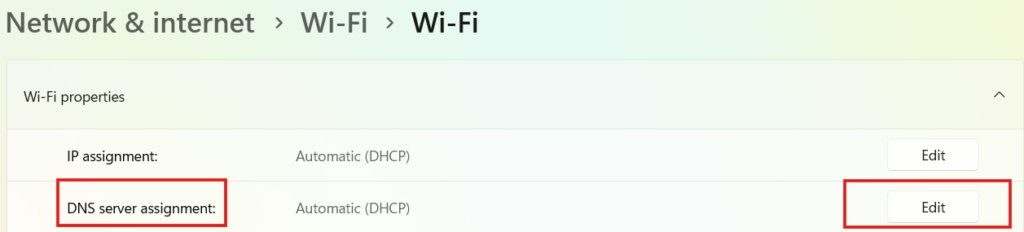
- Next to DNS server assignment, click Edit.
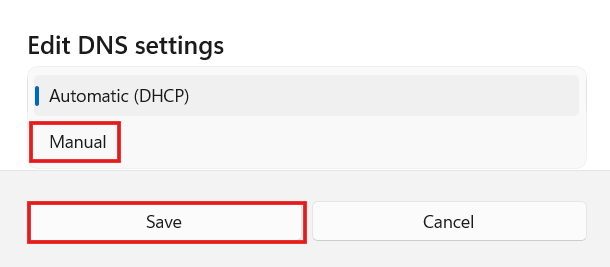
- Change the setting from Automatic (DHCP) to Manual.
- Turn on IPv4.
- Enter one of the following:
Google DNS
Preferred:
8.8.8.8Alternate:
8.8.4.4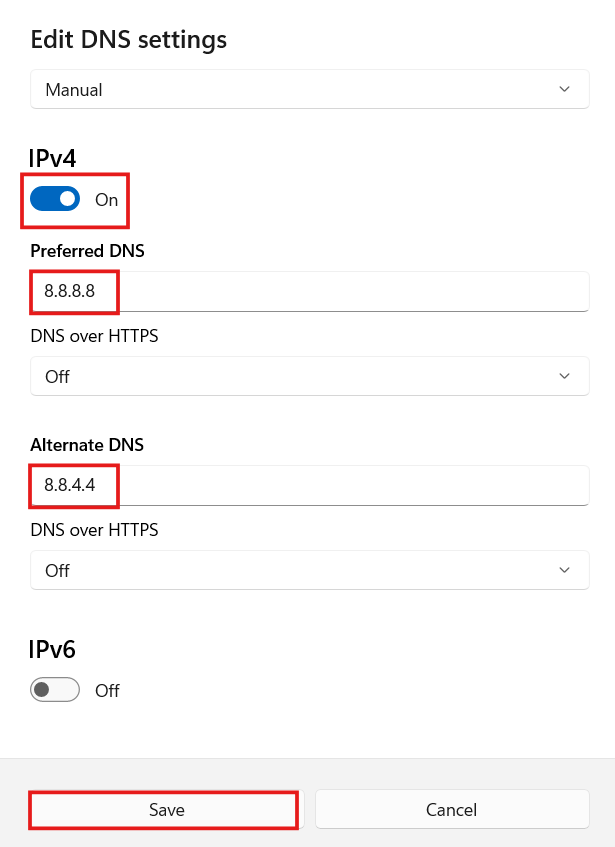
OR
Cloudflare DNS
Preferred:
1.1.1.1Alternate:
1.0.0.1- Click Save.
- Restart your browser and check if websites load correctly.
Tip: If changing the DNS server fixes the problem, the issue was likely with your ISP’s DNS servers rather than Windows itself.
Fix 5: Renew Your IP Address
Your computer receives an IP address from your router. Occasionally, the assigned address or network configuration becomes invalid or outdated, leading to connectivity problems.
Renewing the IP address forces Windows to request a fresh network configuration from the router.
Steps
- Open Command Prompt as an administrator.
- Run the following commands one at a time:
ipconfig /releasePress Enter,
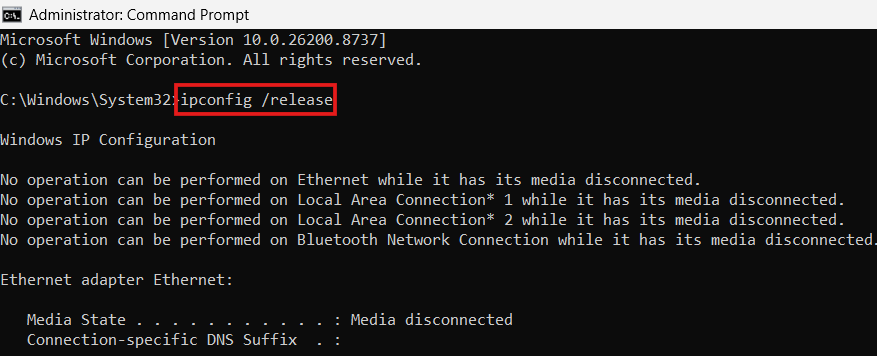
Then type:
ipconfig /renew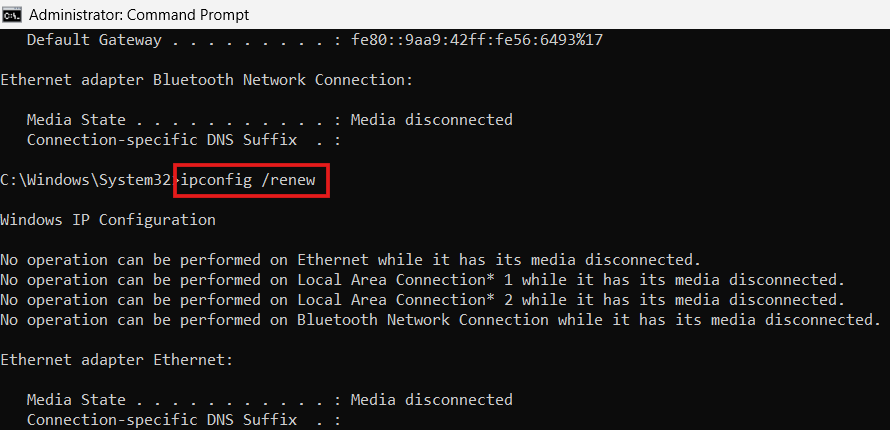
- Wait for Windows to obtain a new IP address.
- Restart your browser and check if the DNS issue has been resolved.
This process only refreshes your local network configuration and does not affect your internet subscription or router settings.
Fix 6: Reset the TCP/IP Stack
Windows uses the TCP/IP protocol suite to communicate over networks. If the TCP/IP configuration is corrupted by software changes, driver issues, or malware, DNS requests may fail.
Resetting the TCP/IP stack restores the default networking configuration.
Steps
- Open Command Prompt as an administrator.
- Enter the following commands, pressing Enter after each one:
netsh int ip reset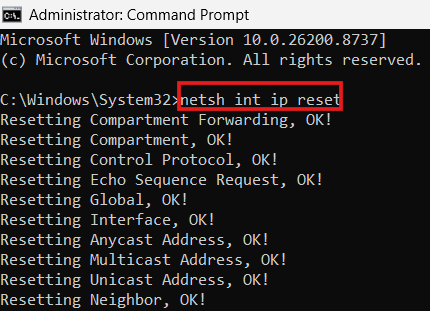
netsh winsock reset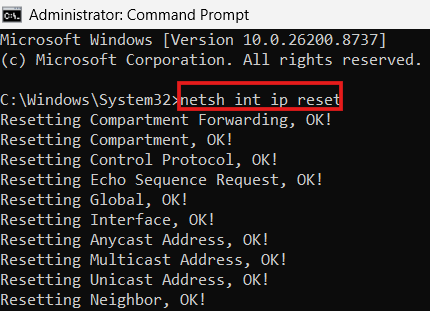
ipconfig /flushdns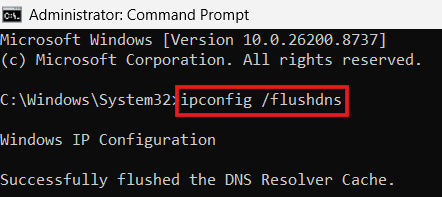
- Close the Command Prompt.
- Restart your computer.
After the restart, Windows will rebuild its networking configuration using the default settings.
Why These Fixes Work
The four methods above address some of the most common causes of DNS problems:
- Restarting the DNS Client Service resolves temporary issues with Windows’ DNS resolver.
- Changing to Google or Cloudflare DNS bypasses unreliable ISP DNS servers.
- Renewing your IP address refreshes your connection to the local network.
- Resetting the TCP/IP stack repairs corrupted networking settings that can interfere with DNS resolution.
If the problem persists after trying these solutions, don’t worry. In the next section, we’ll cover more advanced fixes, including:
- Fix 7: Disable VPN or Proxy
- Fix 8: Temporarily Disable Firewall or Antivirus
- Fix 9: Update Network Adapter Drivers
- Fix 10: Reset Network Settings
These steps are especially helpful when third-party software or outdated drivers are causing the DNS error.
How to Fix Windows 11 Update Stuck at 0%, 50%, or 100%
Fix 7: Disable Your VPN or Proxy
A VPN or proxy server changes how your internet traffic is routed. While these tools are useful for privacy and security, they can sometimes interfere with DNS requests, especially if the VPN’s DNS servers become unavailable.
If you’re using a VPN, temporarily disconnect it and check if the issue disappears.
Disable a VPN
If you’re using a third-party VPN application:
- Open your VPN software.
- Disconnect the VPN.
- Close the application completely.
- Try opening a website again.
Disable Windows Proxy
- Press Windows + I to open Settings.
- Go to Network & Internet.
- Click Proxy.
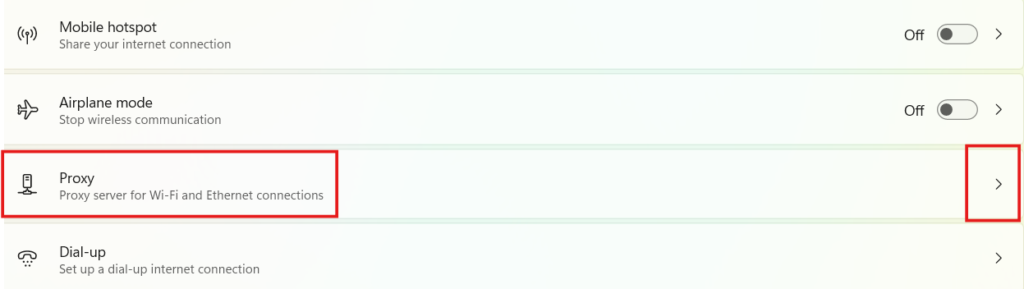
- Turn off:
- Automatically detect settings (optional)
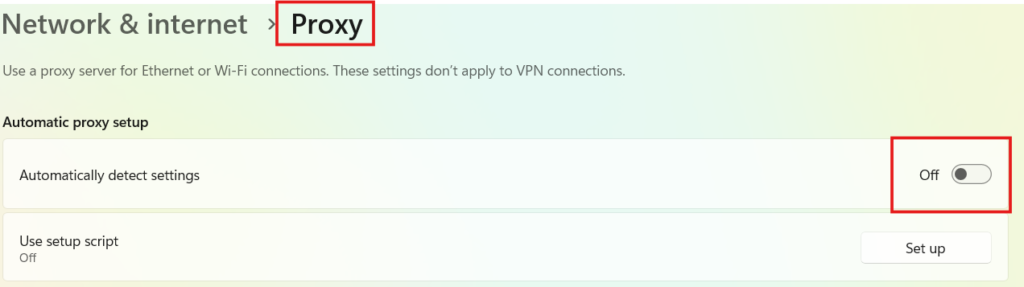
- Use a proxy server
Restart your browser and check if the DNS error has been resolved.
Tip: If disabling the VPN fixes the issue, consider switching to another VPN server or contacting your VPN provider for assistance.
Fix 8: Temporarily Disable Firewall or Antivirus
Security software can sometimes block DNS traffic by mistake, preventing your computer from communicating with DNS servers.
Temporarily disabling your firewall or antivirus can help determine whether it’s causing the problem.
Important: Only disable your security software for testing purposes. Re-enable it immediately after checking your connection.
Disable Microsoft Defender Firewall
- Open Control Panel.
- Select System and Security.
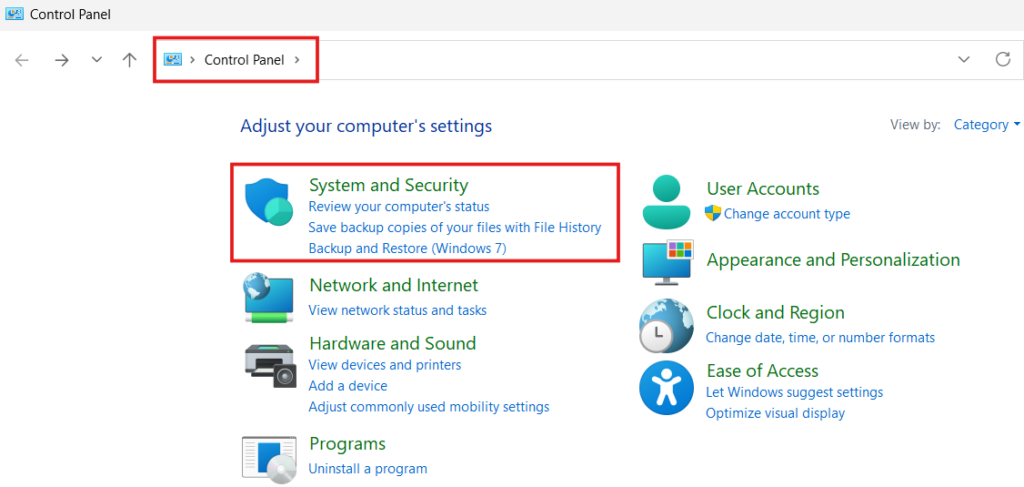
- Click Windows Defender Firewall.
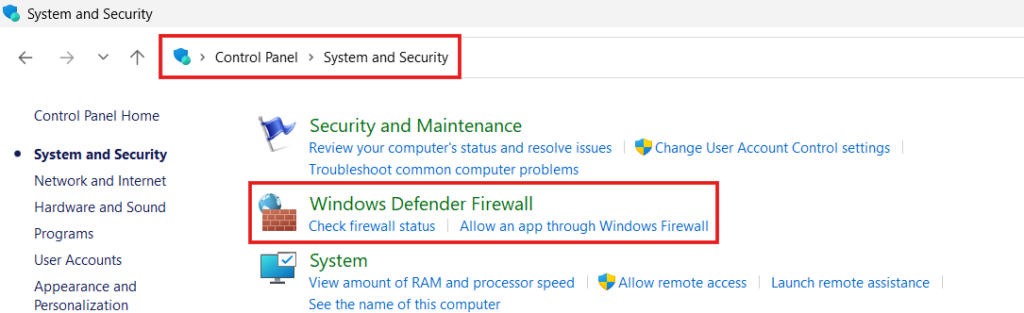
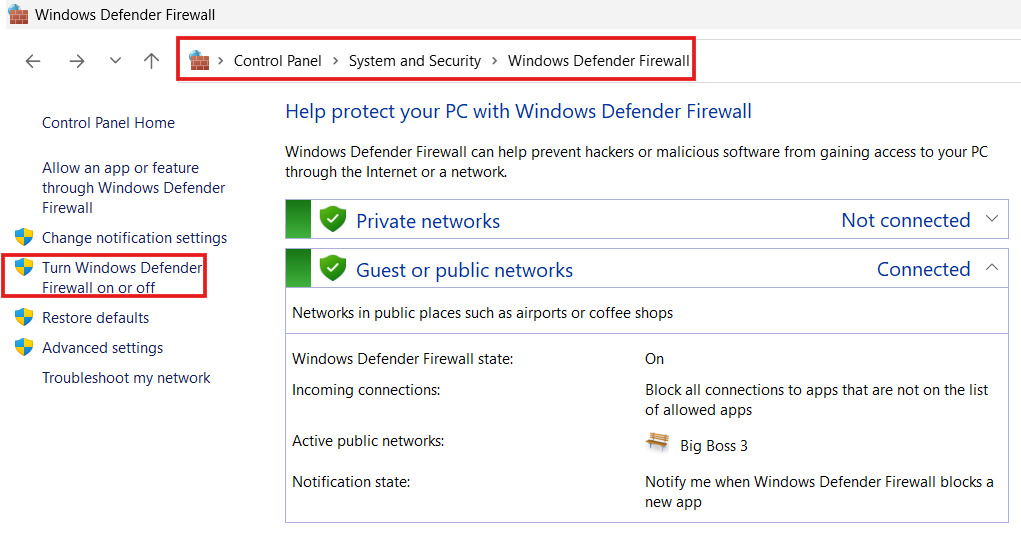
- Choose Turn Windows Defender Firewall on or off.
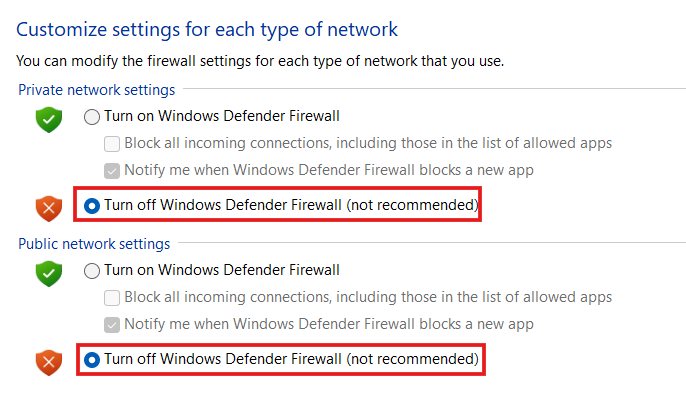
- Select Turn off Windows Defender Firewall for your active network.
- Test your internet connection.
If the DNS issue disappears, your firewall settings may need to be adjusted rather than remaining disabled.
If you use third-party antivirus software, temporarily disable its web protection or network protection features and test again.
Fix 9: Update Your Network Adapter Driver
Outdated, corrupted, or incompatible network drivers can prevent Windows from communicating properly with DNS servers.
Updating the driver often resolves persistent networking issues.
Update Through Device Manager
- Right-click the Start button.
- Select Device Manager.
- Expand Network adapters.
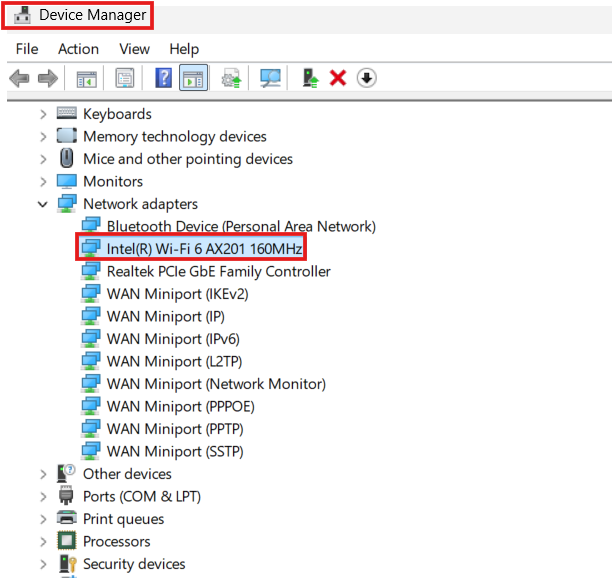
- Right-click your Wi-Fi or Ethernet adapter.
- Choose Update driver.
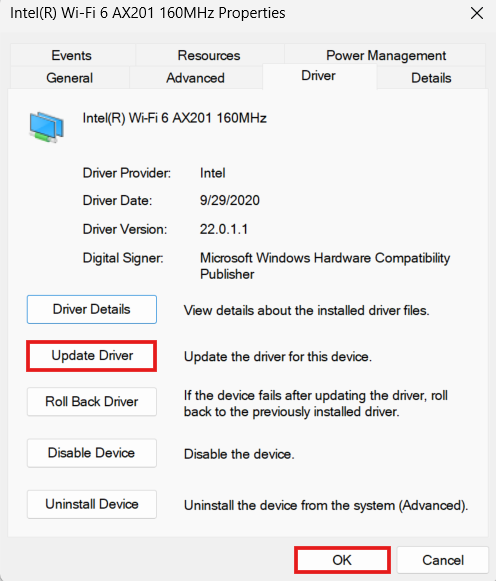
- Click Search automatically for drivers.
- Install any available updates.
- Restart your computer.
If Windows doesn’t find a newer driver, visit your computer or motherboard manufacturer’s support website to download the latest driver manually.
Fix 10: Reset Network Settings
If none of the previous methods have worked, resetting Windows network settings can restore all networking components to their default state.
This process removes saved network configurations and reinstalls network adapters.
Note: You’ll need to reconnect to your Wi-Fi network afterward, so make sure you know your Wi-Fi password.
Steps
- Press Windows + I.
- Go to Network & Internet.
- Scroll down and click Advanced network settings.
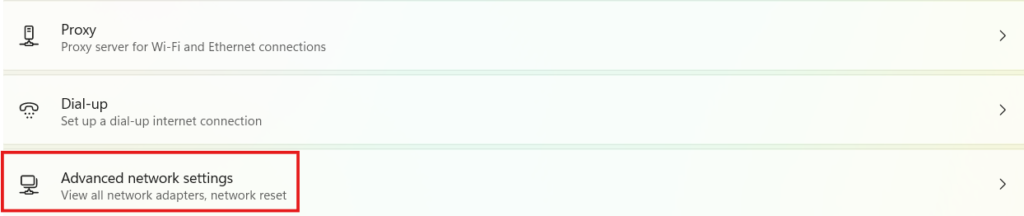
- Select Network reset.
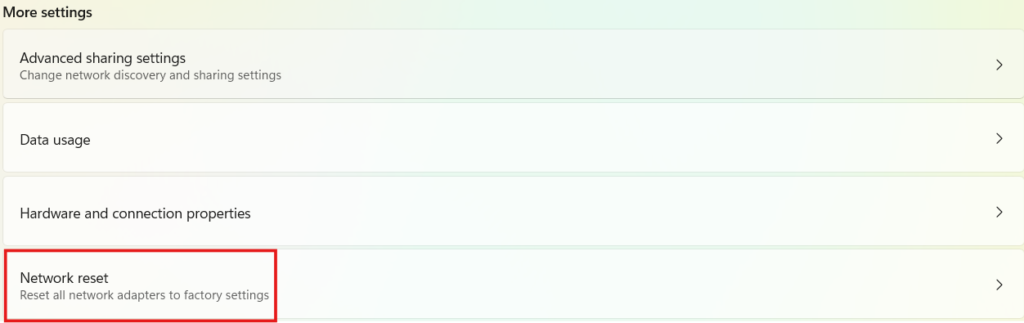
- Click Reset now.
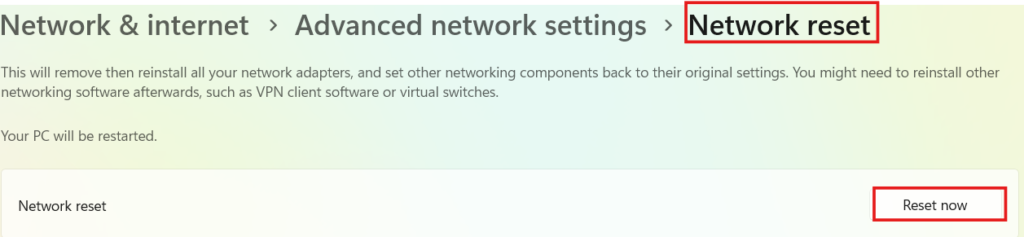
- Confirm the action.
- Restart your computer.
After the restart, reconnect to your network and check whether websites load correctly.
Fix 11: Restart Your Router or Contact Your ISP
If multiple devices connected to the same network are showing the “DNS Server Not Responding” error, the problem may not be with your Windows 11 PC.
Instead, it could be:
- A temporary issue with your router
- A problem with your modem
- An outage affecting your Internet Service Provider’s DNS servers
What to Do
- Turn off your router and modem.
- Unplug them from the power source.
- Wait for 30 to 60 seconds.
- Plug them back in and allow them to restart fully.
- Test your internet connection.
If the issue continues on all devices, contact your ISP to check for service outages or DNS-related problems.
Tip: If changing to Google DNS or Cloudflare DNS (Fix 4) solved the issue, you may not need to wait for your ISP to resolve its DNS servers.
Fix 12: Perform a System Restore
If the DNS error started after installing new software, a Windows update, or changing system settings, performing a System Restore can return your computer to a previous working state.
System Restore does not delete your personal files, but it can remove recently installed applications and drivers.
Steps
- Search for Create a restore point in the Start menu.
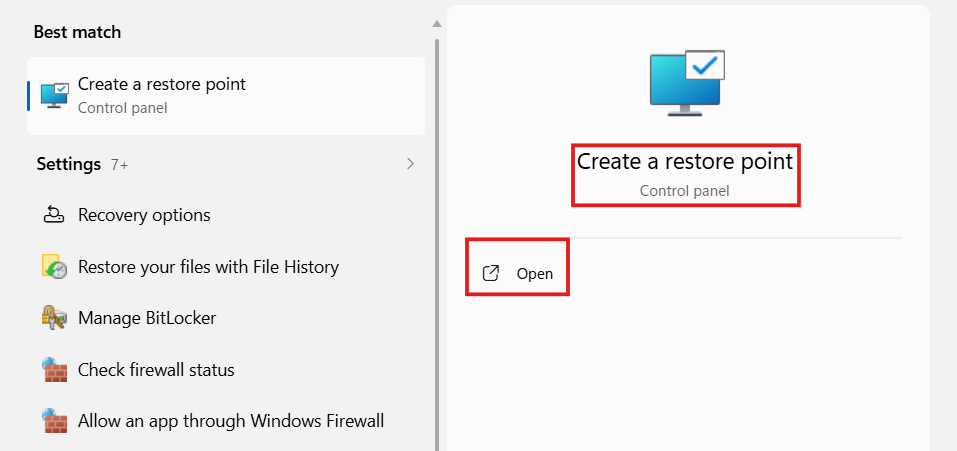
- Open System Properties.
- Click System Restore.
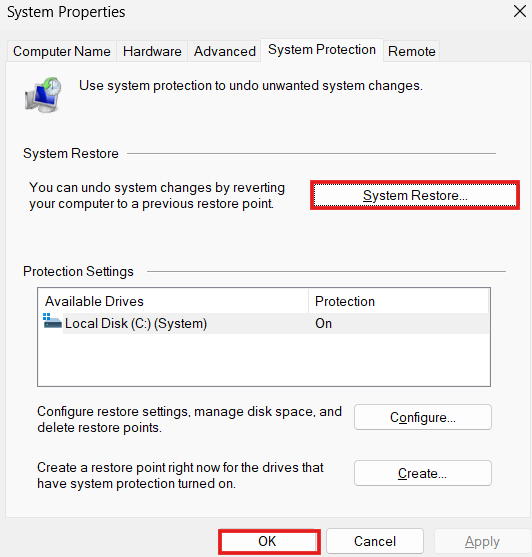
- Select a restore point created before the problem began.
- Click Next.
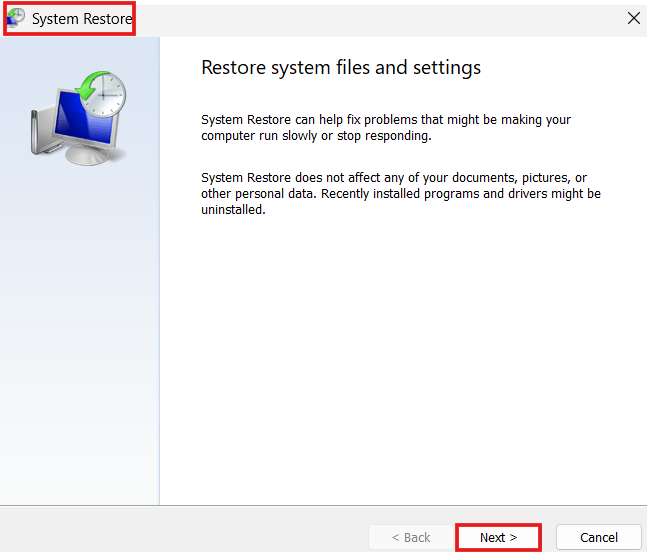
- Confirm the restore process.
- Allow Windows to restart and complete the restoration.
After the restore finishes, check whether the DNS issue has been resolved.
How to Prevent DNS Errors in the Future
While DNS issues can’t always be avoided, following a few best practices can reduce the chances of seeing this error again:
- Keep Windows 11 updated.
- Regularly update your network adapter drivers.
- Restart your router occasionally to refresh its connection.
- Use reliable public DNS servers like Google Public DNS or Cloudflare DNS if your ISP’s DNS is unreliable.
- Avoid installing multiple VPN or network management applications that may conflict with one another.
- Run regular malware scans using trusted security software.
- Restart your computer periodically to clear temporary networking issues.
These simple habits can help maintain a stable and reliable internet connection.
For official Windows support, visit: Microsoft Windows Help
This is especially useful if the update is known to be problematic. Microsoft recently pulled and replaced several faulty updates.
For more troubleshooting guides, visit Techmart. Study our policies on the Contact Us and About Us pages on our website.
Frequently Asked Questions (FAQ)
Why does Windows 11 say “DNS Server Not Responding”?
This error appears when your computer cannot communicate with a DNS server to translate website names into IP addresses. The problem may be caused by incorrect DNS settings, router issues, an ISP outage, outdated network drivers, or corrupted Windows network configuration.
Is the DNS Server Not Responding error caused by my internet provider?
Sometimes, yes. If your ISP’s DNS servers are unavailable or experiencing technical issues, you’ll see this error even though your internet connection is active. Switching to a public DNS service such as Google Public DNS or Cloudflare DNS often resolves the problem.
Is it safe to change my DNS server?
Yes. Changing your DNS server is completely safe. Many users choose trusted public DNS providers because they are often faster and more reliable than ISP-provided DNS servers.
Which DNS server is best for Windows 11?
Some of the most popular public DNS services include:
| DNS Provider | Primary | Secondary |
|---|---|---|
| Google Public DNS | 8.8.8.8 | 8.8.4.4 |
| Cloudflare DNS | 1.1.1.1 | 1.0.0.1 |
Both are free to use and work well with Windows 11.
Will resetting network settings delete my files?
No. A network reset only restores your network configuration to its default state. Your personal files, documents, and installed applications remain unchanged.
However, you’ll need to reconnect to your Wi-Fi network afterward and may have to re-enter your Wi-Fi password.
Can malware cause DNS problems?
Yes. Certain types of malware modify your DNS settings or redirect internet traffic, leading to connection errors. Running a full malware scan is recommended if you suspect your computer has been infected.
Conclusion
The “DNS Server Not Responding” error on Windows 11 may seem serious, but in most cases, it’s caused by temporary network issues, incorrect DNS settings, outdated drivers, or router problems. Fortunately, these issues can usually be resolved without professional assistance.
Start with the simplest solutions, such as restarting your router, flushing the DNS cache, or changing to a reliable public DNS server. If the problem persists, work through the remaining fixes, including updating your network adapter driver and resetting your network settings.