

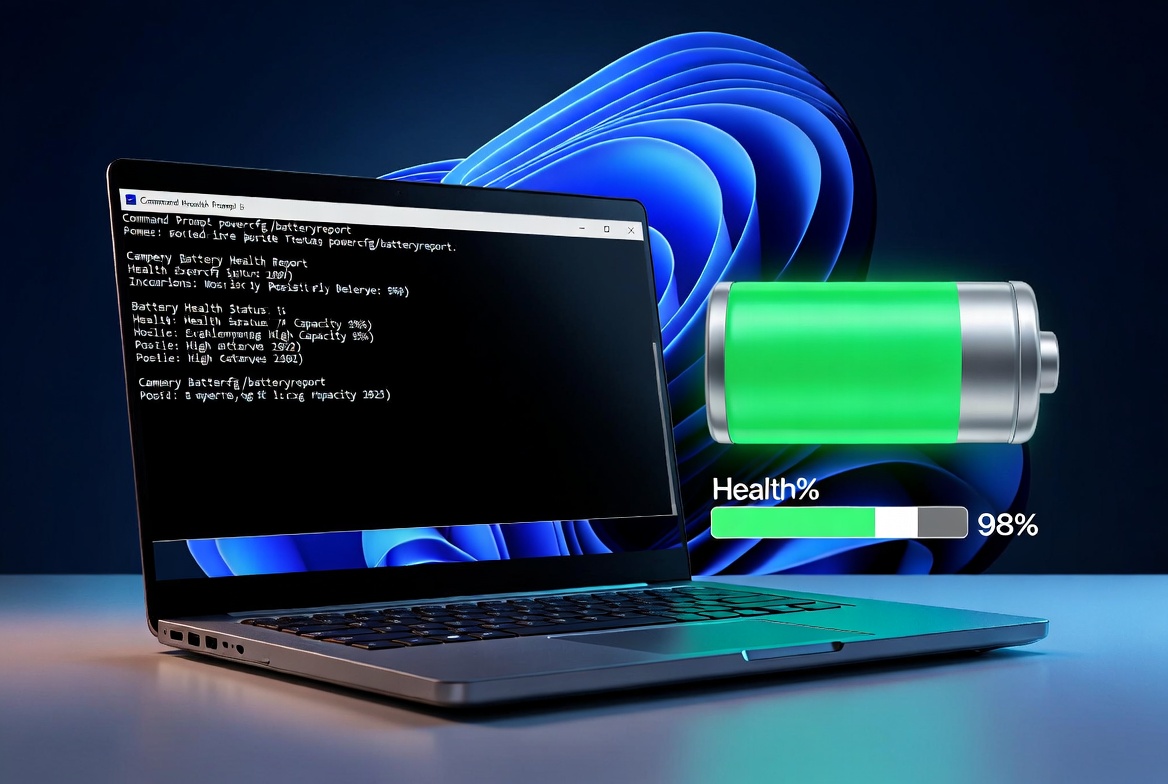
Laptop Battery Health naturally loses capacity over time. If your laptop no longer lasts as long on a single charge, takes longer to charge, or shuts down unexpectedly, then you must consider checking its battery health.
The good news is that Windows 11 includes a built-in battery report tool, so you don’t need to install any third-party software.
In this guide, we will walk through how to generate a battery health report, understand what the numbers mean, and discover simple tips to extend your battery’s lifespan.
Why Checking Battery Health Is Important
Knowing your battery’s condition can help you:
- Identify Battery wear over time
- Decide whether the battery needs replacement
- Troubleshoot Poor battery life
- Improve your Laptop’s overall performance
- Avoid unexpected shutdowns during important work
Whether you use your laptop for work, study, or gaming, regularly checking its battery health is a smart maintenance habit that indicates the laptop’s overall performance.
Method 1: Generate a Battery Health Report Using Command Prompt
Windows 11 can create a detailed battery report in just a few seconds.
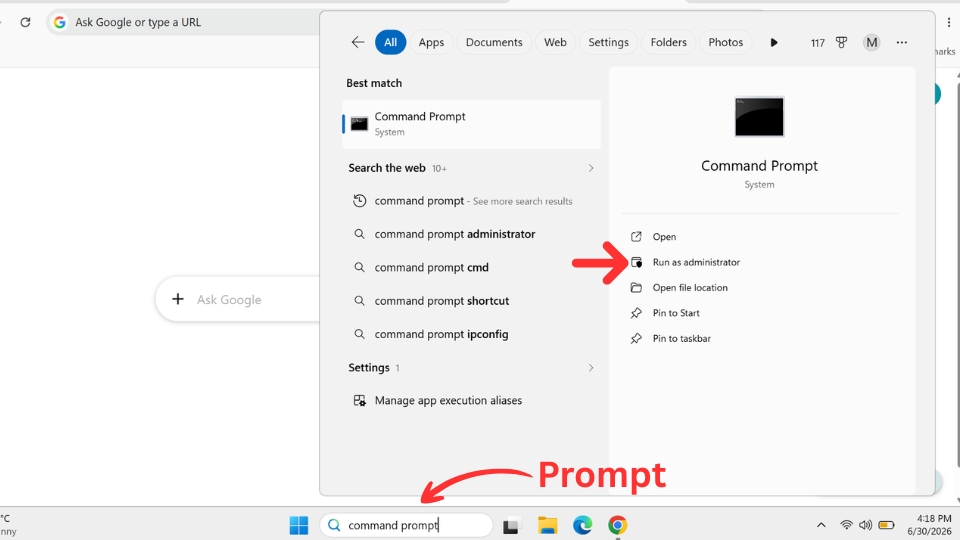
Step 1: Open Command Prompt
Press:
Windows + S
Type:
Command PromptSelect Run as administrator.
Step 2: Run the Battery Report Command
Enter the following command:
powercfg /batteryreportPress Enter.
You should see a message similar to:
Battery life report saved to
C:\Users\YourName\battery-report.html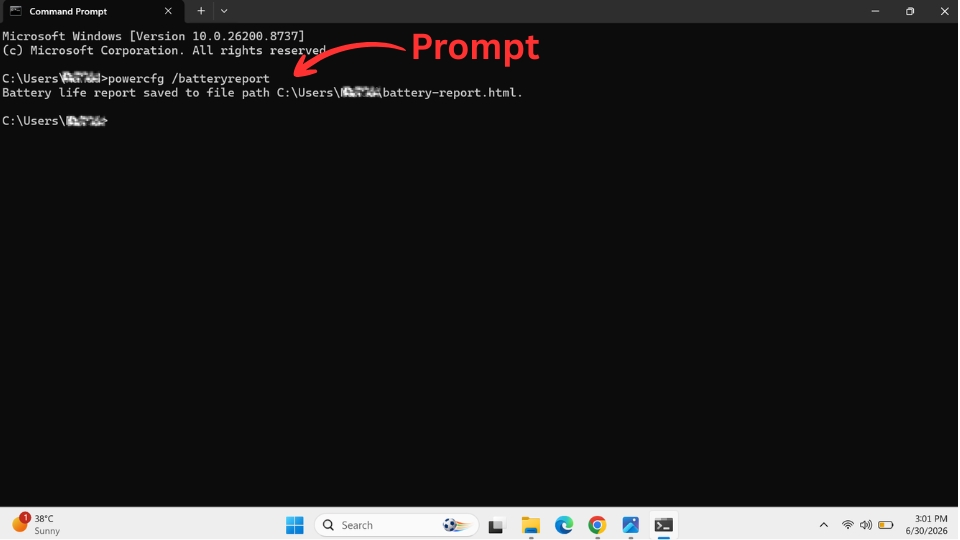
Step 3: Open the Battery Report
Navigate to the file location shown in Command Prompt.
Double-click battery-report.html.
The report opens in your default web browser.
WiFi Option Missing in Windows 11? 10 Fixes That Actually Work.
Understanding the Battery Report
The report contains several sections.
Here are the most important ones.
Installed Batteries
This section shows:
- Battery Manufacturer
- Serial Number
- Battery Type
- Design Capacity
- Full Charge Capacity
- Cycle Count (available on some laptops)
Design Capacity vs Full Charge Capacity
This is the most important part of the report.
Design Capacity
This is the battery’s original capacity when it was new.
Example:
50,000 mWhFull Charge Capacity
This shows how much charge the battery can currently hold.
Example:
42,000 mWhIf the full charge capacity is much lower than the design capacity, your battery has experienced normal wear.
Example
| Design Capacity | Full Charge Capacity | Battery Condition |
|---|---|---|
| 50,000 mWh | 49,000 mWh | Excellent |
| 50,000 mWh | 44,000 mWh | Good |
| 50,000 mWh | 35,000 mWh | Worn |
| 50,000 mWh | Below 30,000 mWh | Consider Replacement |
Battery Usage
The report also displays how your battery has been used.
You’ll find information about:
- Active Usage
- Connected Standby
- Sleep Mode
- Charging History
This can help determine whether rapid battery drain is due to heavy usage or background processes.
Battery Capacity History
One of the most useful sections is Battery Capacity History.
It Compares:
- Original Battery Capacity
- Current Battery Capacity
A gradual decline is completely normal.
However, a sudden drop may indicate battery damage or aging.
Battery Life Estimates
Windows also estimates:
- Current Battery Life
- Expected Battery Life when new
These estimates help you understand how much battery life has been lost over time.
Signs Your Laptop Battery Needs Replacement
Consider replacing your Battery if you notice any of these Issues:
- Battery Drains very quickly
- Laptop Powers off unexpectedly
- Charging takes unusually long
- Battery Percentage jumps suddenly
- Full Charge Capacity is much lower than Design Capacity
- Windows Displays battery service warnings
Most Laptop Batteries are designed to last 300–500 charge cycles, although premium models may last even longer.
Tips to Extend Laptop Battery Life
You can Slow Battery Wear by following these simple practices:
Lower Screen Brightness
Reducing brightness can significantly improve battery life.
Use Battery Saver Mode
Enable Battery Saver when you’re away from a charger.
Go to:
Settings → System → Power & Battery
Avoid Extreme Temperatures
High heat is one of the biggest causes of battery degradation. Keep your laptop well-ventilated and avoid leaving it in direct sunlight or inside a hot vehicle.
Close Unnecessary Apps
Background applications consume both CPU Power and Battery.
Close programs you’re not actively using.
Keep Windows Updated
Microsoft regularly releases updates that improve power efficiency and battery management.
Avoid Keeping the Battery at 100% All the Time
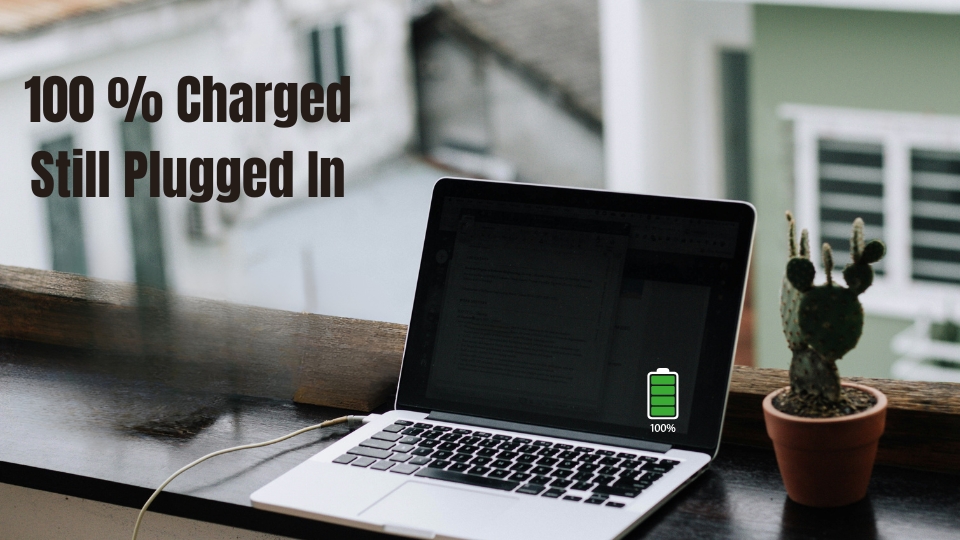
This is one of the things that most of the users consider doing by assuming that it will have a positive effect on the laptop’s battery. If your laptop supports battery protection features, enable them.
Keeping the battery between 20% and 80% during regular use can help extend its lifespan.
Frequently Asked Questions (FAQs)
Is the Windows battery report accurate?
Yes. The report is generated using data provided by your laptop’s battery controller and is generally reliable for monitoring battery health.
Can I improve battery health after it decreases?
Battery wear is permanent. However, following good charging habits and reducing heat can slow further degradation.
How often should I check battery health?
Checking once every one to three months is usually sufficient for most users.
Do I need third-party software?
No. Windows 11 includes everything you need to generate a detailed battery health report.
What battery health percentage is considered good?
As a general guideline:
- 90–100%: Excellent
- 80–89%: Good
- 70–79%: Fair
- Below 70%: Consider replacing the battery if you experience poor battery life.
Final Thoughts
Checking your laptop’s battery health in Windows 11 is quick, easy, and doesn’t require any additional software. By generating a battery report with the built-in powercfg command, you can monitor battery wear, compare its current capacity to its original design, and decide whether it’s time for a replacement.
Regularly reviewing your battery health and following good charging practices can help maximize your laptop’s lifespan and ensure it performs reliably for years to come.
For official Windows support, visit: Microsoft Windows Help
This is especially useful if the update is known to be problematic. Microsoft recently pulled and replaced several faulty updates.
For more troubleshooting guides, visit Techmart. Study our policies on the Contact Us and About Us pages on our website.