

Introduction
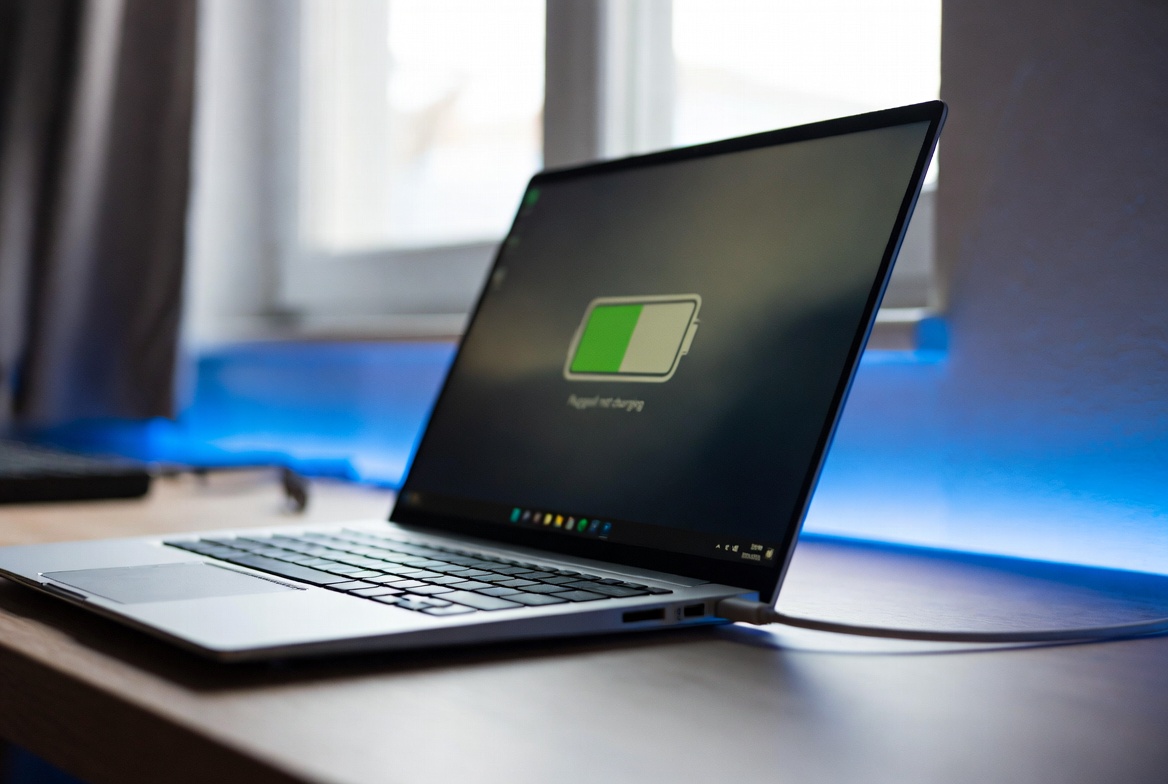
If your laptop shows “plugged in, not charging”, you are not alone. This is one of the most common laptop issues users face in 2026. Sometimes the battery percentage stays stuck, charges very slowly, or stops increasing completely even while the charger is connected.
The good news is that this issue is often caused by simple software settings, charger problems, or battery health issues — and most of the time, it can be fixed at home.
In this guide, we’ll walk through 7 proven fixes that actually work.
1. Check the Charger and Cable First
Before trying software fixes, always inspect the charger.
Look for:
- Loose Charging pin
- Bent USB-C Connector
- Cable Cuts or Fraying
- Overheating Adapter Brick
A damaged charger is one of the biggest reasons laptops stop charging properly.
Fix:
Try using the original charger that came with your laptop. If possible, test another compatible charger.
Read more: USB-C Charging Not Working? Easy Fix for Laptops 2026
2. Check the Power Outlet
Sometimes the problem is not the laptop — it’s the wall socket.
Try:
- Another power outlet
- Removing extension board
- Checking loose switch connections
A weak power source may power the laptop but fail to charge the battery.
3. Restart the Laptop
Temporary software glitches often cause charging errors. A simple restart can reset power management services.
Steps:
- Shut down the laptop completely
- Unplug charger
- Wait 30 seconds
- Plug charger back in
- Restart laptop
This simple fix solves many charging issues.
4. Reinstall Battery Drivers (Very Important)
Windows battery drivers can become corrupted after updates. This is a very common issue in 2026, especially on Windows 11 laptops.
Steps
- Open Device Manager
- Expand Batteries
- Right click Microsoft ACPI-Compliant Control Method Battery
- Click Uninstall device
- Restart the laptop
Windows will automatically reinstall the driver. This is one of the most effective fixes.
5. Check Battery Health
If your laptop battery is old, it may no longer hold charge.
Signs Of Battery Wear:
- Battery stuck at 0%, 60%, or 80%
- Sudden shutdowns
- Very fast drain
- Battery percentage jumps
Older batteries naturally lose capacity over time.
Laptop Battery Draining Fast? What to Check First (2026)
6. Disable Battery Charge Limit Setting
Many brands like HP, Dell, Lenovo, and ASUS include battery protection mode.
This can intentionally stop charging at 60% or 80% to protect battery life.
Users often mistake this for a fault.
Check software like:
- My ASUS
- Lenovo Vantage
- Dell Power Manager
- HP Support Assistant
7. Update BIOS and Power Drivers
Sometimes outdated BIOS firmware causes charging bugs.
Visit your laptop manufacturer’s website and update:
- BIOS
- chipset drivers
- battery drivers
- power management drivers
This fix is especially useful after Windows updates.
Conclusion
If your laptop says plugged in but not charging, the issue is usually related to:
- faulty charger
- battery driver issue
- battery health
- charge limit settings
- BIOS bugs
Start with the simple checks first, then move toward driver and BIOS fixes.
Most users solve this issue without needing repair.
FAQ
Why does my laptop say plugged in but not charging?
Usually because of battery drivers, damaged charger, or battery health mode settings.
Can a bad battery cause this problem?
Yes, old batteries often stop charging properly.
Should I replace the charger first?
Yes, always test another charger before assuming battery failure.
For more troubleshooting guides, visit our Contact Us and About Us pages on Techmart.pk.