

If your laptop is overheating even when not gaming, you are not alone. Many users face this issue while browsing, attending online classes, or doing office work.
Overheating can slow down your laptop, reduce battery life, and even damage internal components over time. The good news is that most overheating issues can be fixed with simple steps.
In this guide, we will cover 7 easy fixes that actually work.
1. Clean Dust From Air Vents and Fans
Dust is one of the most common reasons behind laptop overheating.
When dust blocks the air vents, hot air gets trapped inside the laptop.
Use:
- Compressed air
- A soft brush
- Microfiber cloth
To clean the vents carefully a cooling pad can also help improve airflow.
2. Close Background Apps
Sometimes your laptop gets hot because too many apps are running in the background.
Open Task Manager and check CPU usage.
If unnecessary apps are using high memory or CPU, close them.
Common culprits:
- Chrome tabs
- Update services
- Antivirus scans
- Startup apps
This can significantly reduce heat.
Is your Laptop Suddenly Slow After Windows Update? Don’t forget to read this article.
Why Is My Laptop Suddenly Slow After Windows Update? 7 Easy Fixes (2026)
3. Place the Laptop on a Hard Surface
Using the laptop on a bed, pillow, or blanket blocks the cooling vents.
Always place the laptop on:
- A Desk
- Table
- Laptop Stand
- Cooling Pad
This helps proper airflow.
4. Update Drivers and Windows
Outdated drivers can cause fan issues and overheating.
Go to:
Settings > Windows Update
And install all pending updates.
5. Reduce Screen Brightness and Performance Mode
High Brightness and Performance mode can increase laptop temperature.
Switch to:
Balanced Mode instead of Best Performance.
This can help especially on battery.
6. Use a Cooling Pad
A Laptop Cooling Pad is one of the easiest fixes.
It improves airflow and keeps the bottom surface cool.
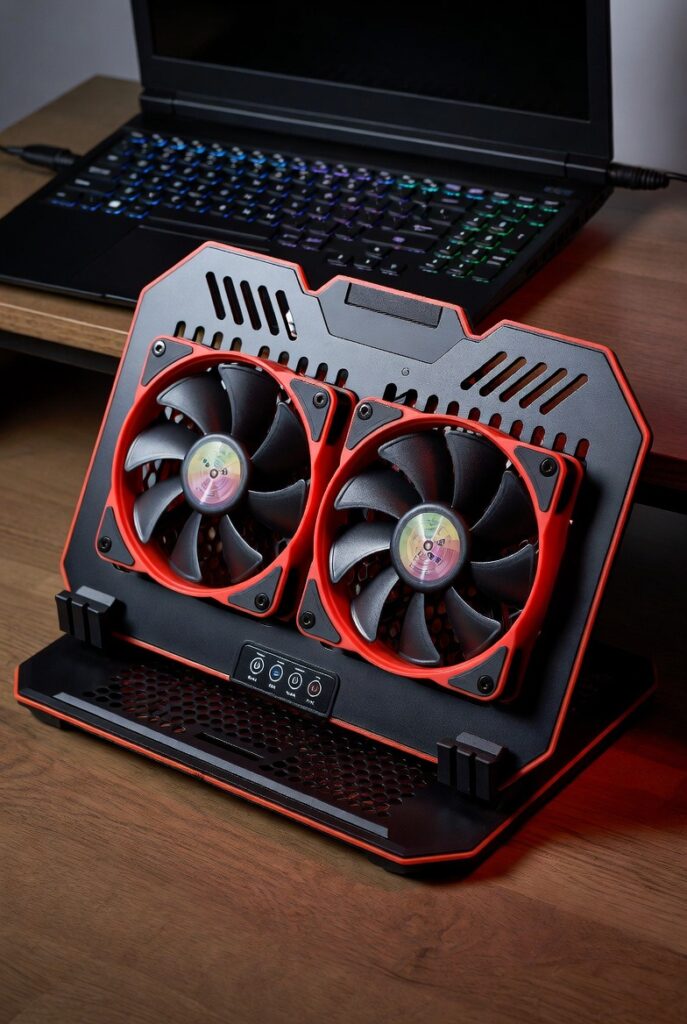
Cooling pads are especially useful during summer or in warm rooms.
7. Replace Thermal Paste
If your laptop is old, the thermal paste may have dried out.
This reduces heat transfer from CPU to heatsink.
In this case, replacing thermal paste can solve the issue.
If you are not comfortable opening the laptop, visit a professional technician.
For official Windows support, visit: Microsoft Windows Help
For more troubleshooting guides, visit our Contact Us and About Us pages on Techmart.pk.