

Introduction
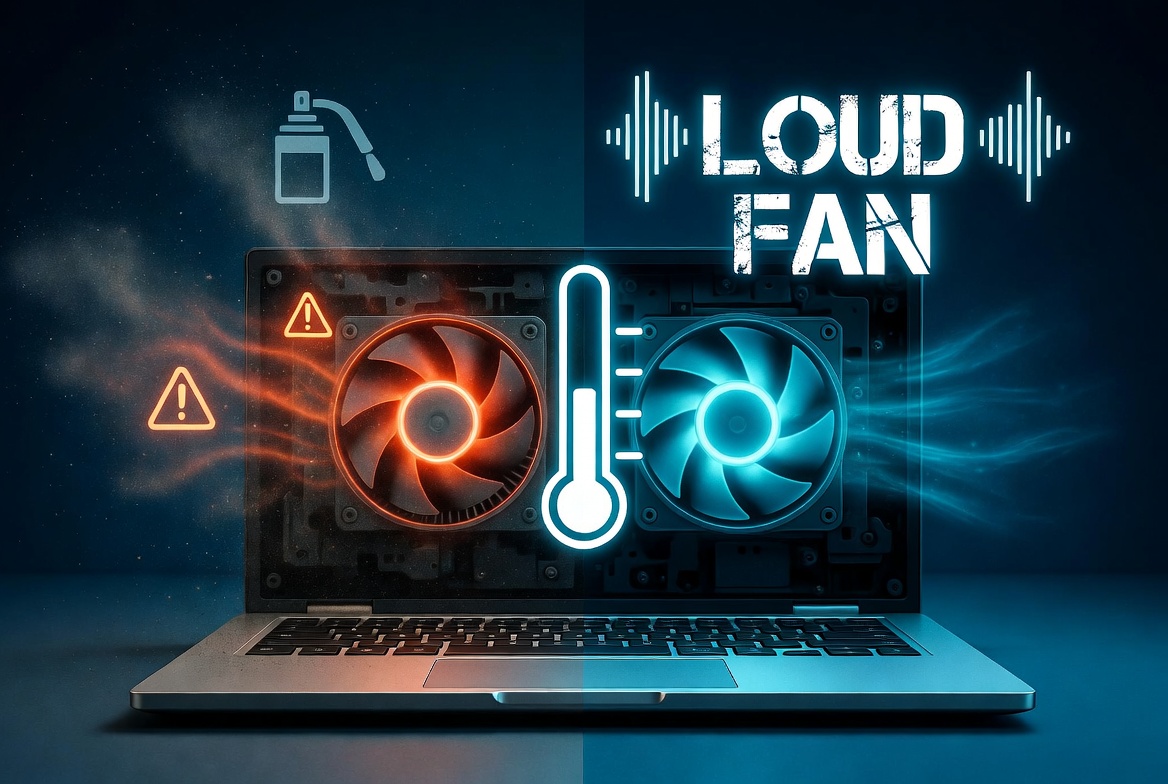
If your laptop fan suddenly sounds loud even during simple tasks like browsing, watching videos, or attending online meetings, you are not alone. This is one of the most common issues laptop users face in 2026.
In most cases, a loud fan does not mean your laptop is damaged. Usually, it happens because of dust buildup, background apps, high CPU usage, or poor airflow. These issues can force the fan to spin faster to keep your laptop cool.
The good news is that most of these problems can be fixed at home without any technical expertise.
In this guide, we’ll explain why your laptop fan is so loud and share 6 easy fixes that actually work.
Read Also: Why Is My Laptop Overheating Even When Not Gaming? 7 Easy Fixes (2026)
1) Check Background Apps Running in Task Manager
Sometimes your laptop fan becomes loud because hidden apps are consuming CPU resources in the background.
Apps like:
- Browsers with many tabs
- Windows Updates
- Antivirus Scans
- Cloud Sync Apps
- Startup Programs
Can increase CPU usage and trigger the fan.
How to Fix It
Press Ctrl + Shift + Esc to open Task Manager
Check the CPU column.
If any app is using high CPU unnecessarily, close it.
This often reduces fan noise immediately.
2) Clean the Air Vents and Fan Area
Dust is the biggest reason for loud fan noise in everyday laptops.
Over time, dust blocks the vents and restricts airflow.
When airflow is reduced, the fan works harder and becomes louder.
How to Fix It
- Turn off your laptop
- Unplug Charger
- Use a soft brush or compressed air
- Clean side and bottom vents carefully
This simple step can make a huge difference.
3) Avoid Using Laptop on Bed or Sofa
Many users place laptops on beds, cushions, or sofas.
This blocks the bottom air vents and traps heat.
As a result, the fan spins at maximum speed.
Best Practice
Always use your laptop on:
- Desk
- Table
- Laptop stand
- Hard flat surface
This improves airflow and reduces fan noise.
4) Restart Your Laptop
Sometimes Windows background services get stuck.
A simple restart clears temporary CPU spikes and stops unnecessary fan activity.
This is one of the fastest fixes and works surprisingly well.
5) Change Power Mode to Balanced
If your laptop is set to High Performance mode, the CPU stays more active.
This generates extra heat.
How to Fix It
Go to:
Settings → System → Power & Battery
Select Balanced or Recommended
This reduces unnecessary heat generation and helps quiet the fan.
Also Check: Why Is My Laptop Suddenly Slow After Windows Update? 7 Easy Fixes (2026)
6) Update Windows and Drivers
Outdated drivers can cause abnormal fan behavior.
Sometimes after updates, background processes also increase fan usage.
Update:
- Windows
- Chipset Drivers
- BIOS
- Graphics Drivers
This often fixes fan control issues.
Final Thoughts
A loud laptop fan during normal use is usually caused by dust, poor airflow, or background processes.
In most cases, these simple fixes solve the issue quickly without any repair cost.
If the noise continues even after trying all fixes, the fan itself may be worn out and should be checked professionally.
For official Windows support, visit: Microsoft Windows Help
For more troubleshooting guides, visit our Contact Us and About Us pages on Techmart.pk.