
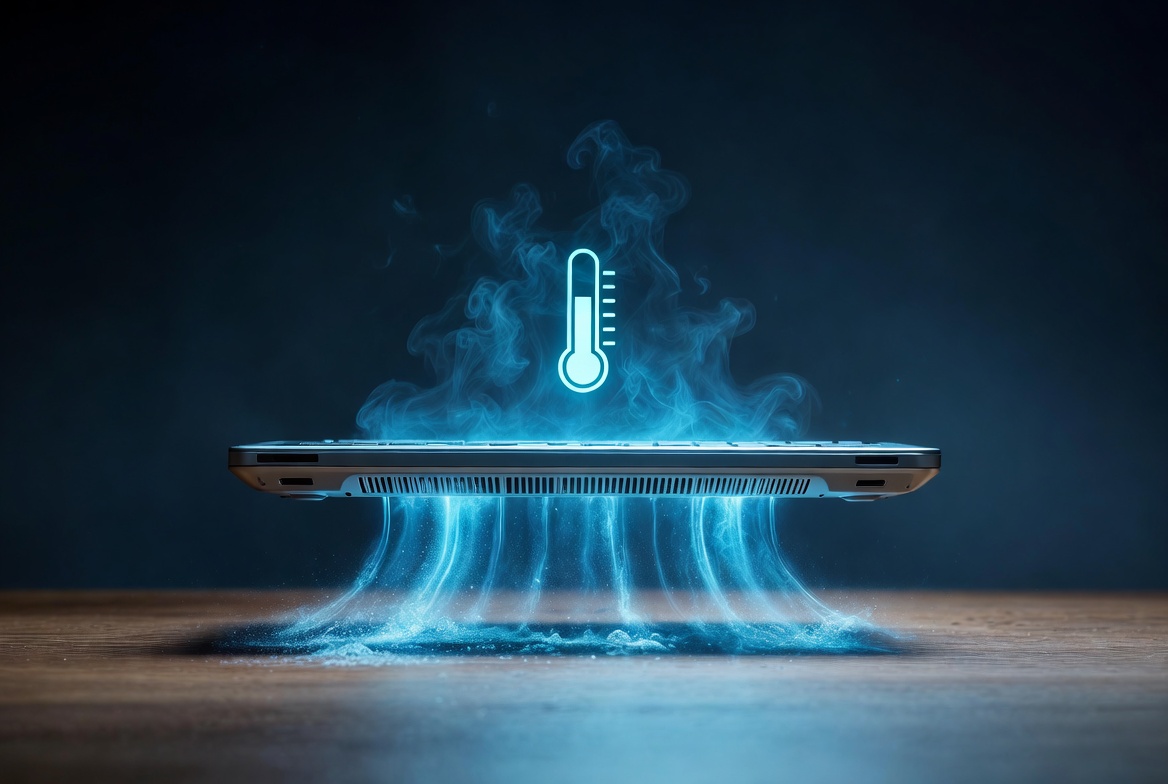
Want to keep your laptop cool without a cooling pad? Laptop overheating is still a major problem in 2026. High temperatures slow down performance, reduce battery life, and can damage components over time. The good news is you can significantly lower your laptop temperature with simple tricks — no cooling pad required.
Here are 7 proven ways to keep your laptop cool without a cooling pad.
1. How to Keep Laptop Cool Without Cooling Pad on Any Surface
Soft surfaces like beds or sofas block airflow and trap heat. Always place your laptop on a hard, flat surface such as a desk or table.
Pro Tip: Slightly elevate the rear of the laptop using a stand or even two books. This simple change dramatically improves airflow.
2. Clean Vents to Keep Laptop Cool Without Cooling Pad
Dust is the biggest enemy of laptop cooling. Regular cleaning can reduce temperatures by 10–20°C.
How to clean safely:
- Shut down and unplug your laptop
- Hold it upside down
- Use compressed air in short bursts to clear vents
Important: Never use a vacuum cleaner as it can cause static damage.
3. Close Background Apps to Keep Laptop Cool
Heavy background processes make your CPU and GPU work harder and generate more heat.
Press Ctrl + Shift + Esc to open Task Manager, sort by CPU usage, and close unnecessary apps like browsers with many tabs, OneDrive, or Dropbox.
4. Change Power Settings to Keep Laptop Cool
High-performance mode increases heat significantly.
Go to Settings → System → Power & Battery → Power Mode and select Balanced or Power Saver for everyday use.
→ Official Microsoft Power Settings Guide
5. Update Drivers to Keep Laptop Cool Without Cooling Pad
Outdated drivers and BIOS can cause poor fan control and overheating.
Always download the latest chipset, graphics, and BIOS updates from your laptop manufacturer’s official website (Dell, HP, Lenovo, ASUS, etc.).
6. Reduce Brightness and Tabs to Keep Laptop Cool
High screen brightness and too many open tabs increase heat generation.
Lower brightness to 50–60% and use browser extensions like OneTab to reduce open tabs.
Is your Laptop Suddenly Slow After Windows Update? Don’t forget to read this article.
Why Is My Laptop Suddenly Slow After Windows Update? 7 Easy Fixes (2026)
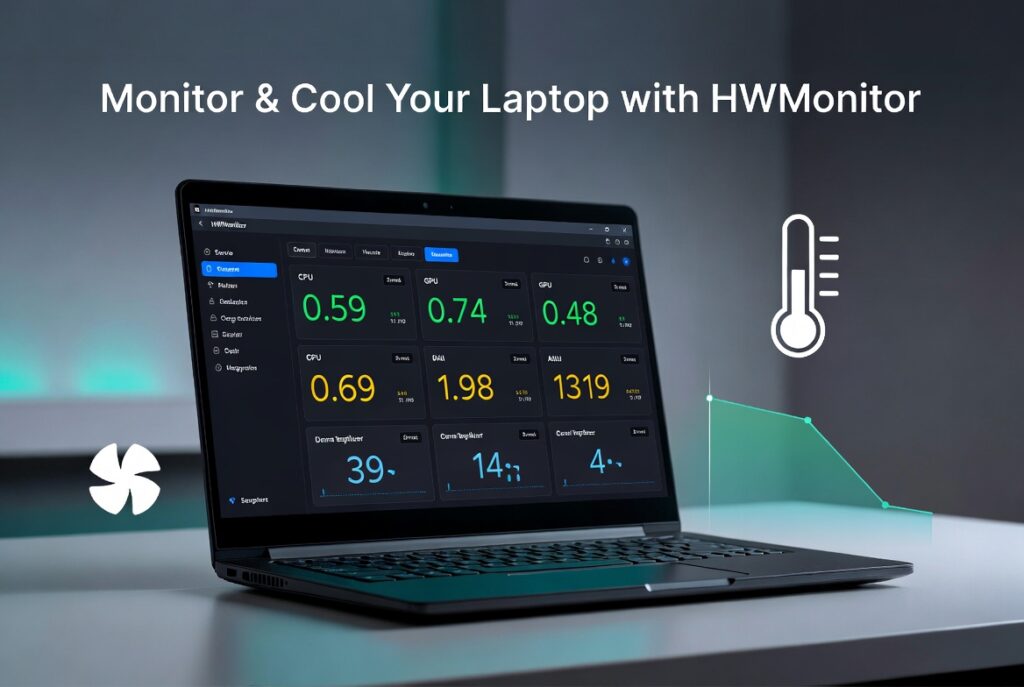
7. Best Software to Keep Laptop Cool Without Cooling Pad
Smart software can help control temperatures effectively.
- HWMonitor or Core Temp – Best for monitoring temperatures
- ThrottleStop – Great for advanced CPU control (use with caution)
- MSI Afterburner – Useful for gaming laptops
Warning: Advanced tools like ThrottleStop can cause instability if used incorrectly. Start with small adjustments.
Conclusion
You no longer need a cooling pad to keep your laptop cool. By following these 7 methods — proper placement, regular cleaning, smart settings, and monitoring — you can reduce heat, improve performance, and extend your laptop’s lifespan in 2026.
Which tip worked best for you? Tell me your laptop model and current temperature in the comments below!